
Advanced Quotes 1.21: approval, selections, and discounts
Guide reviewed October 7, 2026. Use the matching package for your installed nopCommerce version.
Newer cart and checkout checks validate the current approval, customer, quote state, expiration, product selections, and negotiated amounts. A changed/reapproved quote does not revive a stale cart copy. Remove an invalid quoted line and copy the currently approved quote again.
- Direct cart copies retain product attributes, gift-card/upload information, and rental dates. Revisions and PDFs show the saved selection descriptions.
- Line discounts and proportional quote-level discounts are already included in the negotiated cart amounts. Catalog/product/tier discounts do not apply again to those quoted lines.
- Eligible order-level and shipping coupons retain normal nopCommerce behavior. Checkout recalculates tax and shipping; quote estimates are not forced onto the order.
- Configured, rental, or discounted quotes use direct cart copying. Reusable Quick Order Forms cannot preserve those quote-specific selections or allocations.
- Completed/converted quotes are read-only records. Create a revision for another offer.
When Quick Order Forms is installed, update both plugin assemblies together and restart. The product-selection migration introduced in 1.19 adds nullable item fields; 1.21 adds no further schema changes. Options previously lost by older versions cannot be reconstructed: request a fresh configured quote.
Verify your own checkout, tax, discount, payment, and theme combination on staging before rollout.
Overview
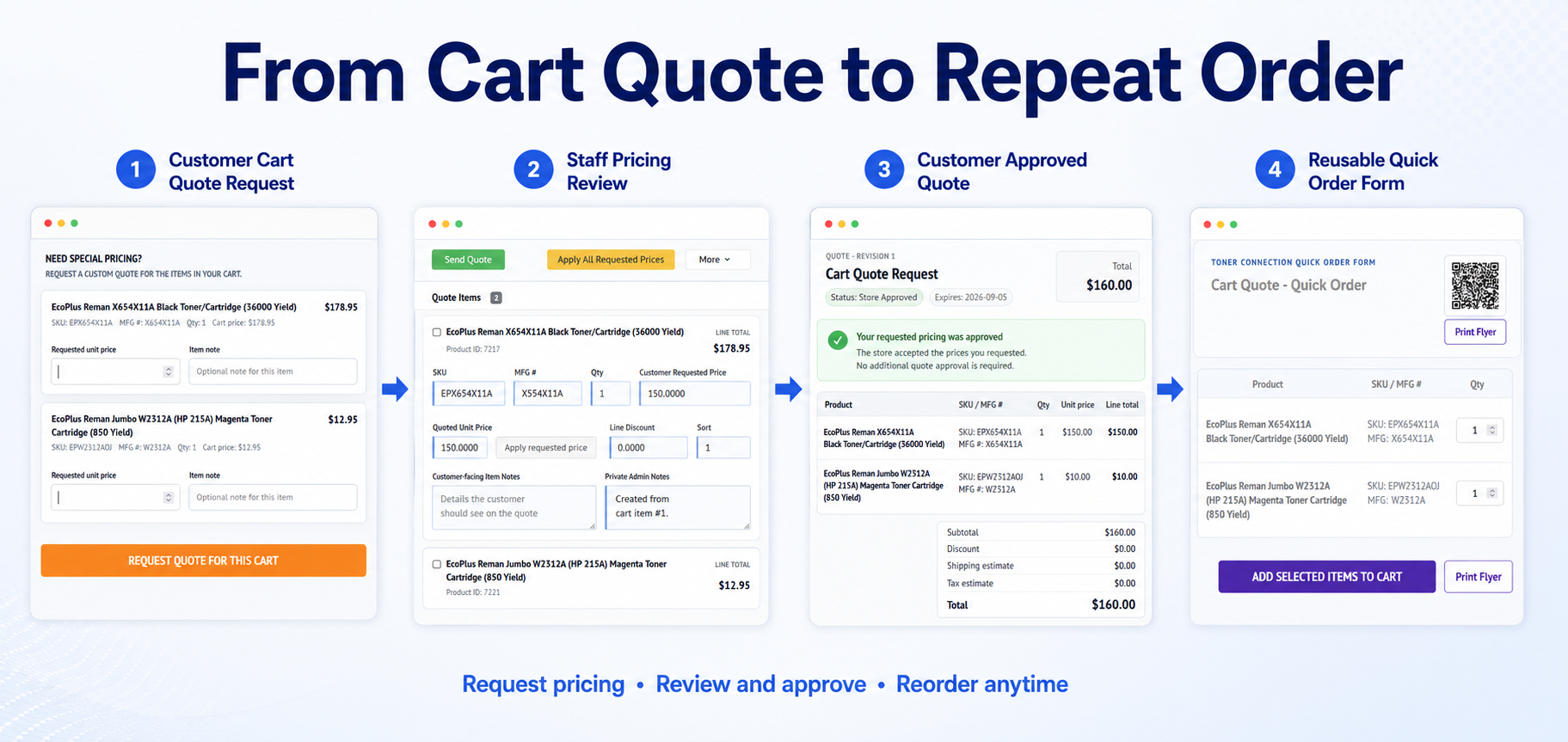
eStoreware Advanced Quotes adds a controlled commercial quotation process to nopCommerce. A quote can begin as a customer shopping-cart request or as an administrator-created record. Staff can assign the customer, add products, review requested prices, prepare an offer, send a secure link, generate a branded PDF, record approval, convert approved lines to the customer's cart, and retain the exact quote-to-order history.
Cart-based requests
Preserve products, quantities, requested prices, item notes, and overall instructions from the customer's cart.
Commercial controls
Manage quoted prices, requested prices, discounts, shipping, tax estimates, expiration, notes, and revisions.
Customer delivery
Use secure quote links, email templates, customer approval, store approval, printing, and branded PDFs.
Conversion and traceability
Preserve approved prices in the cart, link the final order, or create an optional reusable Quick Order Form.
Install and configure the plugin
- Install and activate eStoreware Core first.
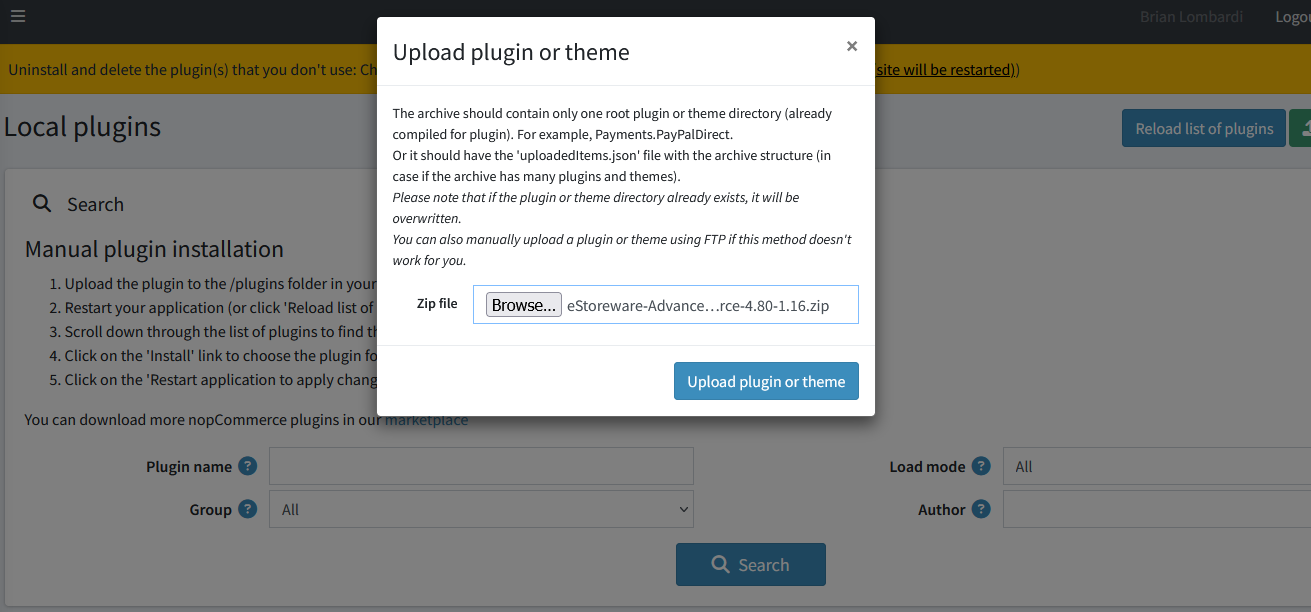
- Install eStoreware Advanced Quotes from nopCommerce Local plugins.
- Restart or reload the application when prompted.
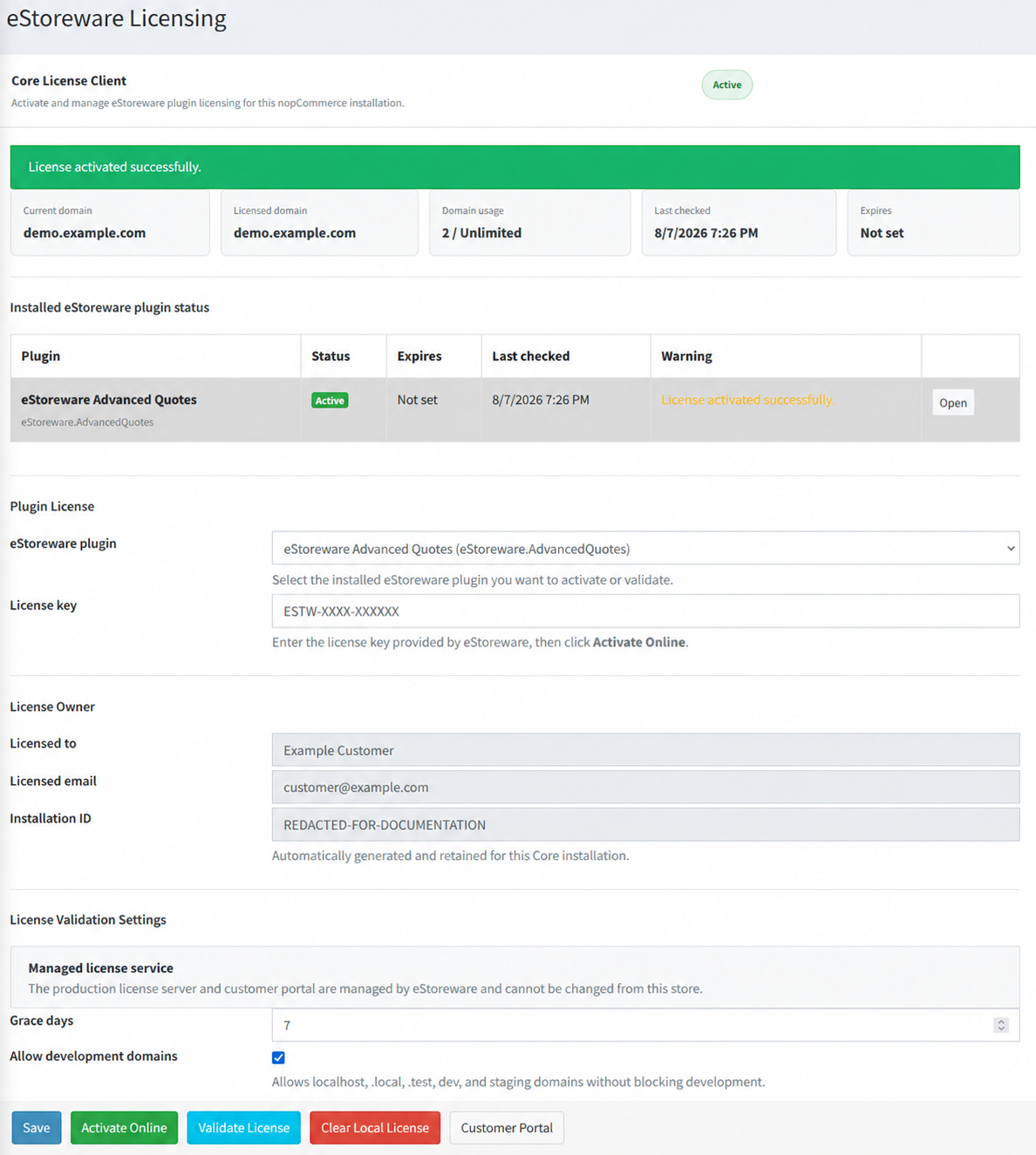
- Open eStoreware → Licensing, activate the Advanced Quotes license, and validate it.
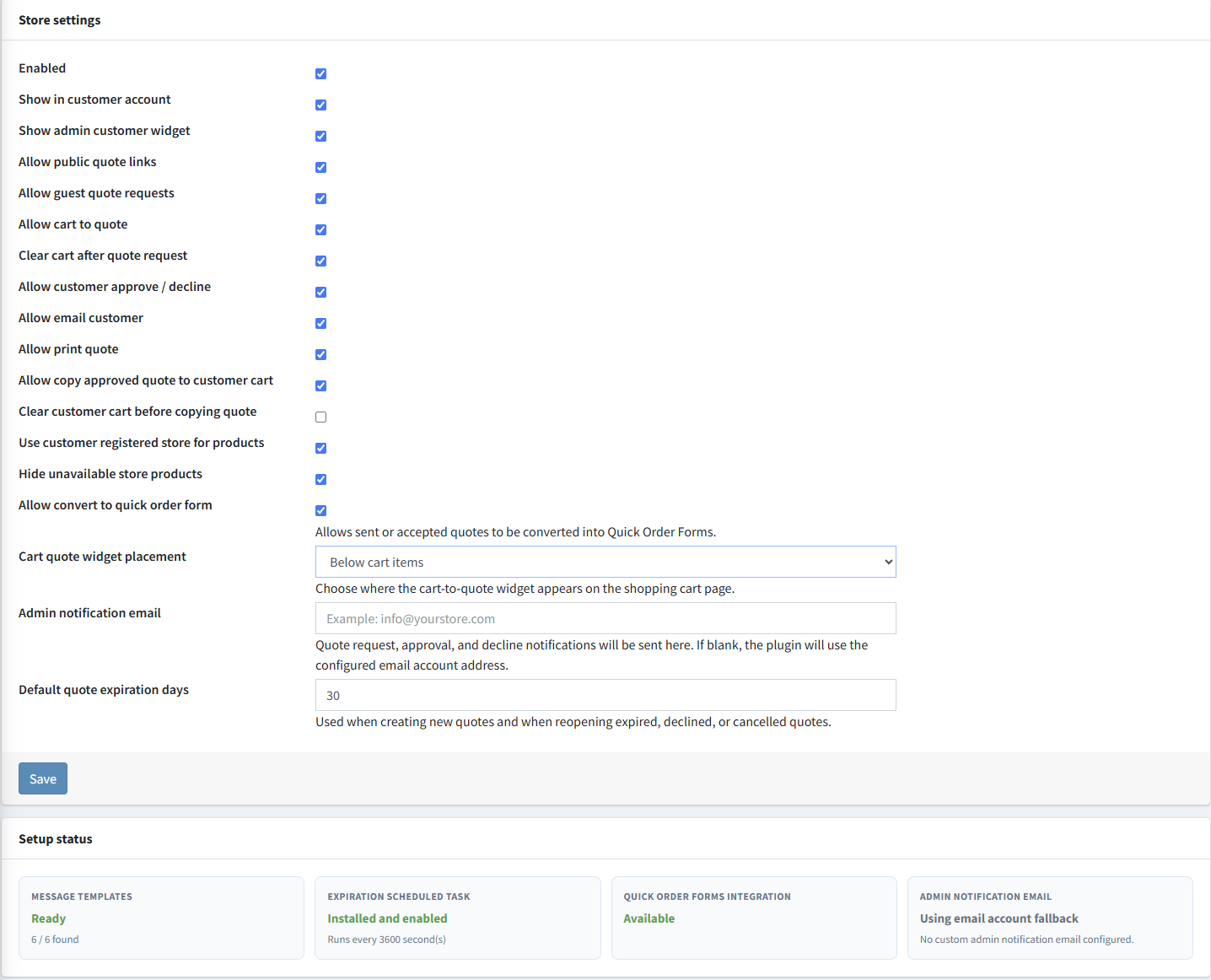
- Open Advanced Quotes → Configuration, select the intended store, review the settings, and save.
- Confirm Setup Status reports the message templates and expiration task as ready.
- Assign the Advanced Quotes administrative permissions to the appropriate roles.
Important store settings
| Setting | Purpose |
|---|---|
| Allow guest quote requests | Allows a guest to submit a cart request using a contact email. |
| Allow cart to quote | Displays the special-pricing request widget on the shopping cart. |
| Clear cart after quote request | Clears the original cart only after the request is saved successfully. |
| Allow customer approve / decline | Enables response actions on eligible secure customer quote pages. |
| Allow copy approved quote to customer cart | Enables approved quote lines to be copied to the assigned customer's cart. |
| Clear customer cart before copying quote | Controls whether existing cart contents are removed before quoted lines are added. |
| Allow convert to Quick Order Form | Enables optional conversion when the companion plugin is installed. |
| Default quote expiration days | Sets the initial expiration used for new and reopened quotes. |
Receive shopping-cart quote requests
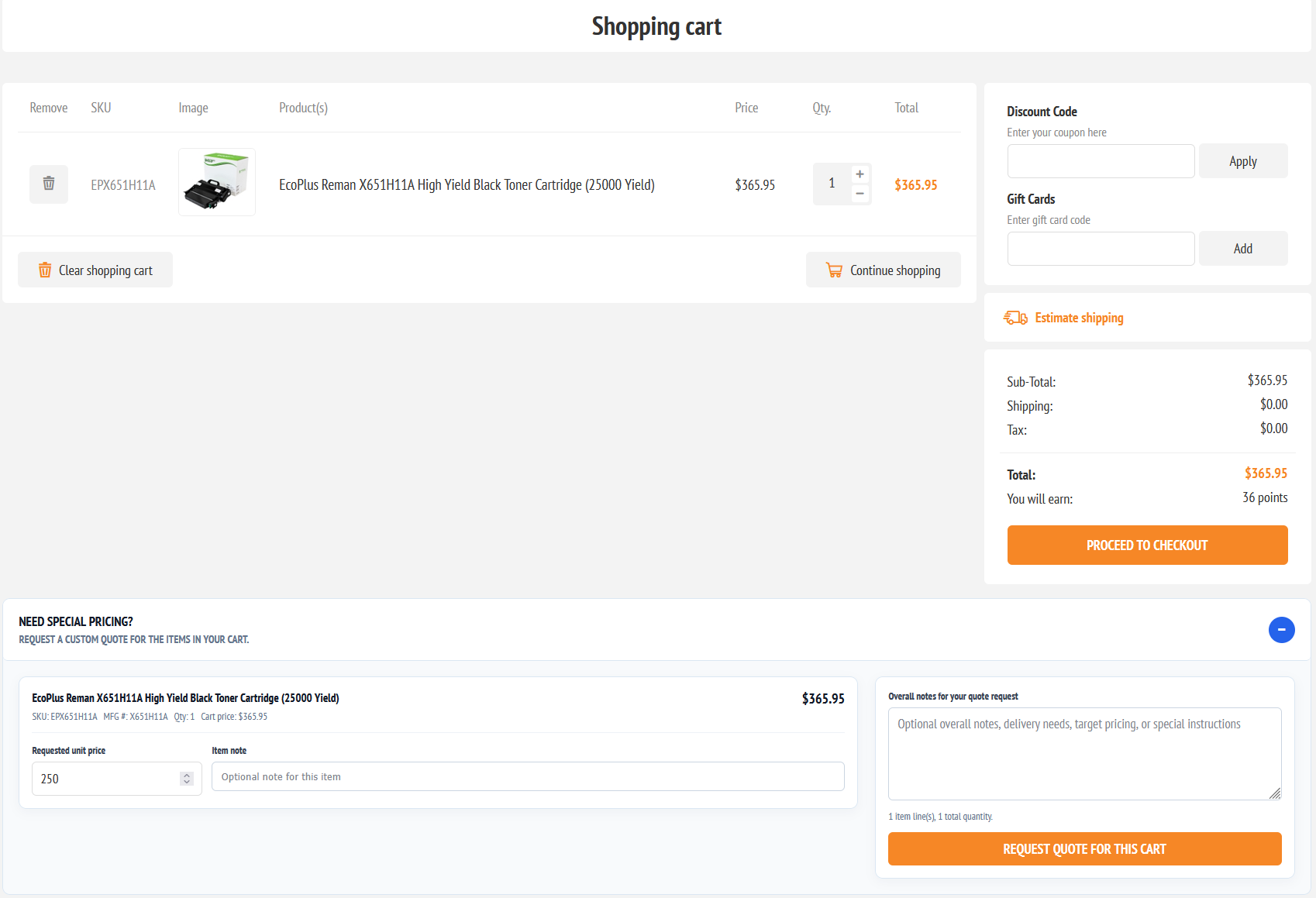
- The customer adds the required products and quantities to the shopping cart.
- The customer expands the special-pricing panel.
- They enter optional requested unit prices and item-specific notes.
- They enter overall delivery, target-pricing, or purchasing instructions.
- A guest supplies an email address; a registered customer can remain connected to My Quotes.
- The customer selects Request Quote for This Cart.
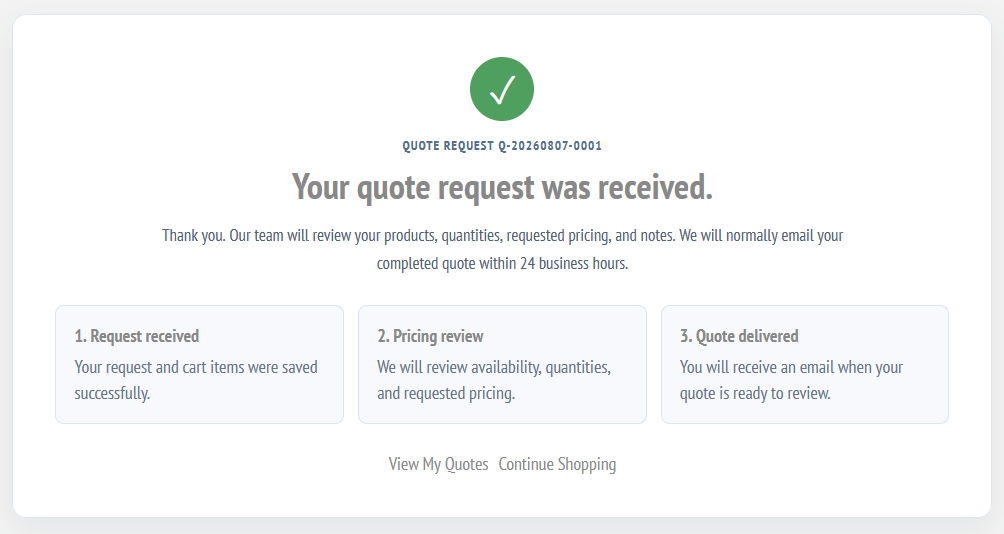
- The plugin saves the request and displays the confirmation page with its quote number and next steps.
Find and manage quotes
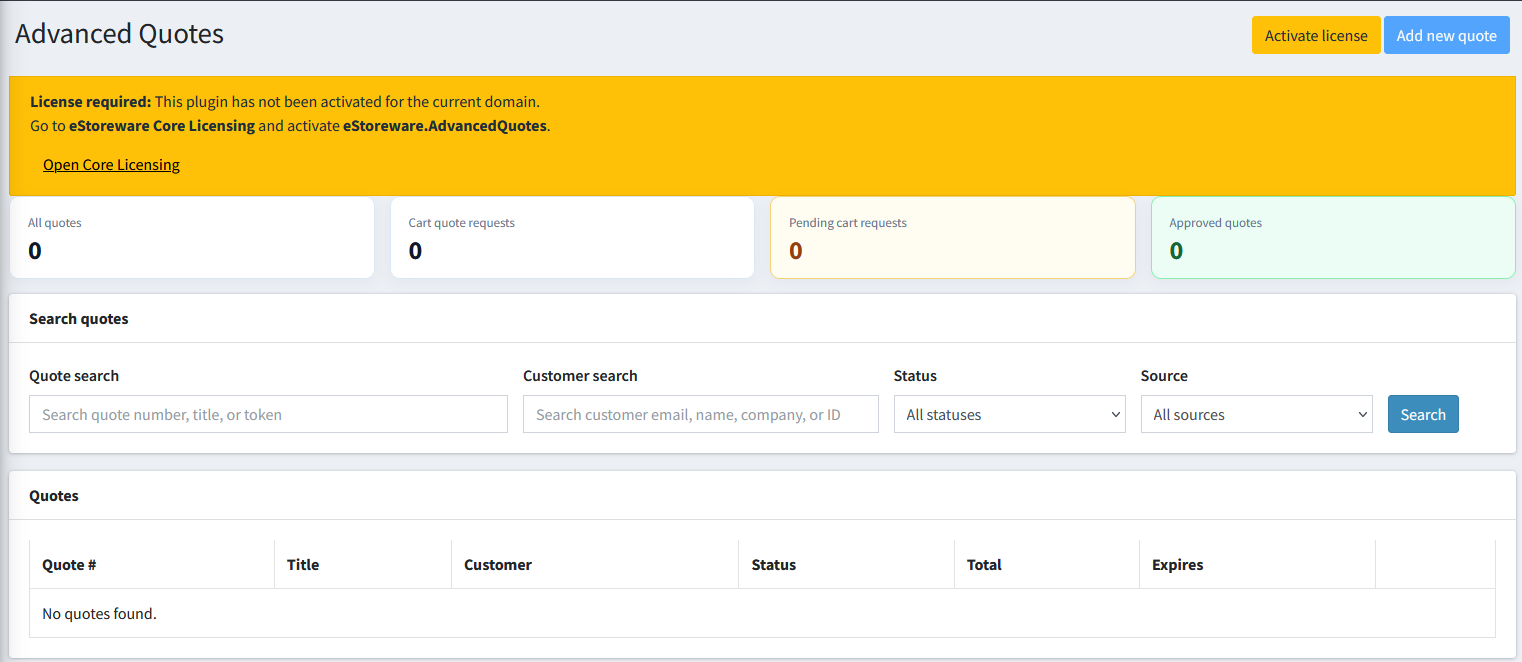
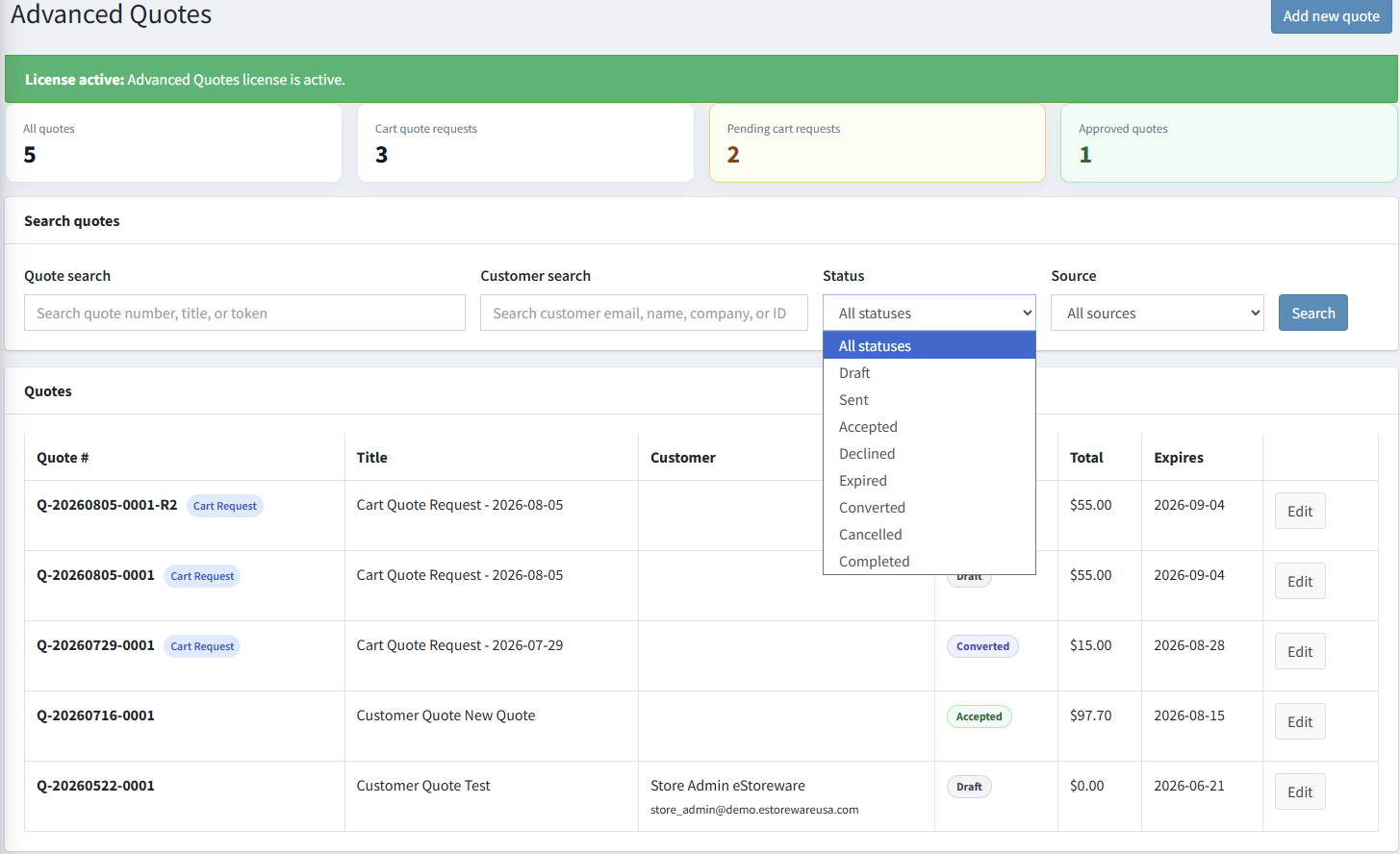
Open Administration → Advanced Quotes. The dashboard separates all quotes, cart requests, pending cart requests, and approved quotes. Search by quote number, title, token, customer email, name, company, or ID, and filter by status or source.
| Status | Typical meaning |
|---|---|
| Draft | The quote remains editable and has not been activated for customer review. |
| Sent | The customer-facing quote has been activated and delivered. |
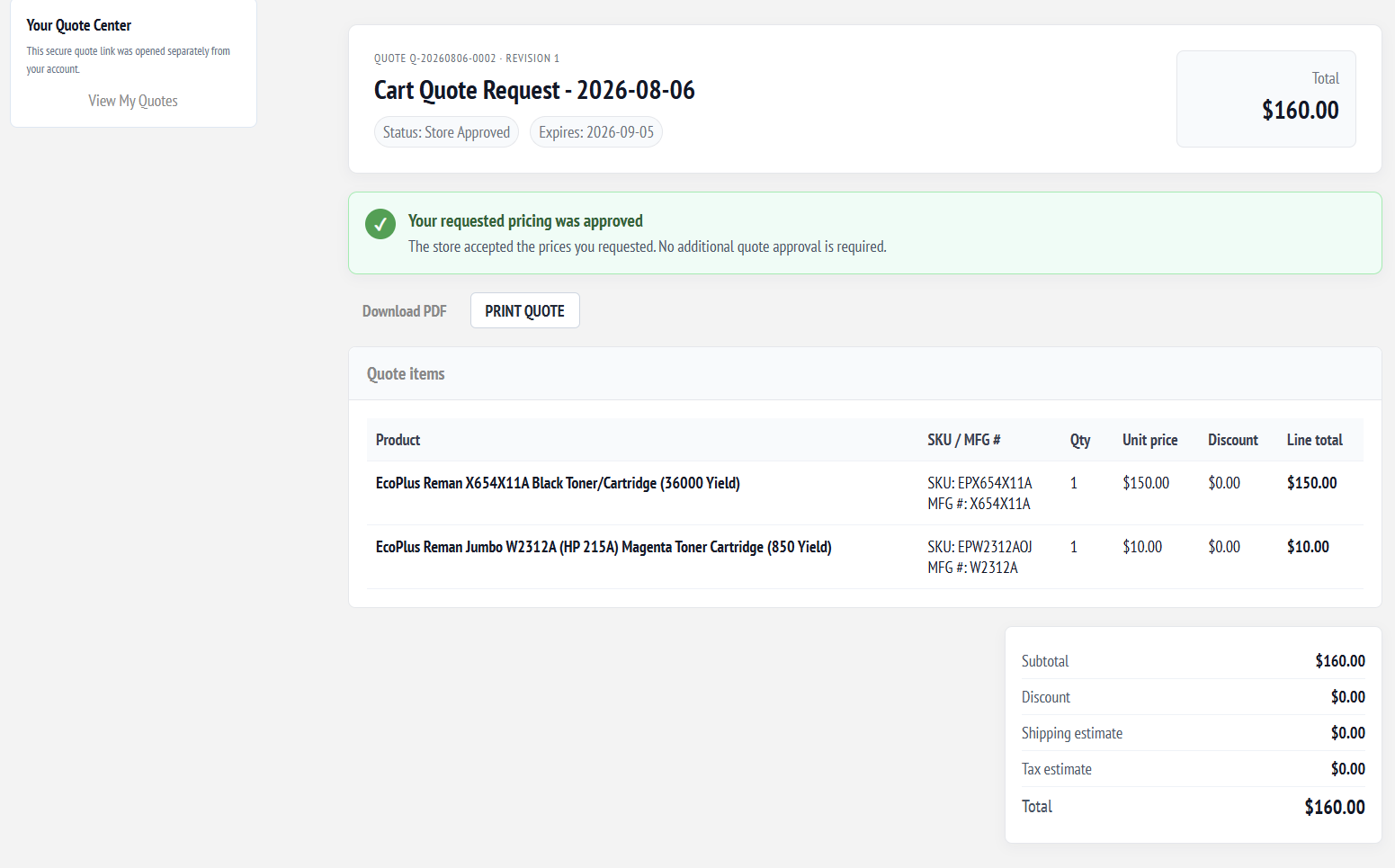
| Store Approved | The store accepted the customer's requested prices; no additional customer approval is required. |
| Accepted / Declined | The customer recorded a response to the offer. |
| Expired | The expiration date passed and the expiration task updated the quote. |
| Converted | The quote was connected to a resulting order or completed conversion workflow. |
| Completed / Cancelled | The administrative workflow was finished or stopped. |
Create a quote manually
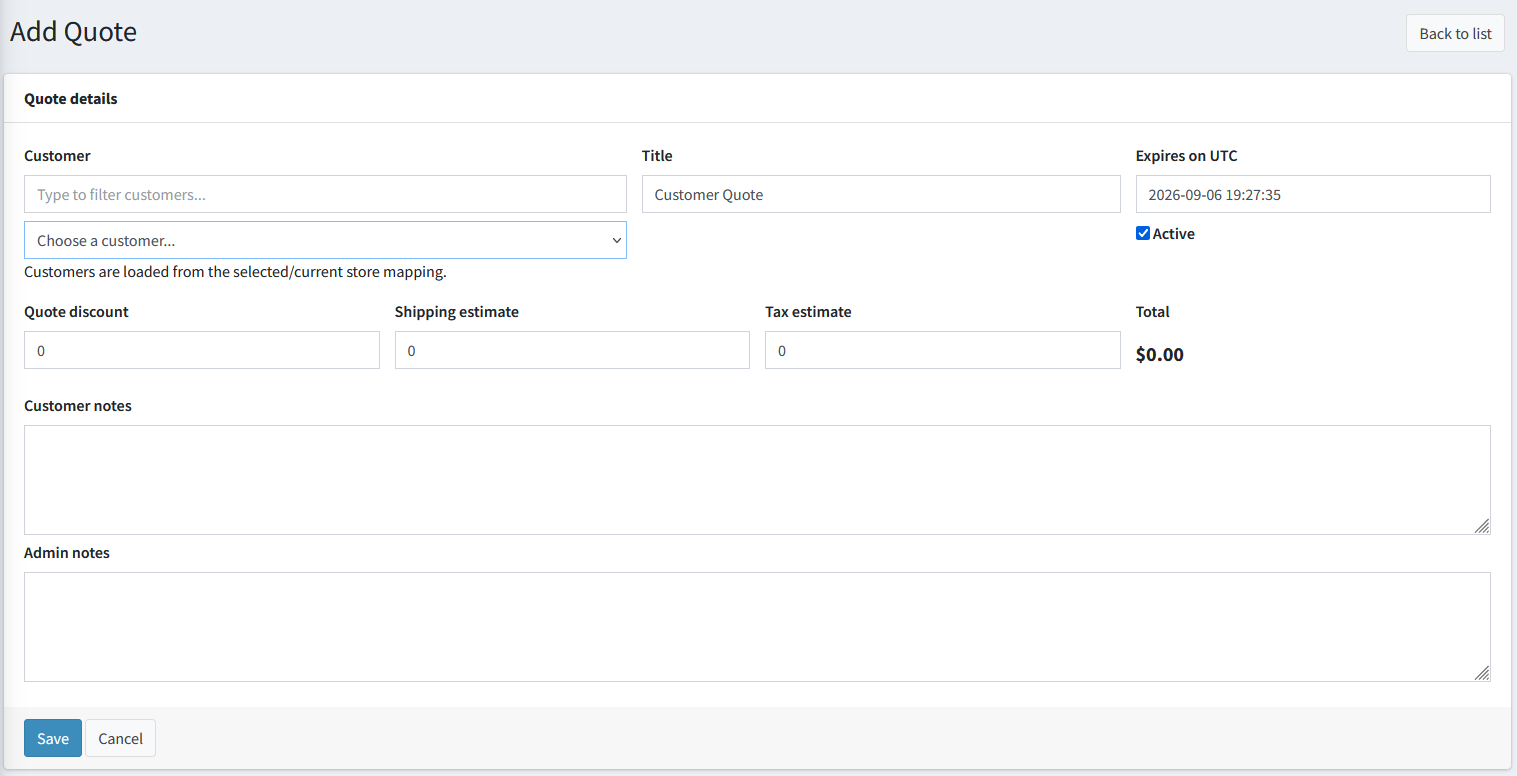
- Select Add new quote from the Advanced Quotes dashboard.
- Choose the customer from the current store mapping.
- Set the title, expiration, active state, quote-level discount, shipping estimate, tax estimate, and notes.
- Save the quote to create its number and Draft record.
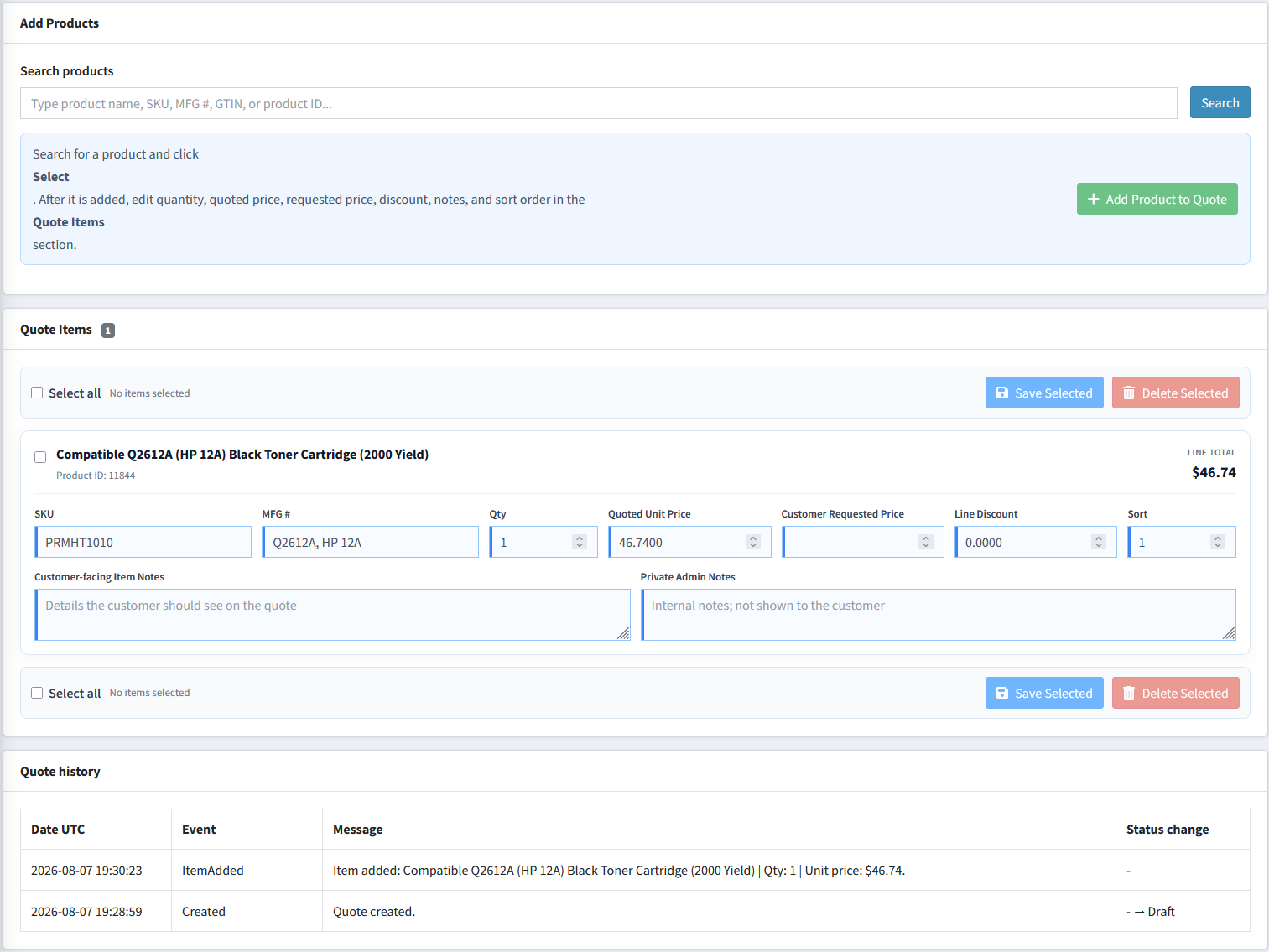
- Search for products and add them one at a time.
- Set quantities, quoted prices, requested prices when applicable, discounts, notes, and sort order, then save the selected lines.
Add products and prepare quoted pricing
Add a product
- Open the quote and locate Add Products.
- Search by product name, SKU, manufacturer number, GTIN, or product ID.
- Select the correct product and add it to the quote.
- Edit the commercial fields after the product appears under Quote Items.
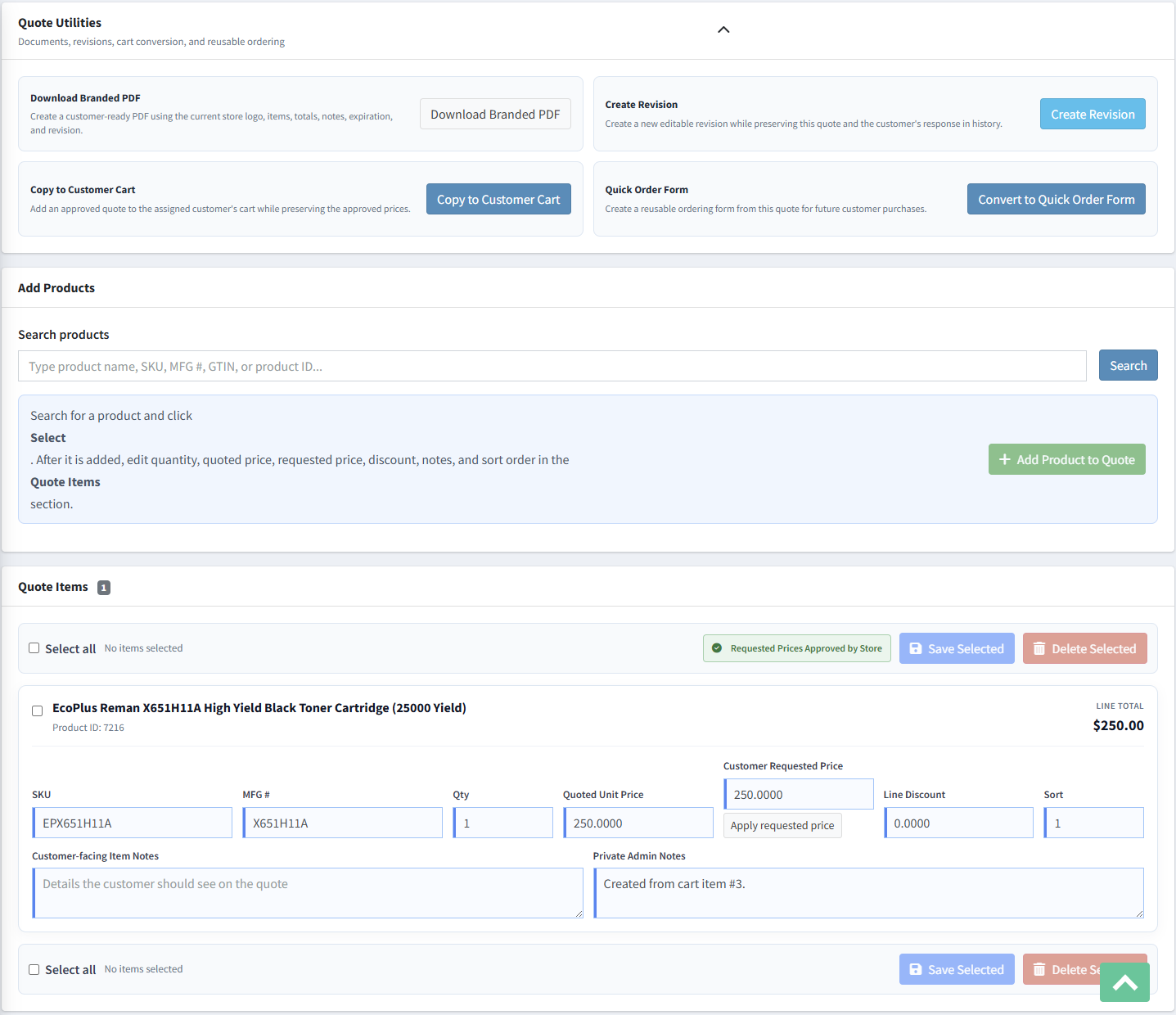
Edit quote items
| Field | Use |
|---|---|
| Quantity | The quantity included in the quotation and line-total calculation. |
| Quoted Unit Price | The actual unit price offered by the store. |
| Customer Requested Price | The target unit price submitted by the customer. |
| Line Discount | The line-level discount applied to the quoted item. |
| Customer-facing Item Notes | Information that may appear on the customer quote and PDF. |
| Private Admin Notes | Internal information that should remain hidden from the customer. |
| Sort | Controls the order in which products appear. |
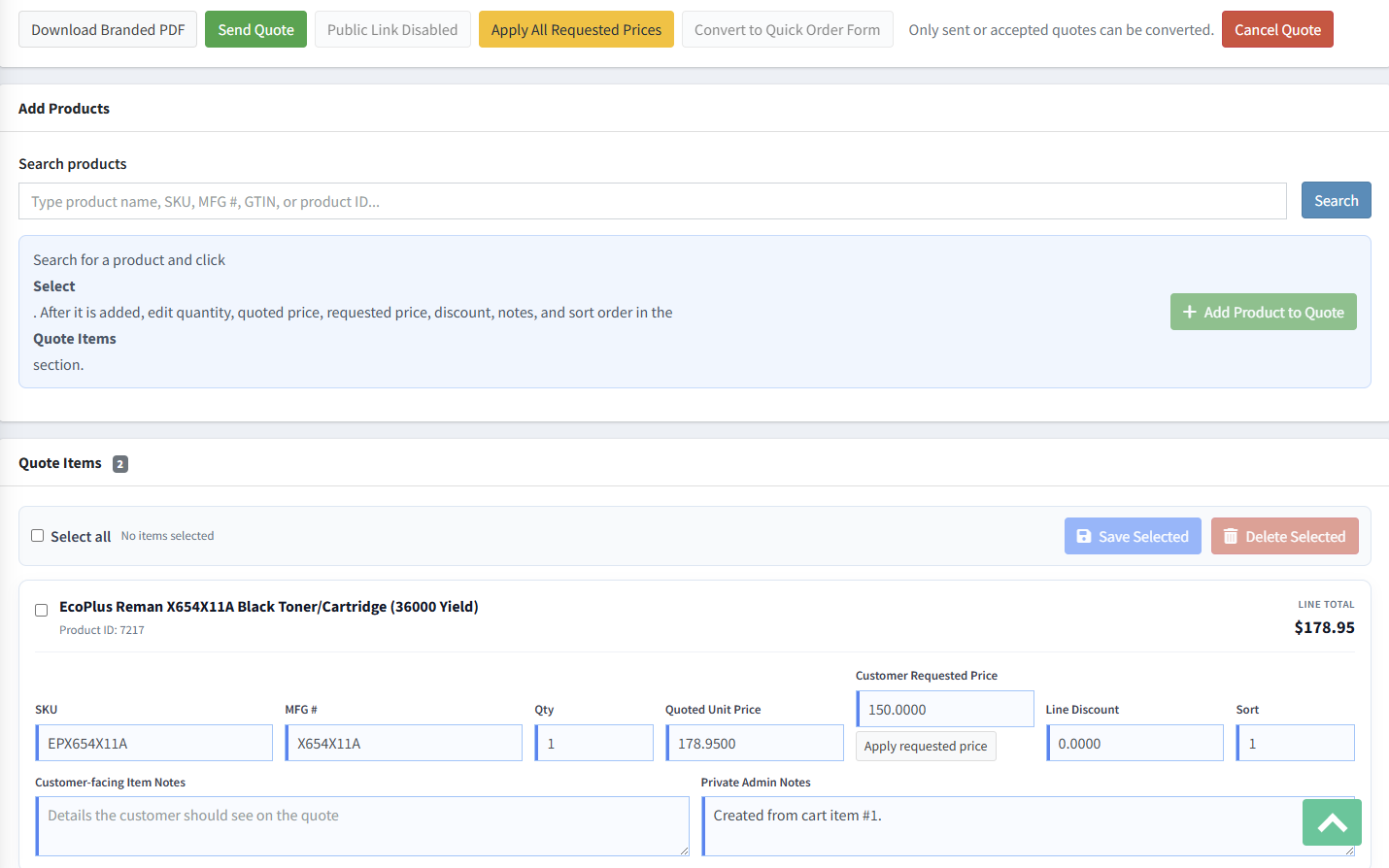
Use each row's Apply requested price action to approve one requested value. Use Apply All Requested Prices when the store is accepting all eligible prices originally proposed by the customer. Check the appropriate rows and use Save Selected or Delete Selected for bulk management.
Create revisions and preserve history
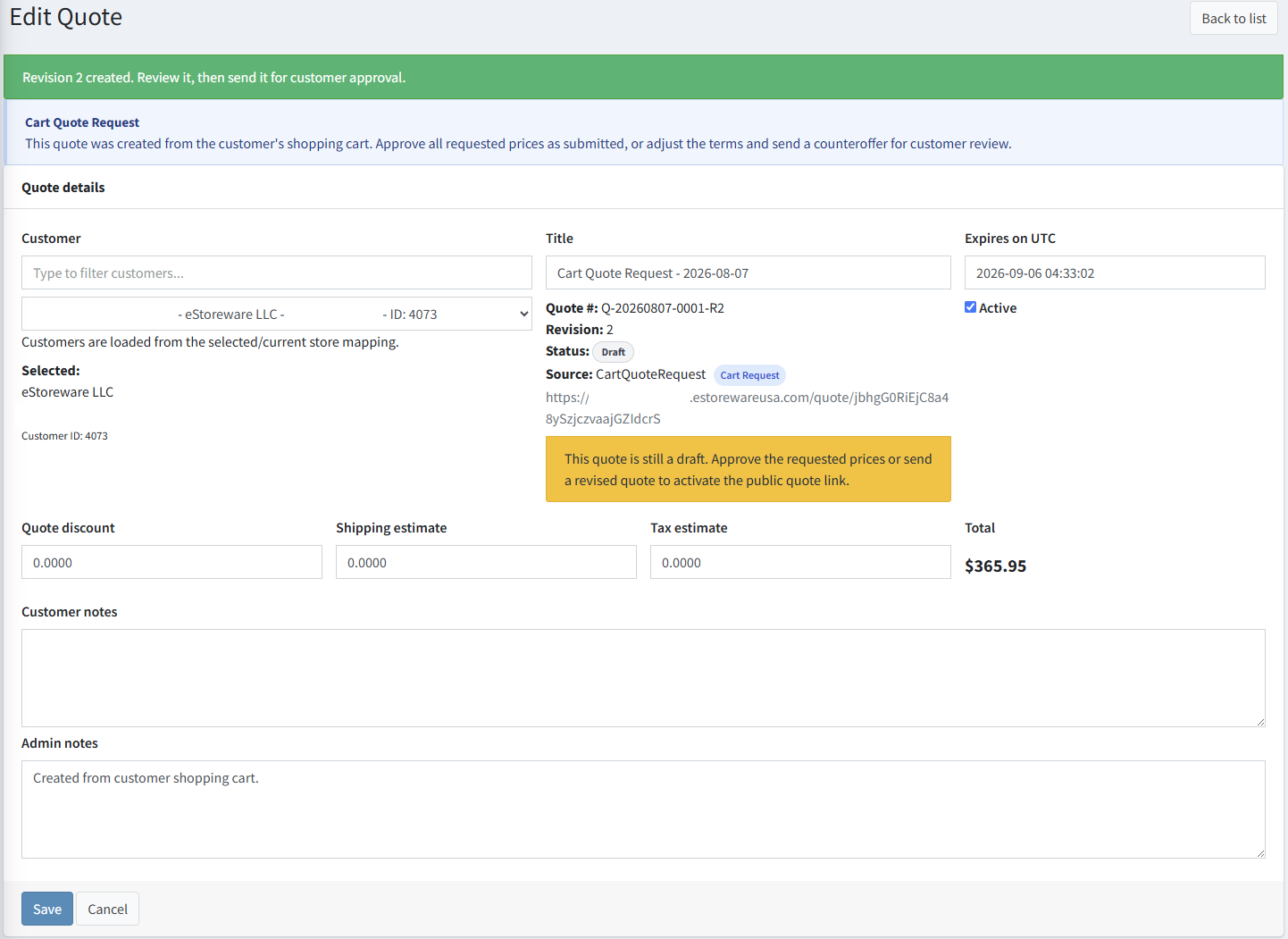
Use Create Revision after a quote has been sent, accepted, or otherwise needs to remain historically intact. The plugin creates a new editable version such as R2 or R3, retains the prior quote as an unchanged commercial record, and returns the new revision to Draft.
- Open the quote that needs new pricing or terms.
- Select Create Revision.
- Confirm the new quote number and revision value.
- Edit the new Draft rather than changing the prior version.
- Review all products, prices, notes, totals, expiration, and customer assignment.
- Send the new revision when it is ready for customer review.

Send the quote and generate a branded PDF
Send or resend
- Save all quote and item changes.
- Confirm the customer email, expiration, products, prices, totals, and customer-facing notes.
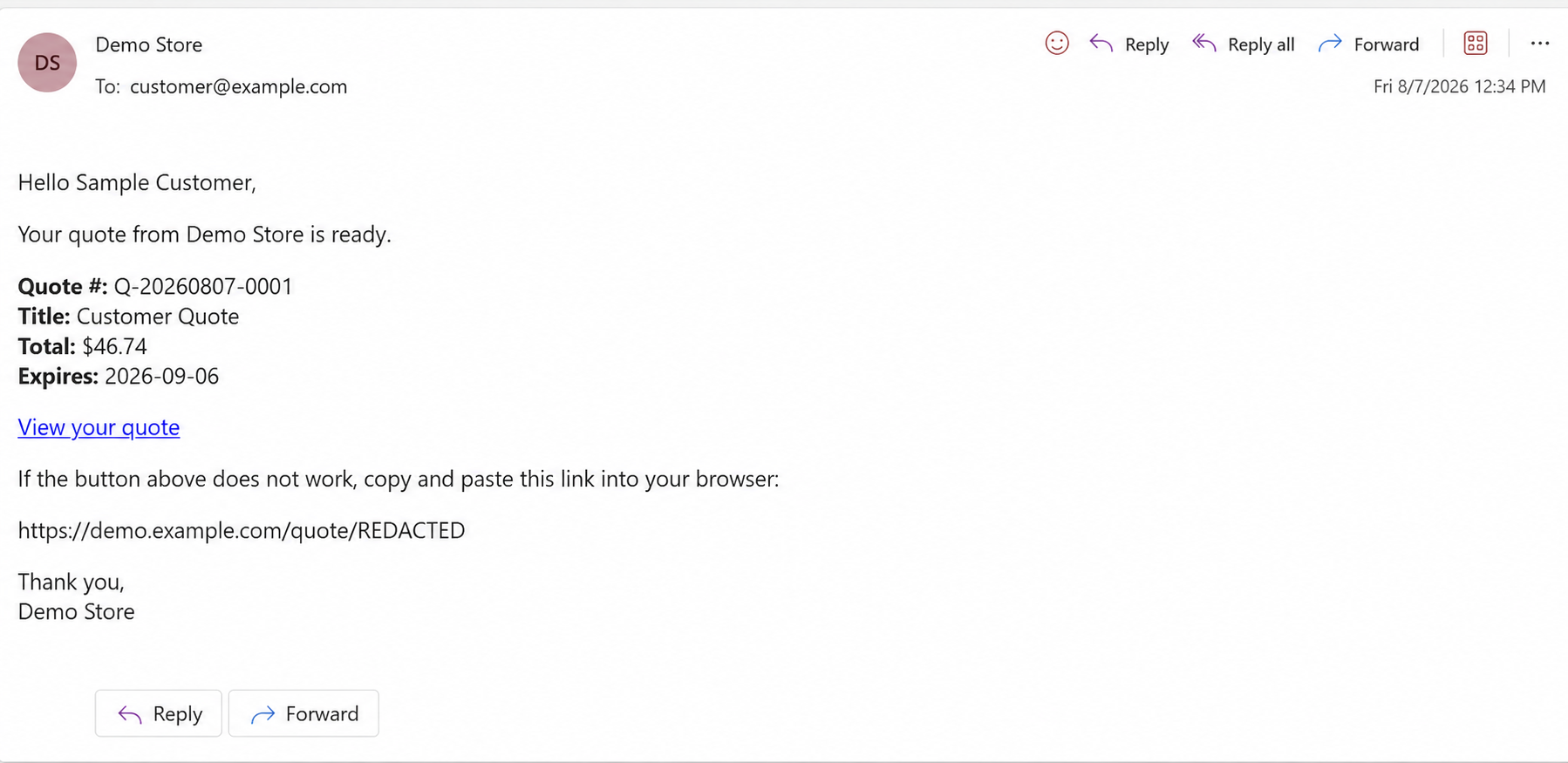
- Select Send Quote to activate the secure public link and queue the customer message.
- Use Resend only when the current quote should be delivered again without creating a revision.
- Test the secure link while signed out when validating a public customer workflow.
Download branded PDF
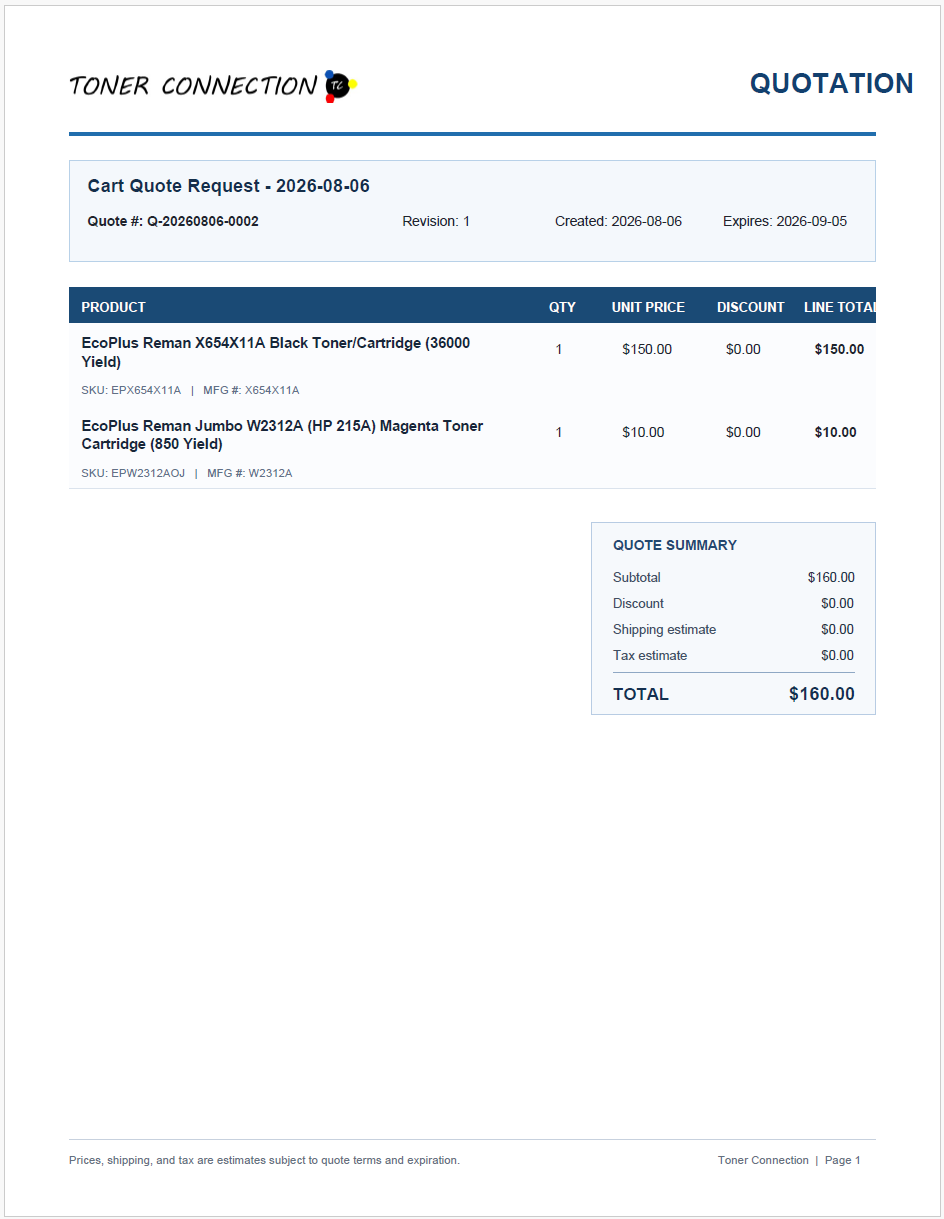
The PDF uses the active store's identity and can include the store logo, quote title, number, revision, dates, products, SKU and manufacturer numbers, quantities, unit prices, discounts, line totals, quote totals, notes, terms, and page footer. Transparent logos are placed on white before rendering so transparent areas do not appear black.
Use customer approval or store approval
Customer approval or decline
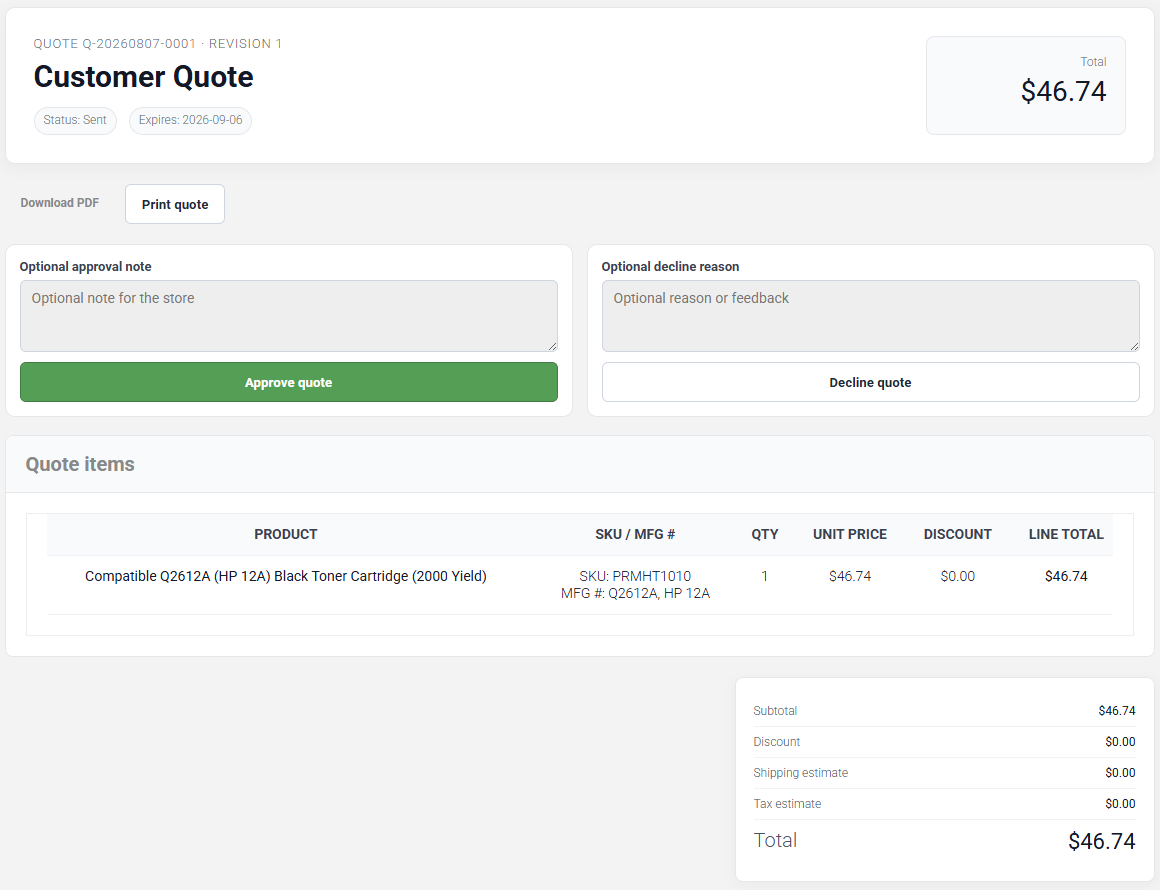
An eligible sent quote can display Approve and Decline controls when customer responses are enabled. The customer can add an optional approval note or decline reason, and the response is stored with the quote.
Store approval of requested prices
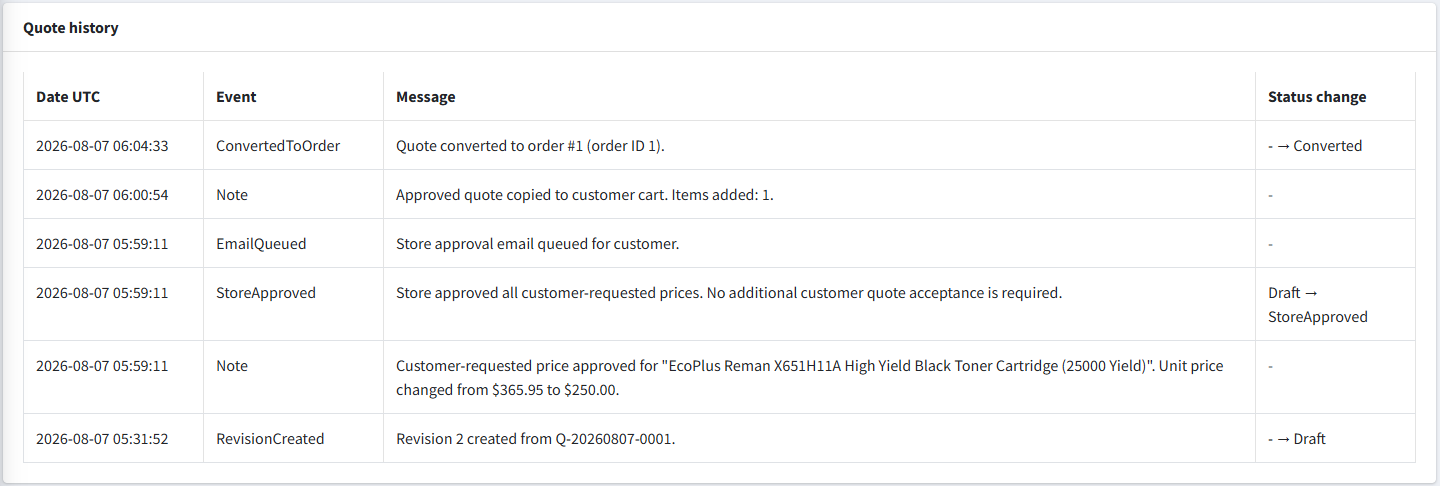
If the store accepts all prices originally submitted by the customer, use Apply All Requested Prices. The quote enters the store-approved workflow, history records the changes, and the customer can be notified that no additional approval is required.
Keep quotes available under My Account
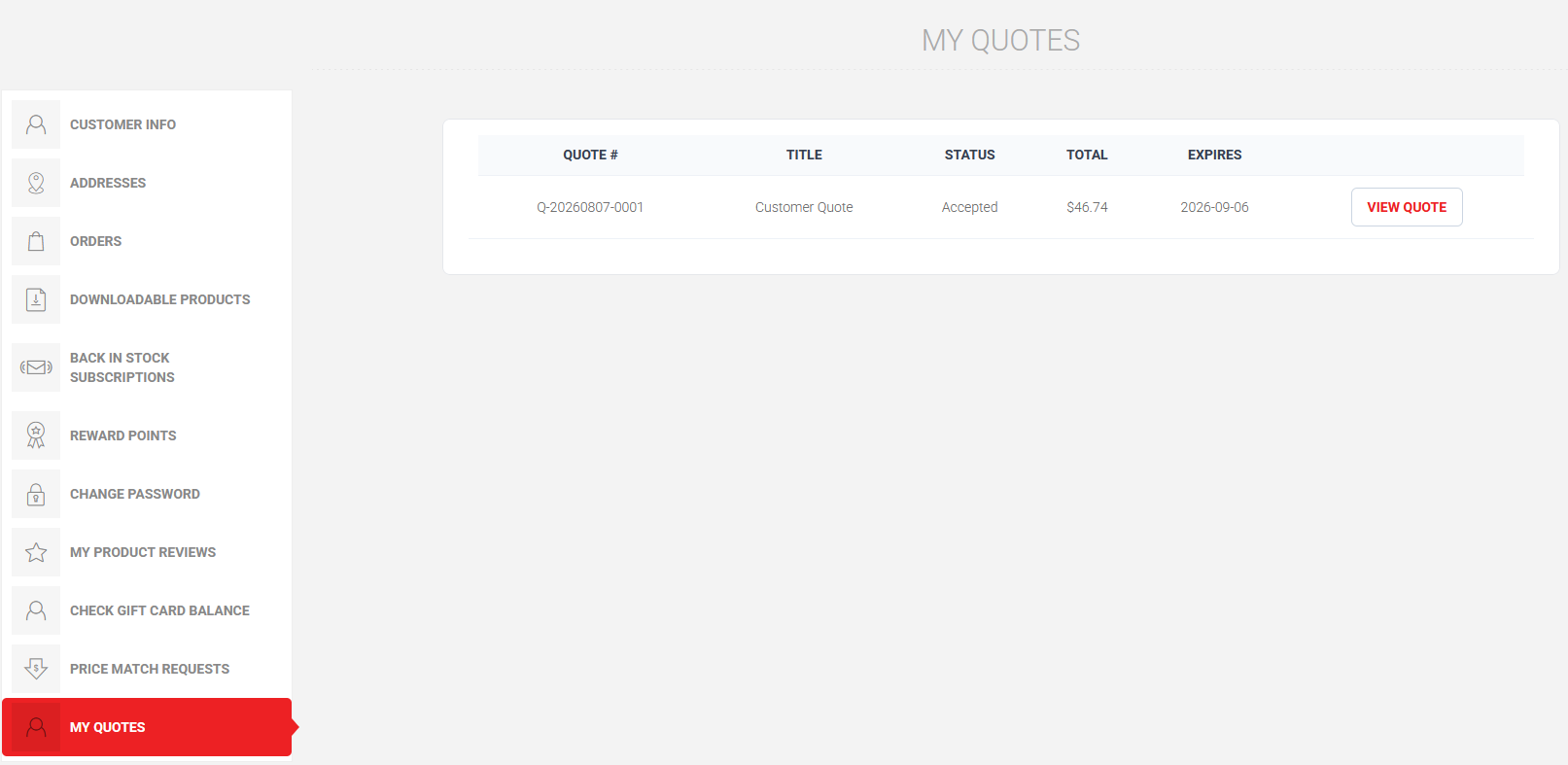
Registered customers can open My Account → My Quotes to review quote numbers, titles, statuses, totals, expiration dates, and the latest available customer action. The My Quotes menu entry remains highlighted while the customer is in the quote center.
- Enable Show in customer account for the store.
- Assign the quote to the correct registered customer.
- Ask the customer to sign in and open My Quotes.
- Use View Quote to open the secure quote experience.
- For a guest request, assign it to the matching registered customer before expecting it to appear in that account.
Add an approved quote to cart and link the final order
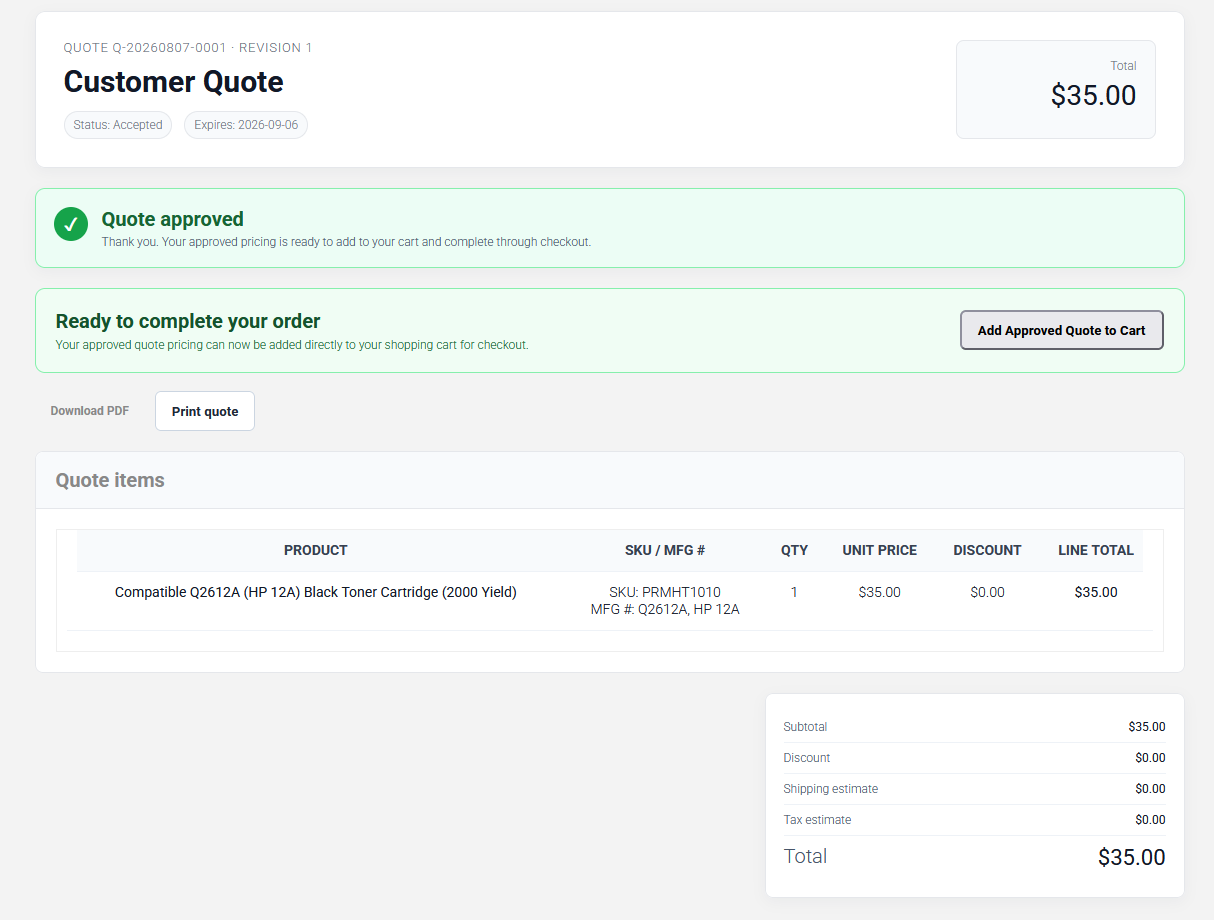
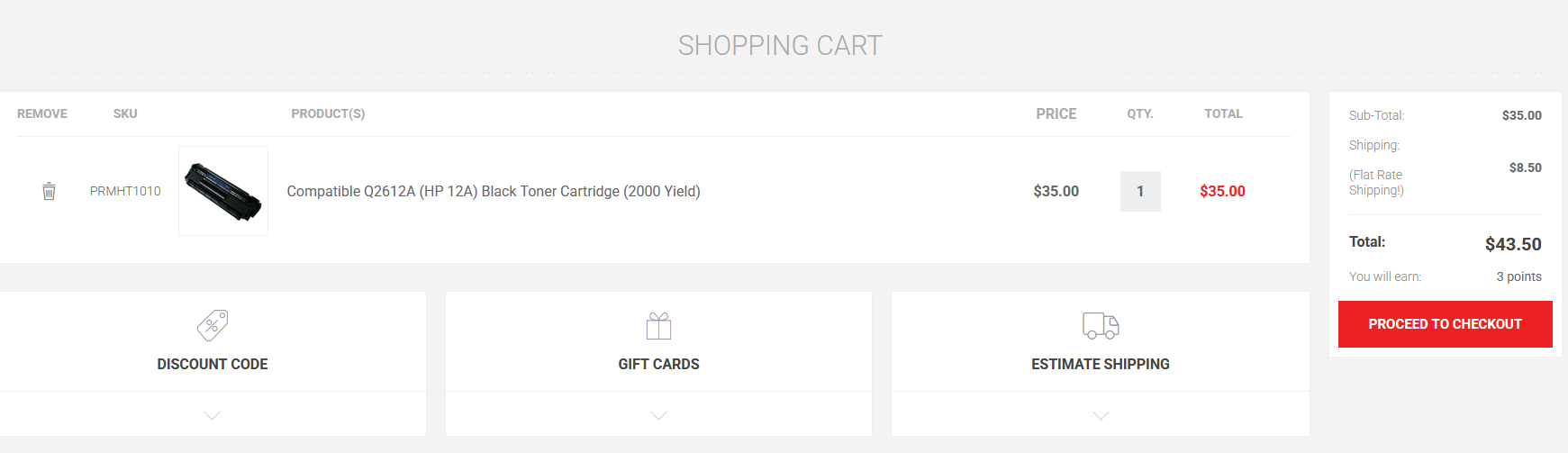
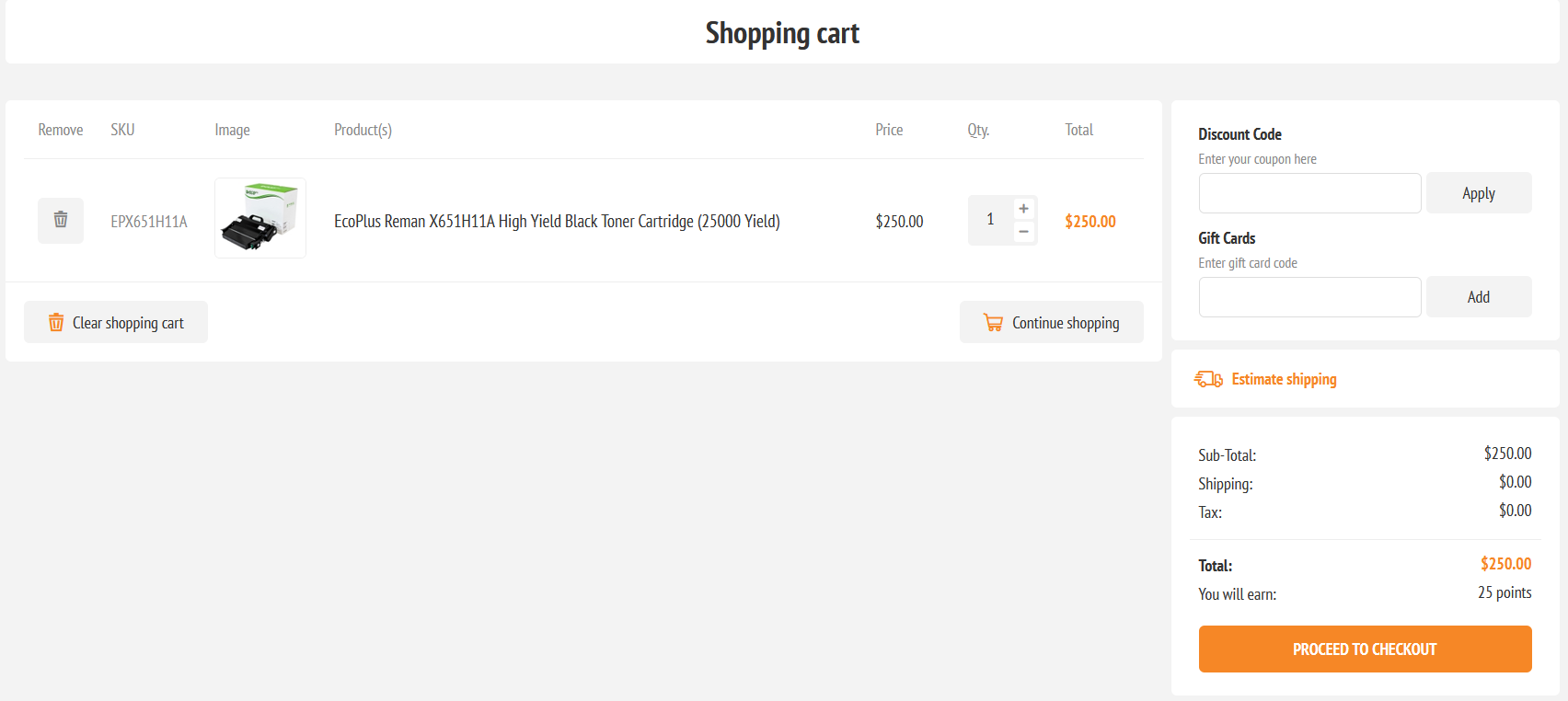
Advanced Quotes supports both customer self-service and an administrator-assisted cart conversion. In either route, the quote must be accepted or store approved and associated with the customer who will complete checkout.
| Route | When to use it | Action |
|---|---|---|
| Customer self-service | The registered customer opens an accepted or store-approved quote. | Select Add Approved Quote to Cart on the customer quote page. |
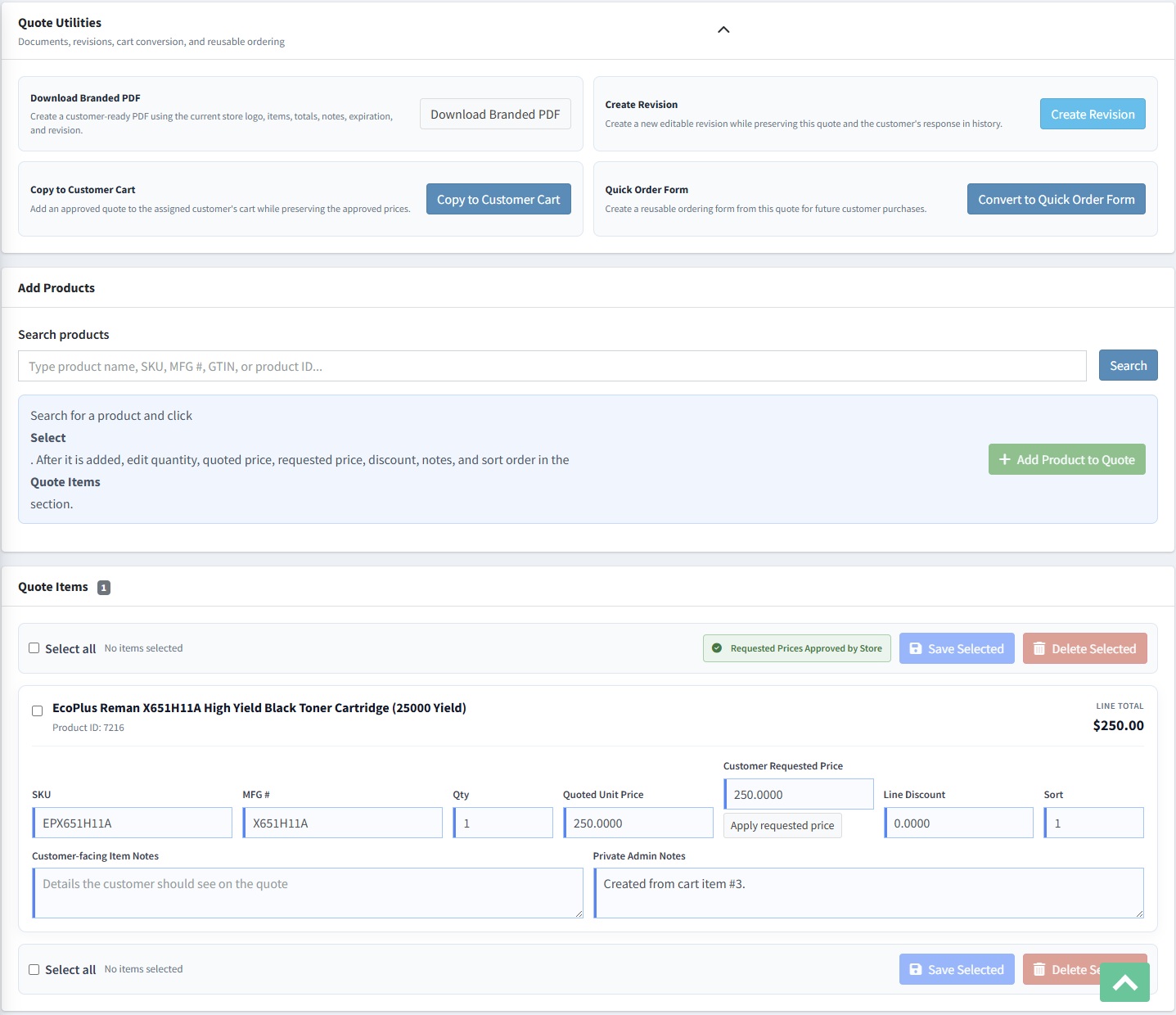
| Administrator assisted | Staff need to prepare the assigned customer's cart. | Select Copy to Customer Cart from Quote Utilities. |
- Confirm the quote is accepted or store approved.
- Confirm it is assigned to the correct registered customer.
- Save every item and verify the quoted unit prices.
- Use the customer or administrator cart action described above.
- Inspect the assigned customer's cart.
- Confirm each cart line uses the negotiated price rather than the current catalog price.
- Complete the standard nopCommerce checkout.
- Return to the quote and confirm its Converted status and ConvertedToOrder history event.

Convert an eligible quote to a Quick Order Form
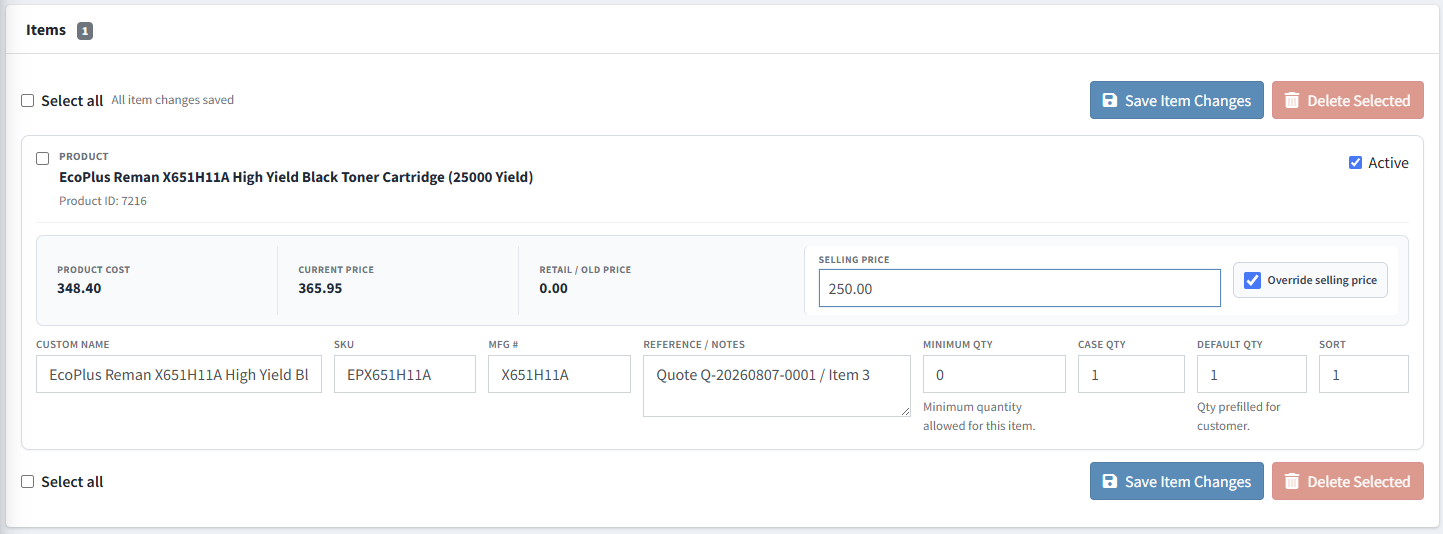
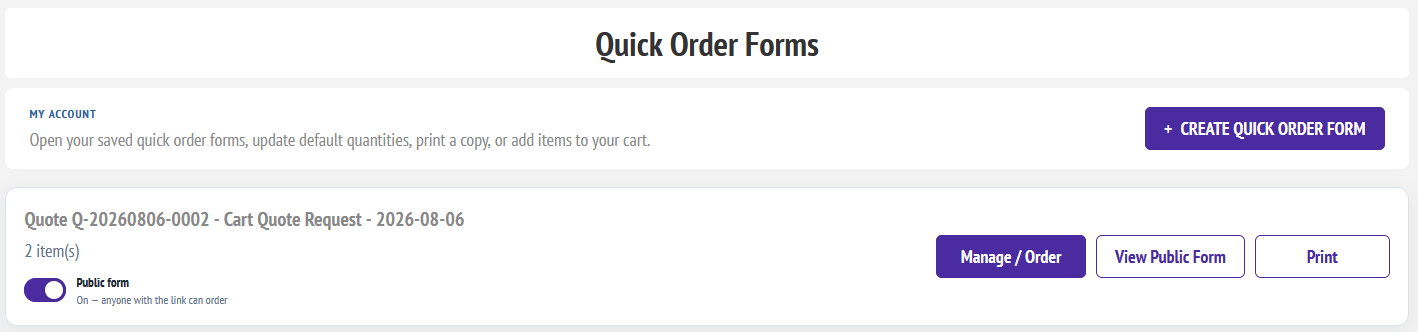
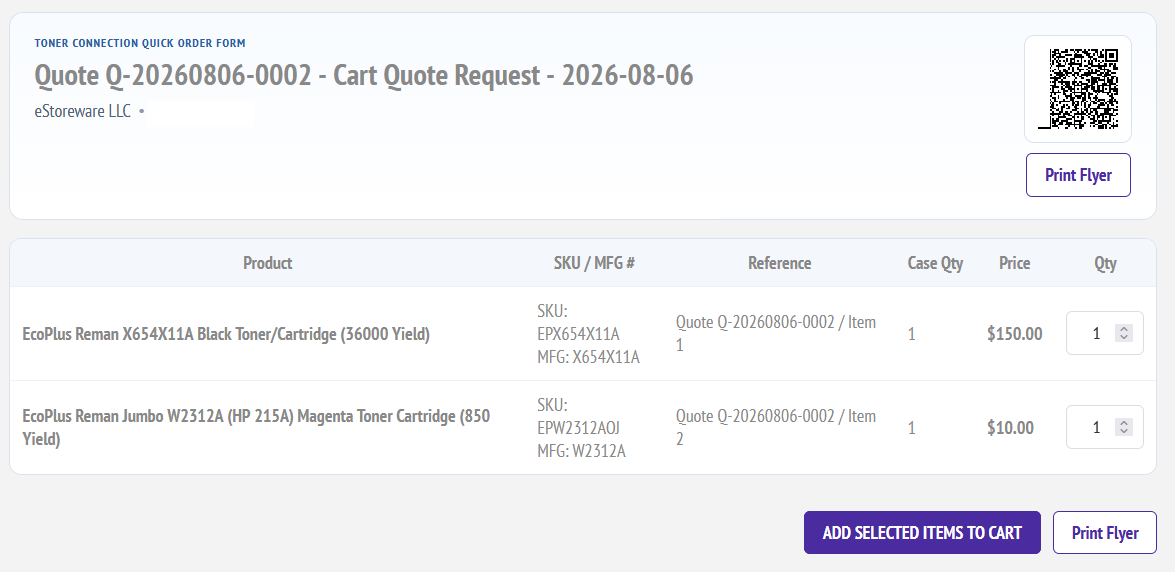
Quick Order Forms is optional and is not required for the core quotation workflow. When installed and enabled, an eligible quote can become a reusable customer ordering form with the quoted products and negotiated selling prices.
- Install, activate, and configure eStoreware Quick Order Forms.
- Enable Allow convert to Quick Order Form for the store.
- Assign the quote to the correct customer.
- Move the quote into an eligible sent or accepted state.
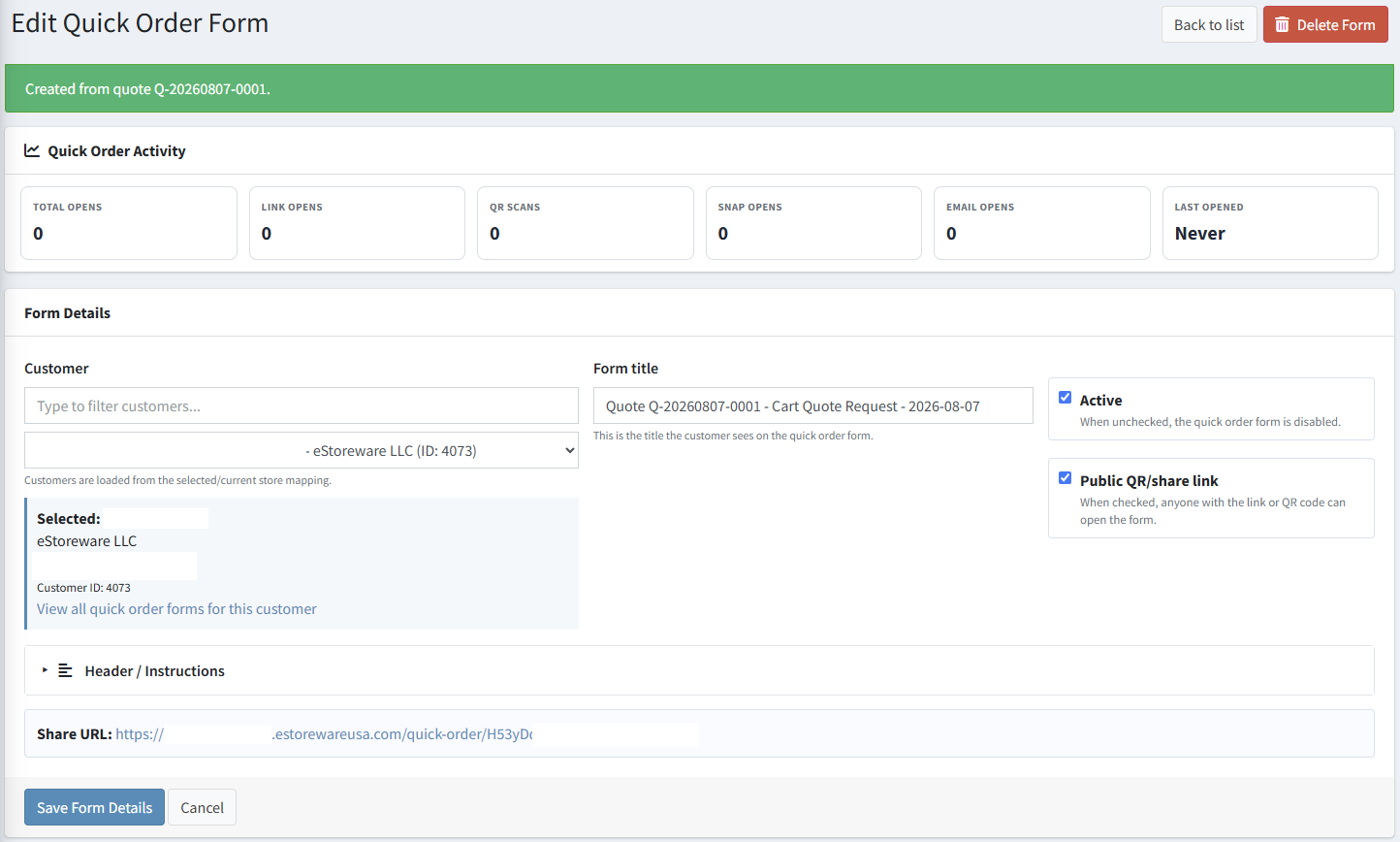
- Select Convert to Quick Order Form.
- Review the created form's customer, title, active status, public sharing, and instructions.
- Verify every converted item, selling-price override, reference, quantity, and sort order.
- Test the customer and public ordering experience as appropriate.
Troubleshooting
A required Advanced Quotes table is missing
- Confirm the installed files are from the current plugin package.
- Open Configuration and run Repair Setup once.
- Restart the nopCommerce application.
- Review the system log for the exact missing object and any migration failure.
- Do not manually create only one table unless its complete current schema is known.
The public quote link is disabled
- Confirm public quote links are enabled for the selected store.
- Save the quote and confirm it is not still an unactivated Draft.
- Send the quote or complete the appropriate store-approval workflow.
- Test the newest public link after a revision or security-sensitive change.
The requested price did not update the quote
- Confirm the requested-price field contains a valid decimal value.
- Use Apply requested price for the correct line or Apply All Requested Prices for the eligible quote.
- Select and save the changed item.
- Reload the quote and verify the quoted unit price and line total.
The copied cart uses the catalog price
- Confirm the quote item has a saved quoted unit price.
- Confirm the quote is eligible and assigned to the same registered customer.
- Confirm the current plugin version includes cart-price overrides.
- When upgrading an older installation, run Repair Setup once.
- Remove older cart lines and copy the approved quote again before retesting.
The store logo is missing from the PDF
- Confirm the active store has a valid logo configured.
- Confirm the application can access the logo file.
- Verify the quote is using the expected store context.
- Clear cache and regenerate the PDF after changing the logo.
The quote did not link to the final order
- Confirm checkout used the cart populated by Add Approved Quote to Cart or Copy to Customer Cart.
- Confirm the same assigned customer completed checkout.
- Confirm the Advanced Quotes order-placement integration is registered and the current application was restarted after deployment.
- Review Quote History and the system log for the order-placement event.
The quote did not expire
- Confirm the expiration date has passed in UTC.
- Confirm the expiration scheduled task is installed and enabled.
- Confirm the quote status is eligible for automatic expiration.
- Run the task manually and review its Last Success and error information.