
Upload the supplied package and install or update eStoreware Core before installing the purchased eStoreware plugin.
The foundation for eStoreware plugins
Install, access, license, and manage eStoreware tools from one shared dashboard.
eStoreware Core is the free foundation plugin used by supported eStoreware plugins for shared navigation, dashboard access, licensing communication, permissions, customer downloads, and common plugin services.
Free foundation plugin nopCommerce 4.80 Central plugin dashboard No separate Core license
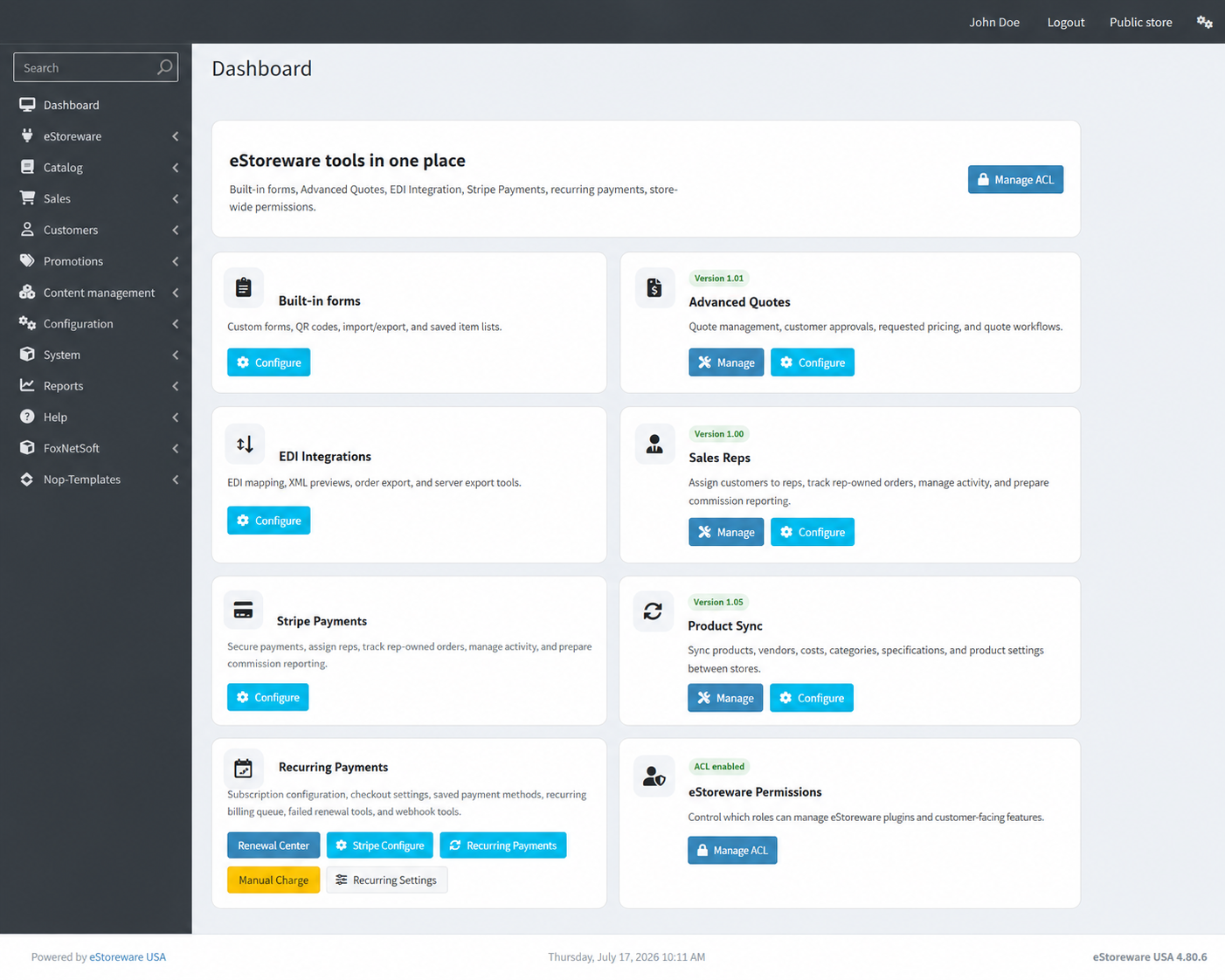
One organized starting point for the eStoreware tools installed in nopCommerce administration.
One Core installation supports the complete eStoreware plugin suite.
Instead of duplicating shared navigation, licensing, permissions, customer-portal links, and support services inside every extension, eStoreware plugins use Core as a common foundation. This keeps the administration experience consistent and gives store owners one place to reach the tools available on the current installation.
The dashboard detects installed eStoreware components and displays the management and configuration actions they provide.
Select an installed commercial plugin, enter its license key, and activate or validate it for the current installation and domain.
Use shared permission controls to decide which nopCommerce customer roles may manage eStoreware tools.
Authorized customers can use the eStoreware customer portal to review licenses, downloads, and activated domains.
Centralized access to installed plugins, configuration pages, management screens, licensing status, and permission controls.
A connected path between the nopCommerce installation and available license details, package downloads, and domain activations.
Shared administration, licensing, and customer access
These screens show the main areas supplied by eStoreware Core. Select any screenshot to open the larger lightbox preview.
The dashboard presents the management, configuration, recurring-payment, and permission actions supplied by the eStoreware plugins installed on the store.
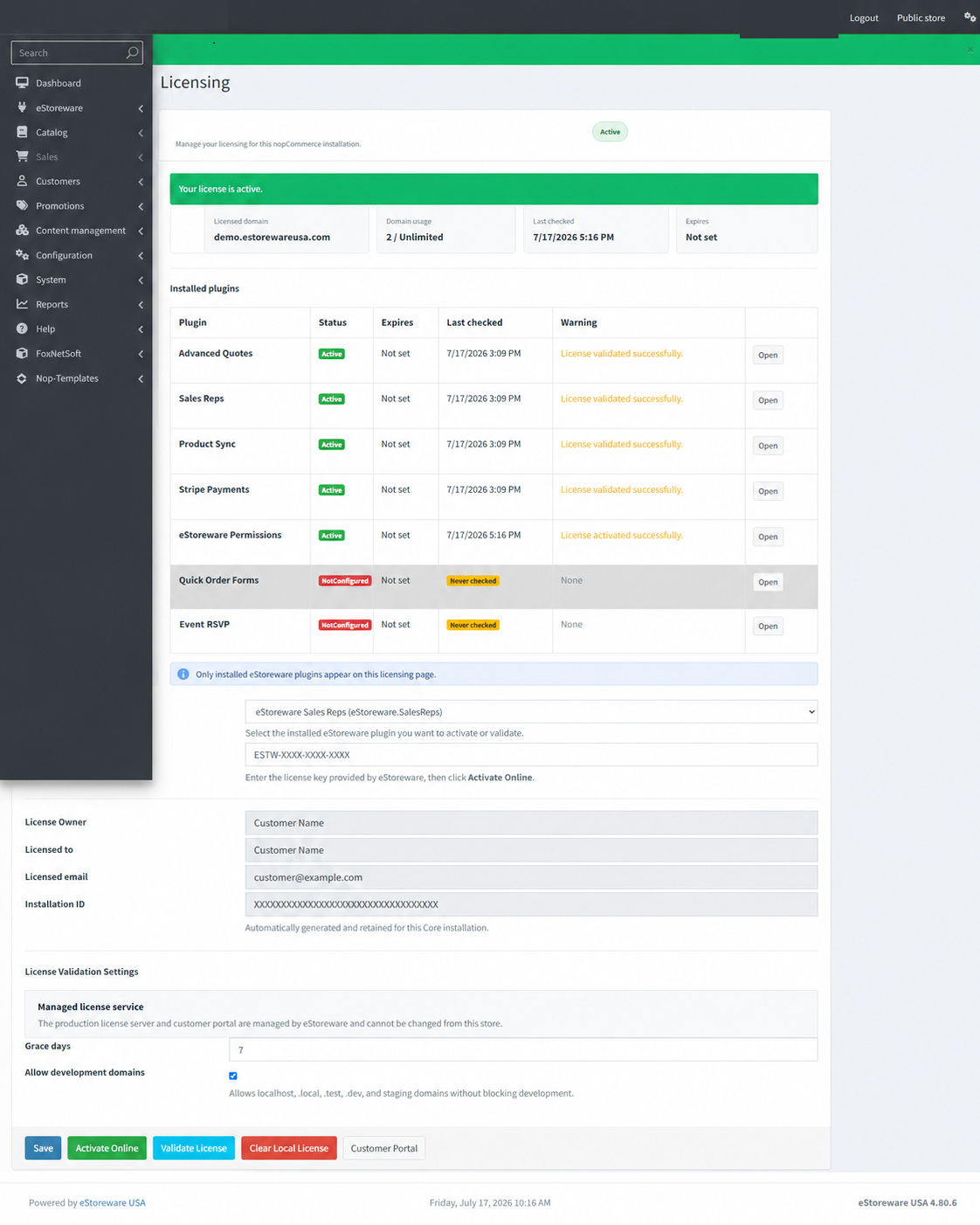
The licensing overview shows only the eStoreware plugins currently installed, together with status, validation time, expiration information, warnings, and direct access.
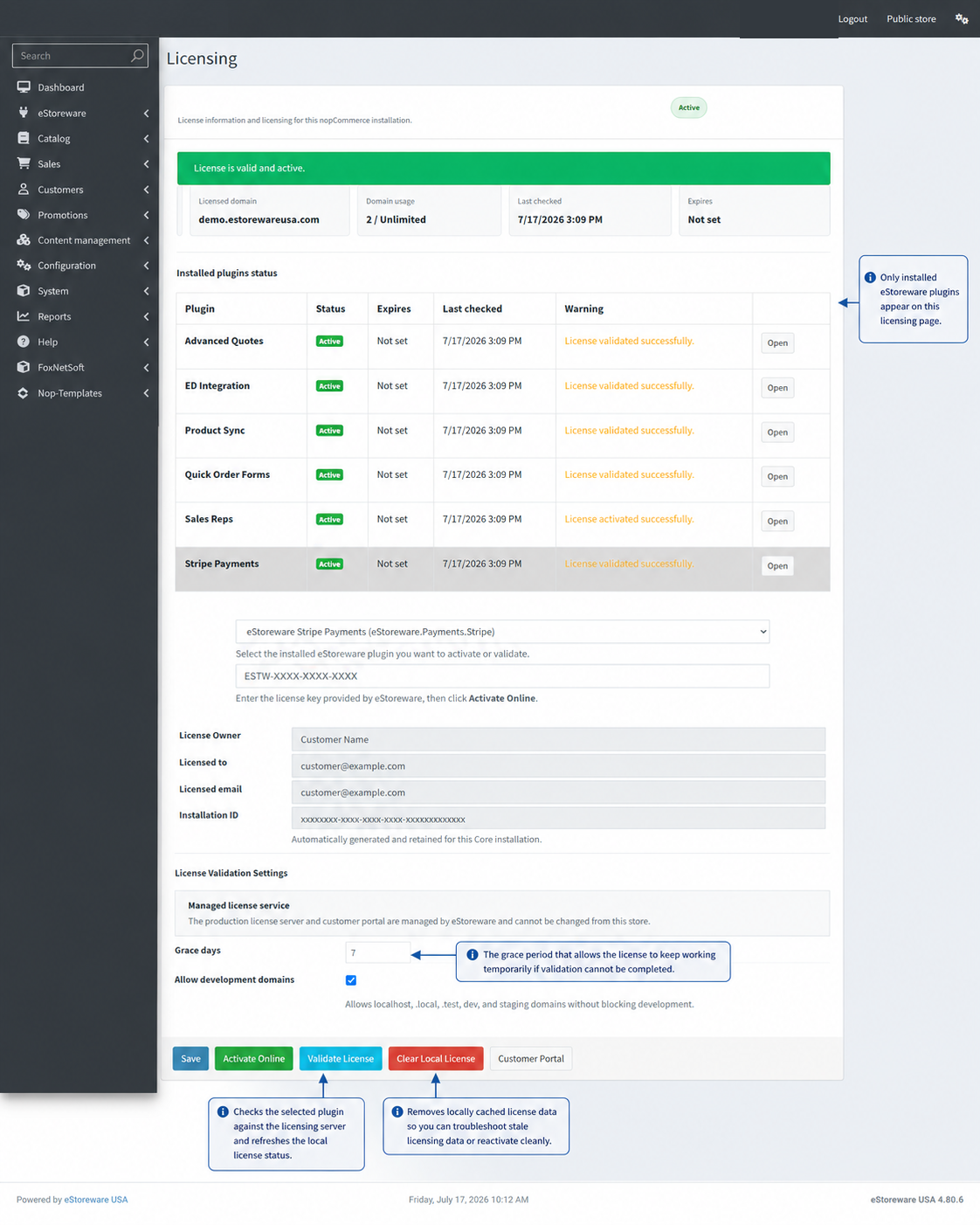
Apply a license key, refresh its current status, understand validation grace days, open the customer portal, or clear stale local license data when troubleshooting requires it.
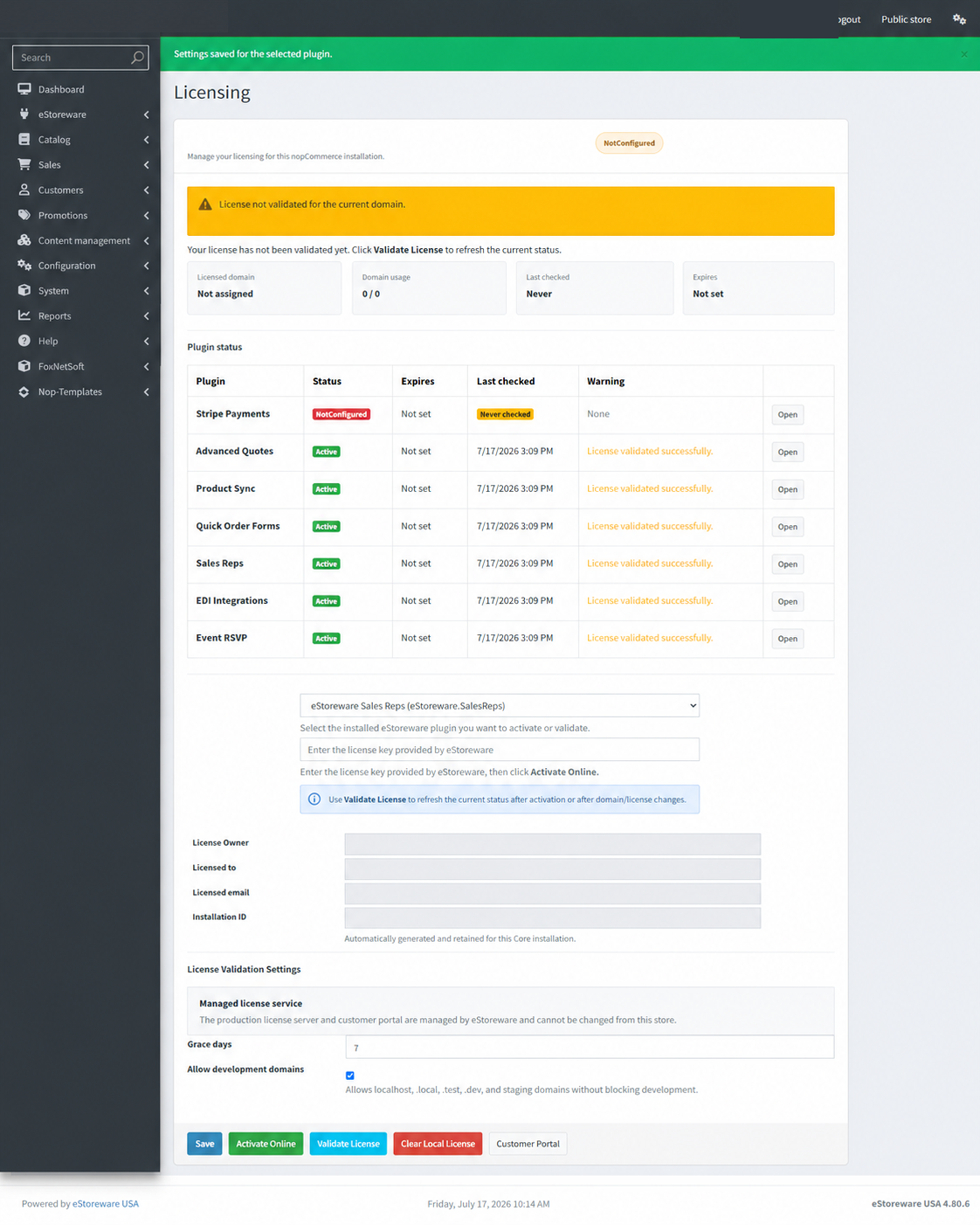
Clear status and warning messages help distinguish an unconfigured plugin, a license that has never been checked, and a successfully activated installation.
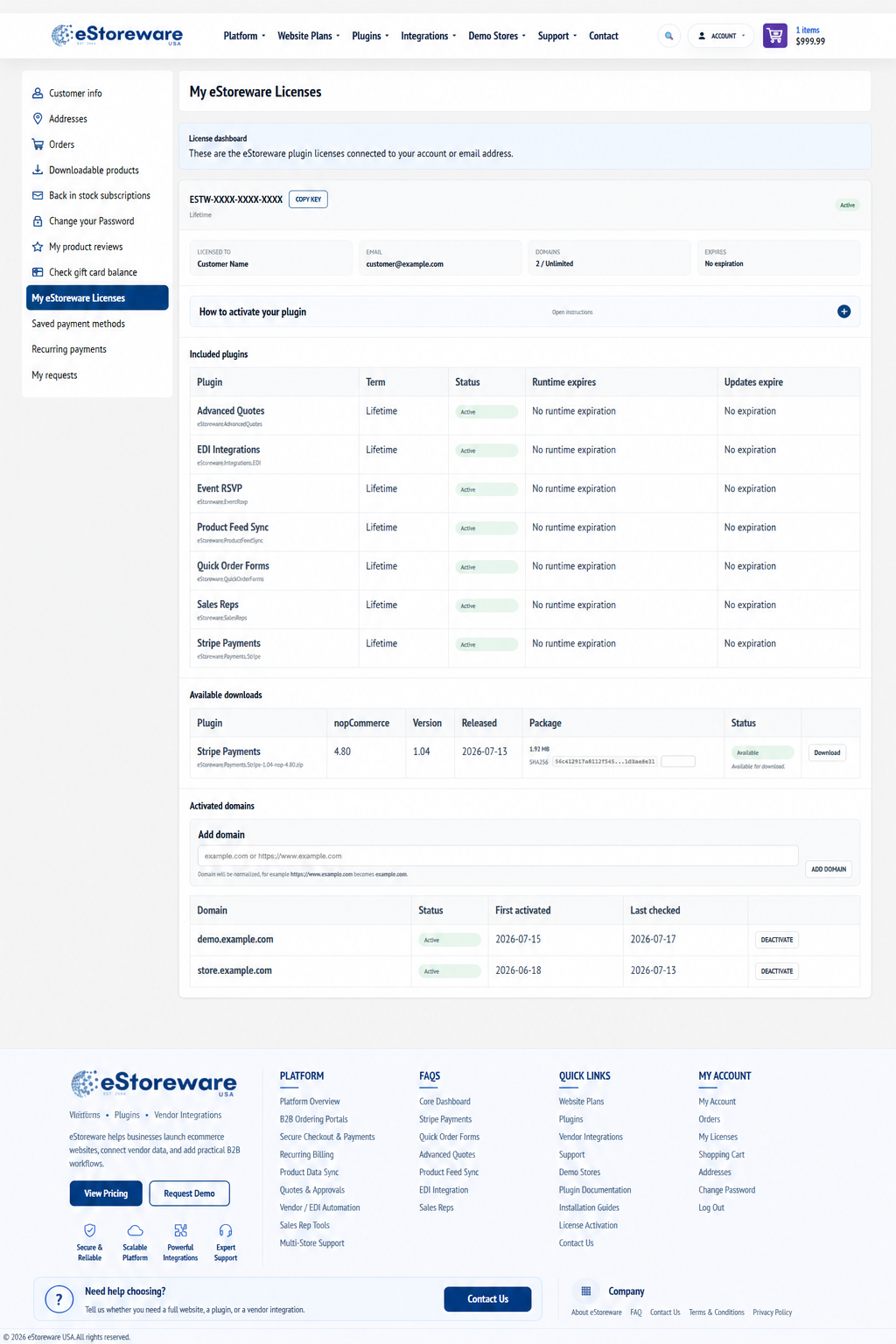
The customer portal can display included plugins, license terms, available nopCommerce packages, checksums, expiration details, and activated production domains.
The shared services behind supported eStoreware plugins
Central dashboard
Provides a consistent eStoreware administration area with direct links to the management and configuration screens exposed by installed plugins.
Installed-plugin discovery
Shows the tools actually available on the current nopCommerce installation without presenting uninstalled products as active modules.
Shared licensing communication
Allows eligible commercial eStoreware plugins to activate, validate, and display their current licensing and domain status.
Role-based access
Uses nopCommerce roles and shared permission controls to help restrict access to administrative and customer-facing plugin functions.
Customer-portal connection
Provides a route to My eStoreware Licenses for authorized customers reviewing purchased plugins, downloads, checksums, and activated domains.
Common plugin services
Supplies shared infrastructure used across the eStoreware suite, reducing duplication and keeping related plugins consistent.
Core is free and does not require its own license.
eStoreware Core is included with supported eStoreware plugin deployment packages and should be installed before the commercial plugin that depends on it. Core itself does not require a separate paid license.
Commercial plugins installed alongside Core may still require their own valid eStoreware license. Installing Core by itself does not activate or unlock paid plugin functionality.
Install the foundation before dependent eStoreware plugins.
Requirements
- nopCommerce 4.80
- .NET 9 hosting environment
- Administrative access to upload and install nopCommerce plugins
- Outbound HTTPS access when validating a licensed commercial eStoreware plugin
Installation order
- Back up the nopCommerce website and database.
- Upload the supplied eStoreware deployment ZIP from Local plugins.
- Reload the plugin list when requested.
- Install or update eStoreware Core first.
- Restart the application if prompted.
- Install the purchased eStoreware plugin.
- Open the eStoreware dashboard and configure the installed plugin.
- Activate or validate the commercial plugin license when required.