
Core FAQ
eStoreware Core for nopCommerce
Answers by setup section with screenshot examples: the eStoreware dashboard, installed plugins, license activation, validation, grace periods, troubleshooting, customer downloads, and activated domains.
Section 1: eStoreware Core Dashboard & Installed Plugins
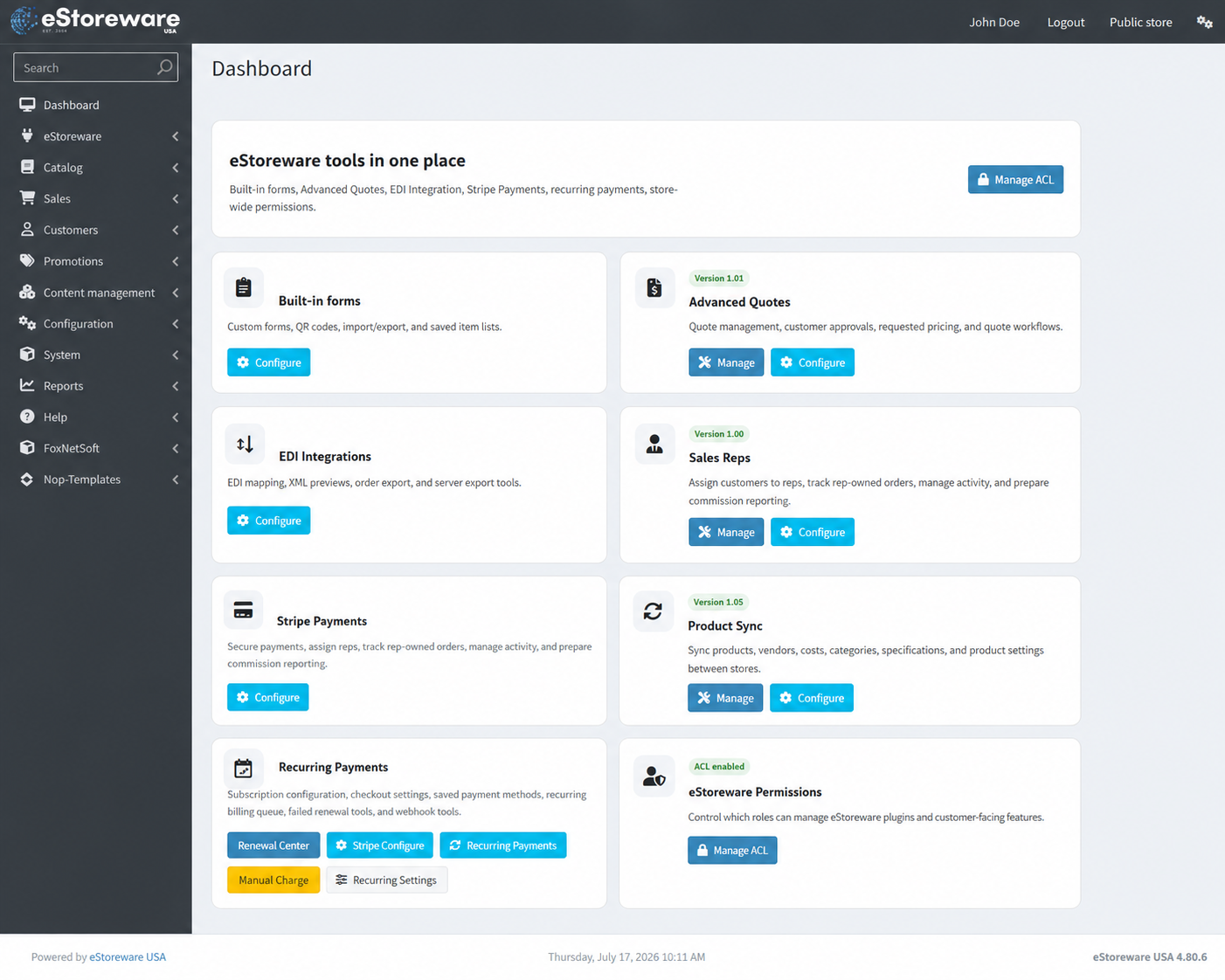
Centralized access to installed eStoreware tools, configuration pages, management screens, recurring-payment tools, and role-based permissions.
What is eStoreware Core?
eStoreware Core is the shared foundation used by eStoreware plugins. It provides the central dashboard, licensing tools, customer-license integration, common services, and permission controls used across the installed eStoreware plugin suite.
Where is the eStoreware dashboard?
In nopCommerce administration, open the eStoreware menu and choose the dashboard. The dashboard provides direct access to the management and configuration pages available for the installed eStoreware tools.
Will the dashboard show plugins that are not installed?
No. The dashboard is based on the eStoreware components available in the current nopCommerce installation. Features and plugin cards that are not installed are not presented as active tools.
Which plugins appear on the eStoreware Licensing page?
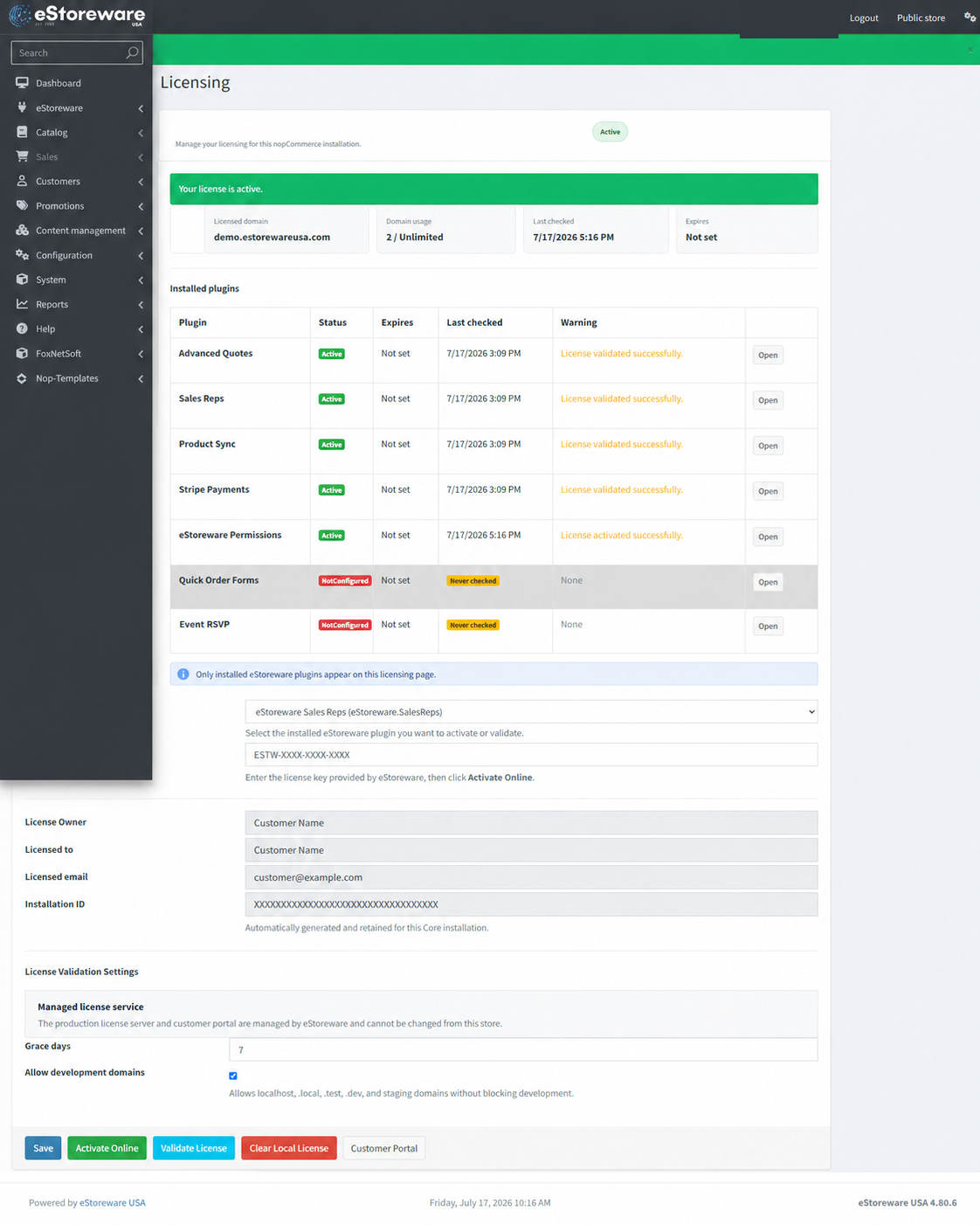
Only eStoreware plugins that are actually installed in the current nopCommerce application appear on the Licensing page and in its plugin selector. The page does not display a license-entry row for every plugin eStoreware offers.
What do the Manage and Configure buttons do?
Manage opens the plugin's operational screen, such as quotes, sales representatives, sync profiles, or recurring-payment records. Configure opens the plugin's settings page. The buttons shown depend on the features supplied by each installed plugin.
What is Manage ACL?
Manage ACL opens the eStoreware permission controls. Administrators can decide which customer roles are allowed to manage eStoreware plugins and related customer-facing features.
Section 2: License Activation, Validation & Local License Controls
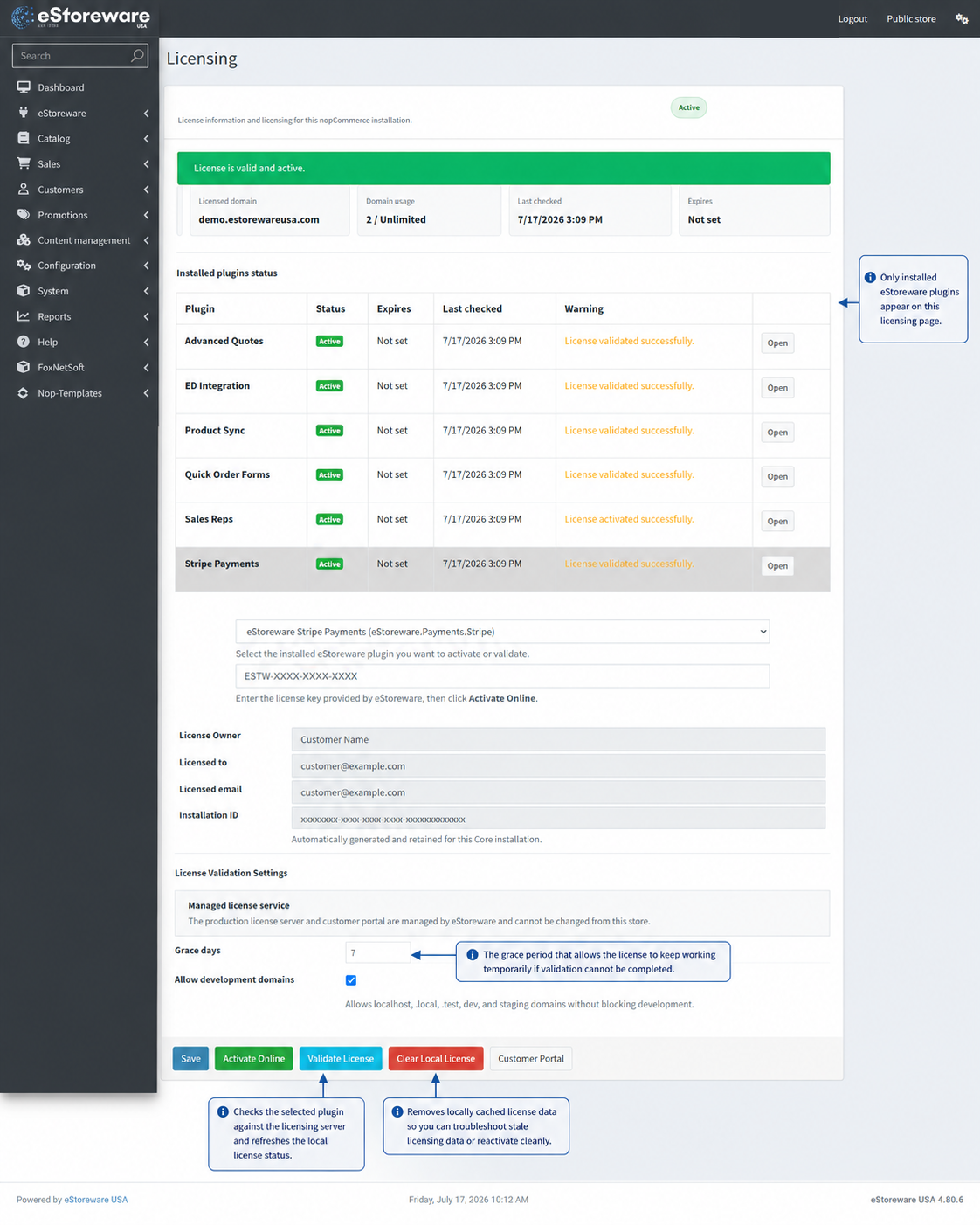
Selecting an installed plugin, entering a license key, activating online, refreshing the current status, understanding grace days, and clearing local license data.
How do I activate an eStoreware plugin license?
Open the eStoreware Licensing page, select the installed plugin from the dropdown, enter the license key issued by eStoreware, and click Activate Online. The page will contact the managed license service, associate the installation and current domain with the license, and store the validated result locally.
What is the difference between Activate Online and Validate License?
Activate Online is used when applying a license key to an installation or activating a plugin for the first time. Validate License checks the selected plugin against the eStoreware licensing service and refreshes the locally stored status without creating a new license.
When should I click Validate License?
Use Validate License after activation, after a domain or license change, when the page shows Never checked, or when the locally displayed status appears out of date. It is also the first troubleshooting step when an installed plugin is unexpectedly shown as NotConfigured.
What does the Validate License button actually do?
It sends the selected plugin's license information, installation identity, and current domain to the managed licensing service. The returned result refreshes the local status, licensed domain, domain usage, expiration information, last-checked time, and warning message.
What are grace days?
Grace days define the temporary period during which a previously valid license may continue operating when online validation cannot be completed, such as during a brief network or license-service interruption. A value of 7 provides a seven-day validation grace period.
Does the grace period extend an expired or invalid license?
No. The grace period is intended for temporary validation-connectivity problems affecting a license that was already valid. It is not a trial period and does not permanently extend a license that has expired, been deactivated, exceeded its domain allowance, or otherwise become invalid.
What does Clear Local License do?
Clear Local License removes the locally cached license data for the selected plugin from this nopCommerce installation. It is useful when troubleshooting stale or damaged local licensing data or when preparing to reactivate the plugin cleanly.
Does Clear Local License deactivate the domain in my eStoreware account?
No. Clearing the local license only removes the cached record from the store. To release an activated domain from the license itself, use the domain controls in My eStoreware Licenses or contact eStoreware support.
What should I do after clearing the local license?
Select the plugin, confirm the correct license key, and click Activate Online. Then use Validate License to confirm the current status and licensed domain.
Section 3: License Status, Warnings & Troubleshooting
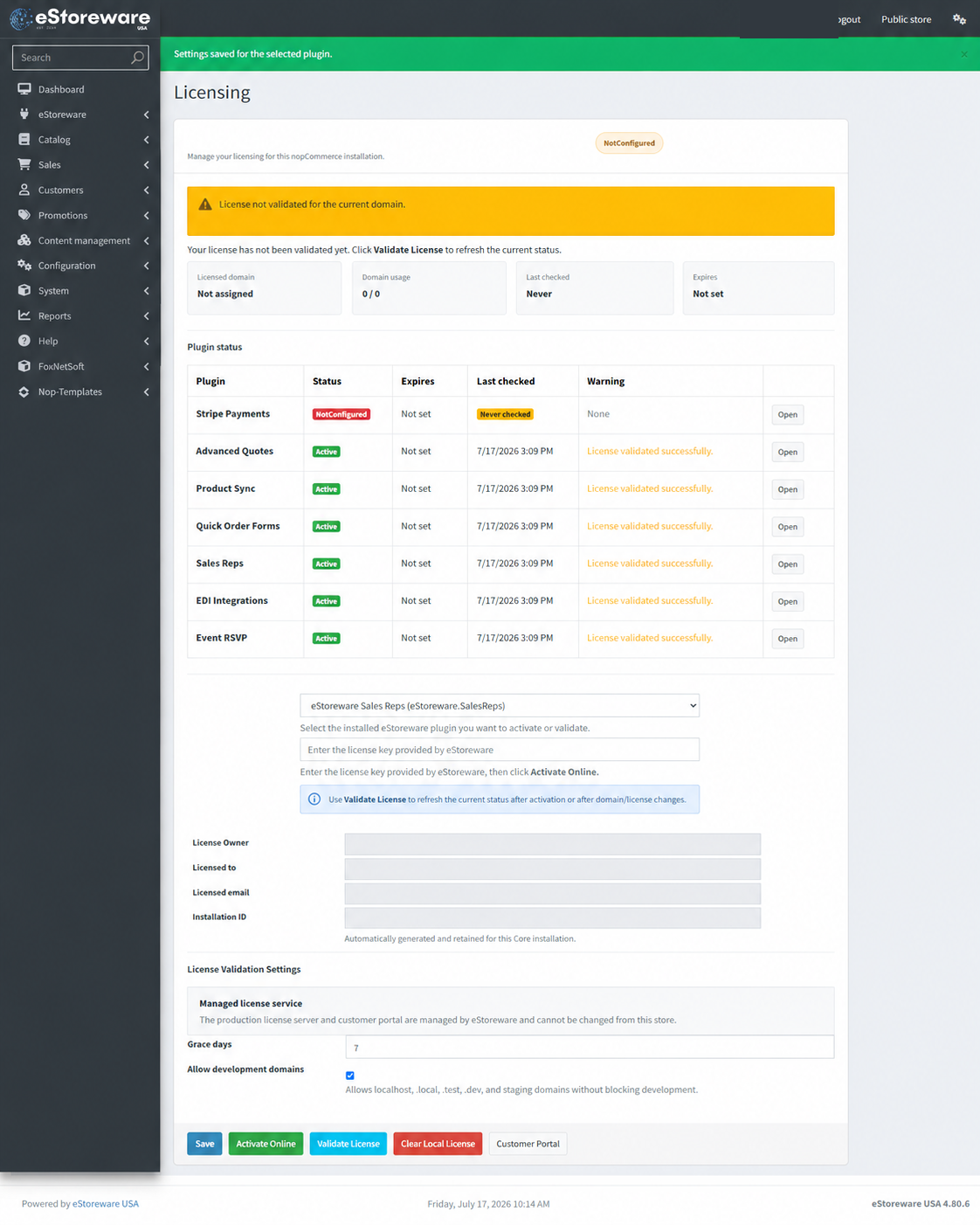
Understanding Active, NotConfigured, Never checked, domain assignment, warning messages, and the recommended recovery sequence.
What does Active mean?
Active means the selected plugin's license has been accepted for the current installation and domain based on the most recent validation result.
What does NotConfigured mean?
NotConfigured usually means the installed plugin has not yet been activated or validated with a license key on this installation. Select the plugin, enter its key, click Activate Online, and then click Validate License.
What does Never checked mean?
Never checked means the local installation does not yet have a completed validation result for that plugin. It commonly appears before initial activation or after local license data has been cleared.
Why does the page say License not validated for the current domain?
The current domain has not been confirmed for the selected plugin. This can occur before activation, after moving the site to a new domain, after clearing local data, or when the license has no available domain slot. Validate the license and review the activated domains in the customer portal.
Why does the page show Not assigned as the licensed domain?
Not assigned indicates that the current installation has not received a successful domain assignment for the selected plugin. Complete online activation or validation and verify that the current production domain is included on the license.
What does the Warning column show?
The Warning column displays the most recent licensing result or message for each installed plugin, such as successful activation, successful validation, no completed check, a domain issue, or another condition requiring attention.
What is the recommended troubleshooting order?
First select the affected plugin and click Validate License. Confirm that the store can make outbound HTTPS requests, verify the current domain in My eStoreware Licenses, and confirm that the correct key is selected. If the local status remains stale, use Clear Local License, reactivate, and validate again.
Should I clear the local license as the first troubleshooting step?
No. Validate first because it safely refreshes the existing record. Clear the local license only when validation does not correct stale local data or when eStoreware support instructs you to reset and reactivate the selected plugin.
Section 4: My eStoreware Licenses, Downloads & Customer Portal
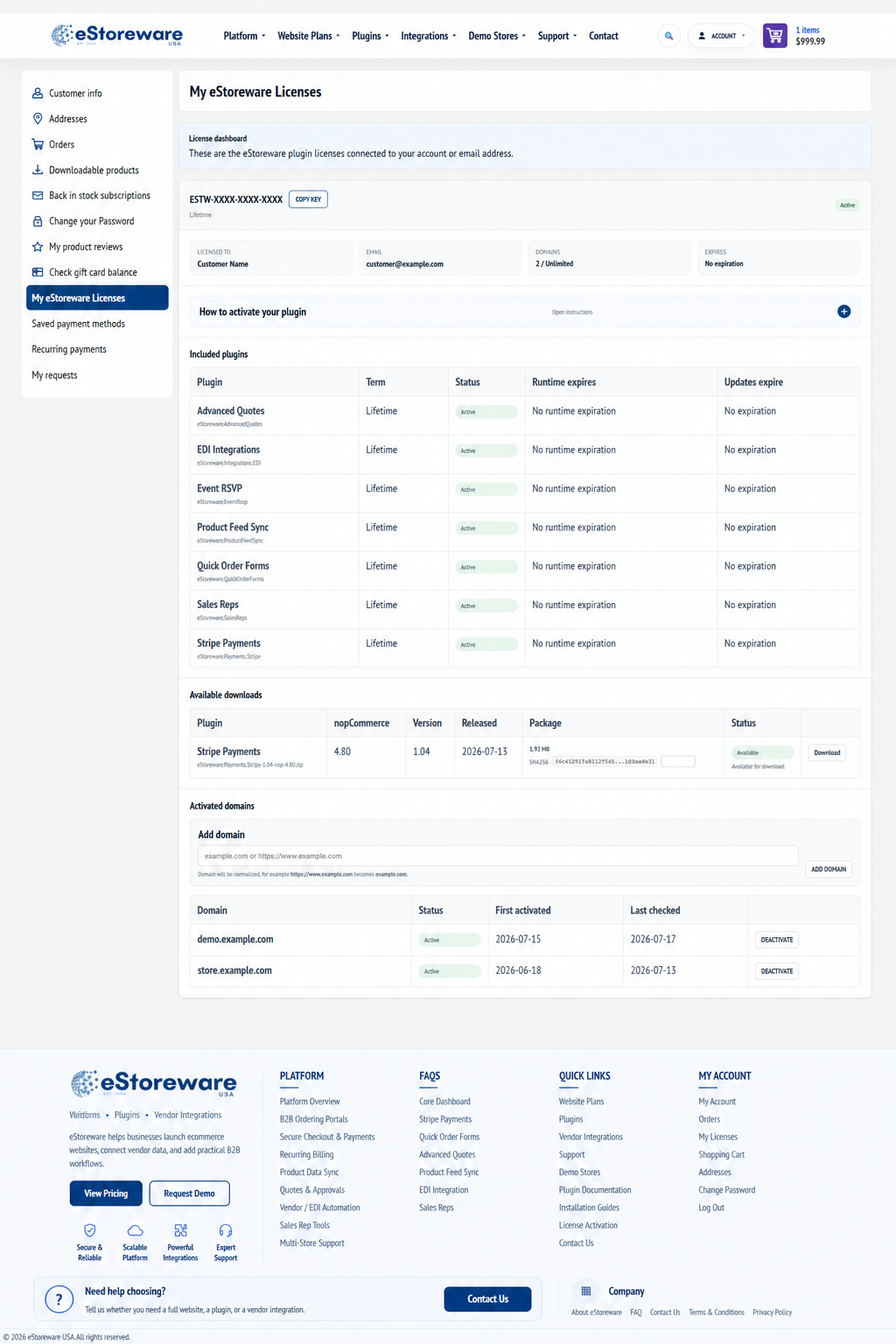
Viewing the license key, included plugins, terms, runtime and update dates, downloadable packages, and activated domains from the customer account.
Where can customers view their eStoreware licenses?
Sign in to the eStoreware website and open My Account > My eStoreware Licenses. The page shows licenses connected to the account or licensed email address.
What information appears on the license dashboard?
The dashboard can show the license key, licensed customer, licensed email, domain allowance, expiration information, included plugins, each plugin's term and status, available package downloads, and activated domains.
Why can one license include several plugins?
An eStoreware license may represent a bundle or account entitlement containing multiple eStoreware plugins. The Included plugins table identifies exactly which plugins are covered by that license.
What is the difference between runtime expiration and updates expiration?
Runtime expiration indicates whether the installed plugin may continue operating after a certain date. Updates expiration indicates the end of the period during which newer plugin packages are available under the license. The exact terms displayed on the customer dashboard control.
Where do I download an available plugin package?
Use the Available downloads section in My eStoreware Licenses. Confirm the nopCommerce version and plugin version before downloading the package.
What is the SHA256 value shown with a download?
SHA256 is a file checksum. It can be used to verify that the downloaded package matches the package published by eStoreware and was not changed or corrupted during transfer.
What does the Customer Portal button in nopCommerce do?
The Customer Portal button opens the eStoreware customer licensing area, where authorized customers can review the license, available downloads, and activated domains.
Section 5: Activated Domains, Development Domains & Site Moves
Managing production-domain activations, understanding domain usage, using local and staging environments, and moving an installation to a different URL.
What does Domain usage mean?
Domain usage shows how many domains are currently activated compared with the license allowance. For example, 2 / Unlimited means two domains are active and the license does not impose a fixed maximum.
How do I add a production domain?
Open My eStoreware Licenses, enter the production hostname in the Add domain area, and submit it. The portal normalizes the entry so a full URL such as https://www.example.com is stored as the appropriate domain value.
How do I remove or release an activated domain?
Use the Deactivate action beside the domain in My eStoreware Licenses. Deactivating a domain in the portal is different from clearing local license data inside nopCommerce.
What does Allow development domains do?
When enabled, recognized development addresses such as localhost and common local, test, development, or staging domains can be used without blocking development. Production domains should still be activated normally.
Do development domains consume production-domain activations?
Recognized development domains are intended to avoid consuming or blocking normal production activations when development-domain support is enabled. Use a clearly non-production hostname and validate the plugin after changing environments.
What should I do when moving the store to a new domain?
Add the new production domain to the license, deploy the store, select each licensed plugin, and click Validate License. After confirming the new site is operating correctly, deactivate the old domain if it is no longer needed.
What should I do after copying production to staging?
Use a recognized staging or development hostname, keep development-domain support enabled when appropriate, and validate the installed plugins. Do not publish real license keys, customer names, email addresses, installation IDs, or private domain information in public screenshots.
Public screenshot reminder: Redact license keys, customer names, licensed email addresses, installation IDs, and private domains before publishing Core licensing screenshots.