
Recent payment reliability updates
Guide reviewed October 7, 2026. Use the matching package for your installed nopCommerce version.
Recent source work strengthens payment ownership checks, store-specific account selection, durable renewal recovery, hosted-session reuse, and webhook processing checkpoints. Confirm that the updated package is installed before relying on these improvements; the displayed plugin version alone does not identify every reliability patch.
- Back up the database and full plugin output, including payment-operation records.
- Deploy the complete compatible package and confirm startup applies its payment-operation migration.
- Use Core's renewal dispatcher with the legacy Stripe renewal-generation task disabled. Keep Stripe's pending-renewal processing task enabled as required.
- Test embedded and hosted checkout, saved cards, required authentication, recurring retries, capture/refund/void, and duplicate webhook delivery in the configured provider's test environment.
- Compare the order, Stripe transaction, and stored operation result after an uncertain response before retrying.
Pending/action-required payments should not become replacement charges. Unknown operations outside the safe replay window, changed account/order data, or conflicting references require manual reconciliation. Retain operation records when rolling back; deleting them loses ownership and replay evidence.
Offline and isolated SQL Server checks are recorded in the release evidence. They do not replace the target site's browser, provider, database, and fulfillment acceptance checks.
Overview
eStoreware Stripe Payments provides embedded Stripe card entry for nopCommerce, saved payment methods at checkout and in My Account, 3D Secure support, authorize-and-capture workflows, refunds, webhook processing, multi-store settings, and recurring-payment administration.
Embedded checkout
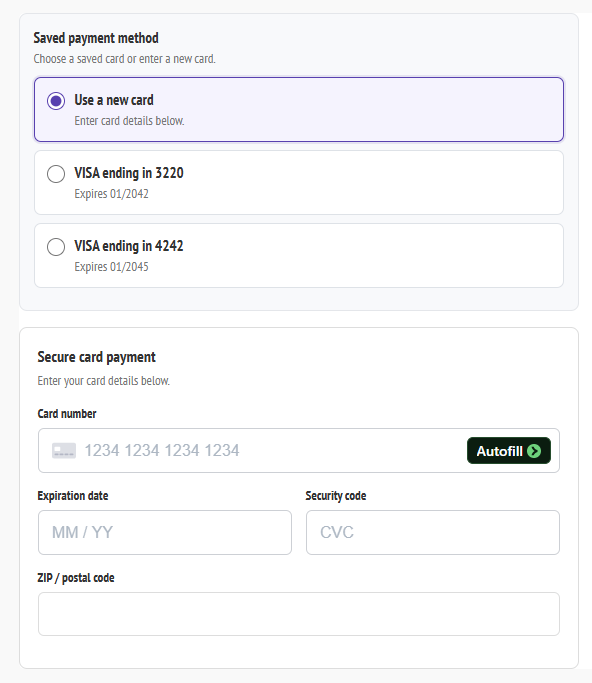
Customers enter card details inside the nopCommerce checkout instead of navigating through a separate payment page.
Saved cards
Eligible customers can reuse tokenized Stripe payment methods without storing raw card data in nopCommerce.
Modern authentication
3D Secure and SCA flows can request cardholder verification when Stripe or the card issuer requires it.
Recurring tools
Review renewals, retry activity, payment methods, pause dates, snoozes, and next-payment scheduling.
Install and activate Stripe Payments
- Install eStoreware Core and confirm its dashboard loads.
- Install eStoreware Stripe Payments from nopCommerce Local plugins.
- Restart or reload the application when prompted.
- Open eStoreware → Licensing, activate the Stripe Payments license, and validate it.
- Open Configuration → Payment methods, locate eStoreware Stripe Payments, and select Configure.
- Begin in Stripe test mode before entering any live credentials.
Connect Stripe keys and the webhook
Get API keys from Stripe
- Sign in to the correct Stripe account.
- Enable test mode while configuring and testing the plugin.
- Open the Stripe developer API keys area.
- Copy the test publishable key and test secret key into the matching plugin fields.
- Save the plugin configuration before creating the webhook endpoint.
| Credential | Purpose | Handling |
|---|---|---|
| Publishable key | Used by Stripe’s browser-side payment components. | Not treated like a password, but should still match the intended Stripe account and mode. |
| Secret key | Allows the server to create and manage Stripe payment objects. | Keep private. Never expose it in page source, screenshots, email, or client-side JavaScript. |
| Webhook signing secret | Verifies that incoming webhook events were signed by Stripe. | Use the signing secret for the exact endpoint and mode configured in Stripe. |
Create the Stripe webhook endpoint
Use the plugin webhook URL:
https://YOUR-DOMAIN.com/Plugins/eStoreware/Stripe/Webhook
- In Stripe, open the Webhooks area and add a new endpoint.
- Paste the HTTPS webhook URL from the plugin configuration.
- Select the payment, refund, dispute, and recurring events required by the installed plugin version.
- Create the endpoint and reveal its signing secret.
- Paste the signing secret into the plugin’s webhook-secret field and save.
- Send a Stripe test event and confirm the delivery succeeds.
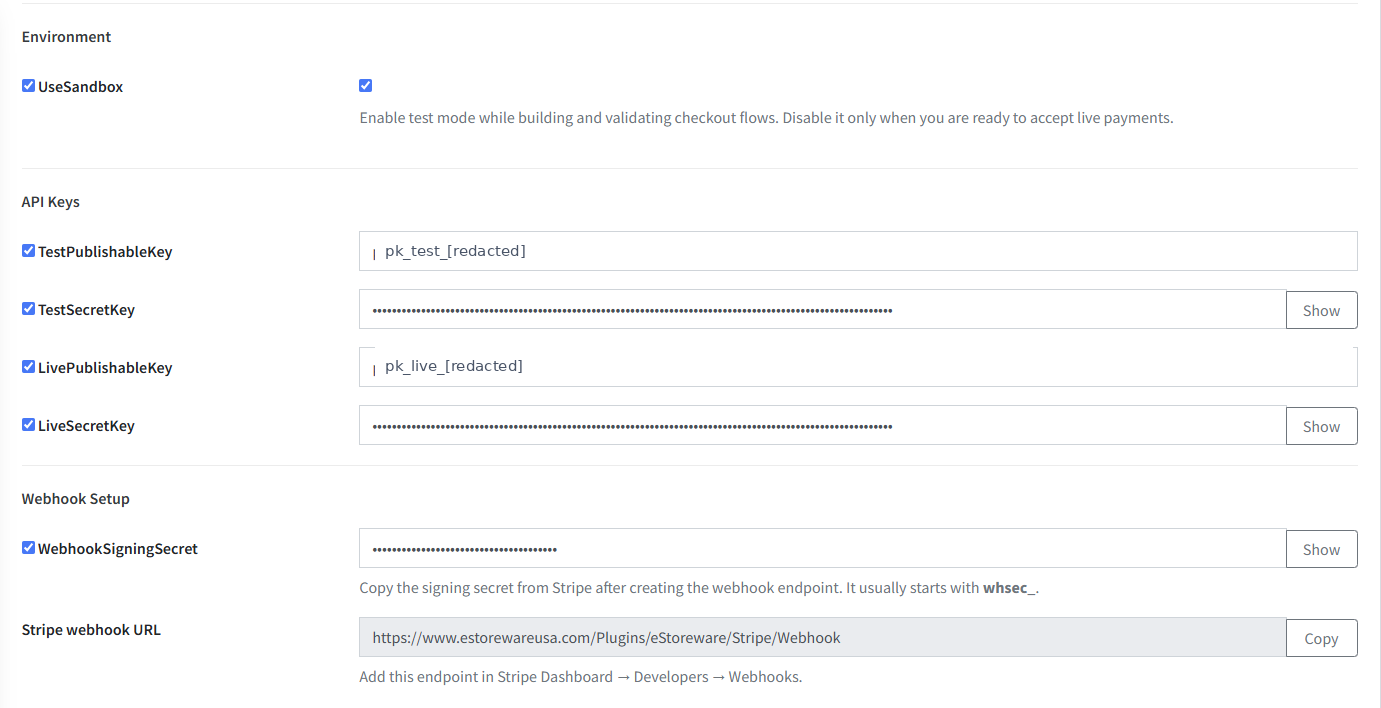
Review Stripe Payments settings
| Setting area | Recommended review |
|---|---|
| Test / live mode | Keep test mode enabled until checkout, webhooks, saved cards, refunds, and recurring behavior have been verified. |
| Transaction mode | Choose immediate authorize-and-capture or authorize-only based on the store’s fulfillment workflow. |
| Saved payment methods | Decide whether registered customers may save a new method, select a saved method at checkout, and manage methods in My Account. |
| 3D Secure | Use the supported Stripe authentication behavior and avoid forcing authentication more broadly than the business requires. |
| Recurring payments | Enable the recurring tools only after the Stripe account, webhooks, scheduled tasks, and renewal workflow are tested. |
| Order notes and logging | Keep useful Stripe IDs and status transitions without logging credentials or sensitive card data. |
| Multi-store overrides | Confirm every store uses the intended keys, webhook secret, and behavior. |
Checkout and 3D Secure
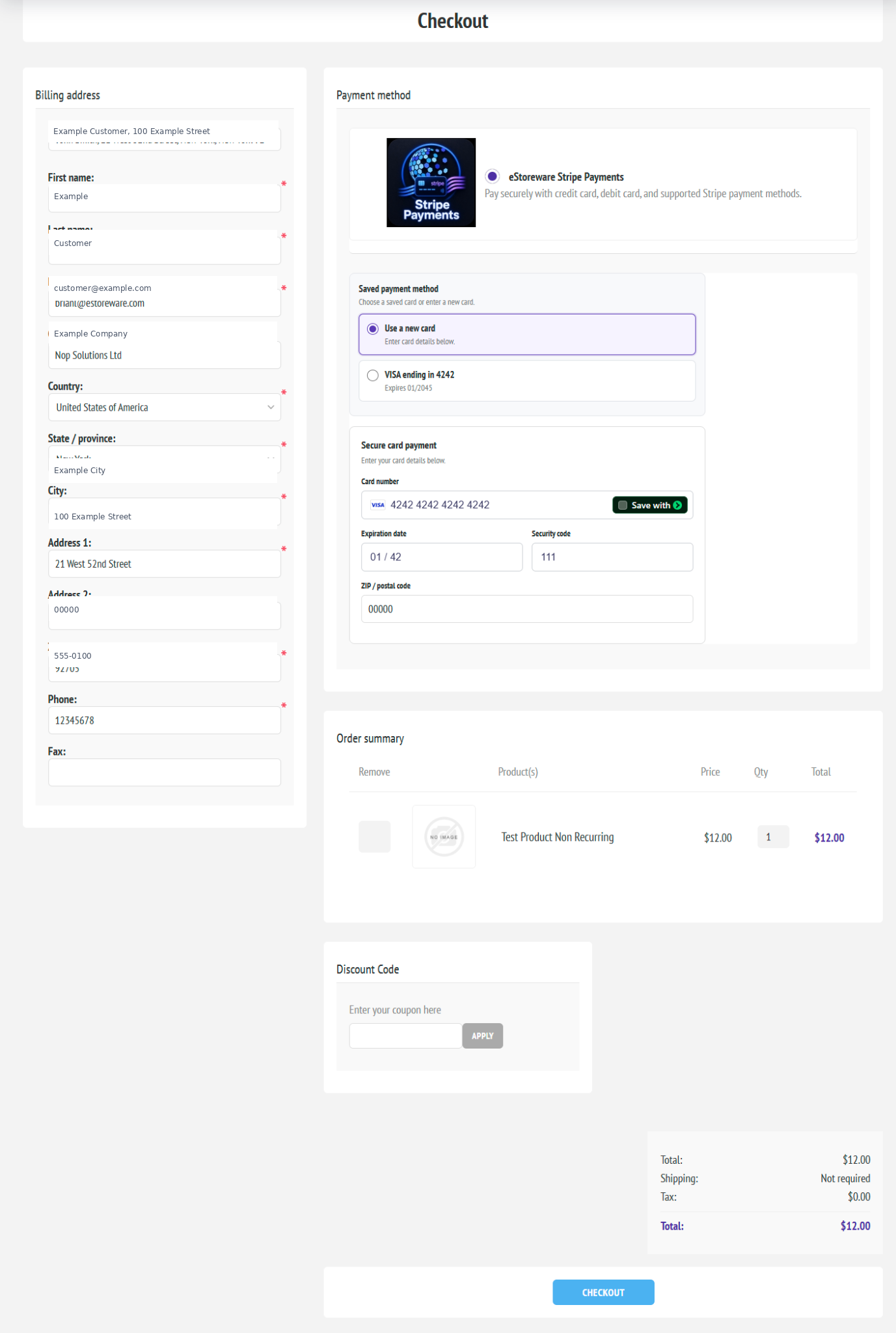
The Stripe Payment Element is displayed inside the nopCommerce payment step. The plugin creates the Stripe payment flow, confirms it from the browser, and returns the customer to the normal order process.
Standard checkout test
- Add a normal product to the cart and proceed through checkout.
- Select eStoreware Stripe Payments.
- Enter a Stripe test card and complete the order.
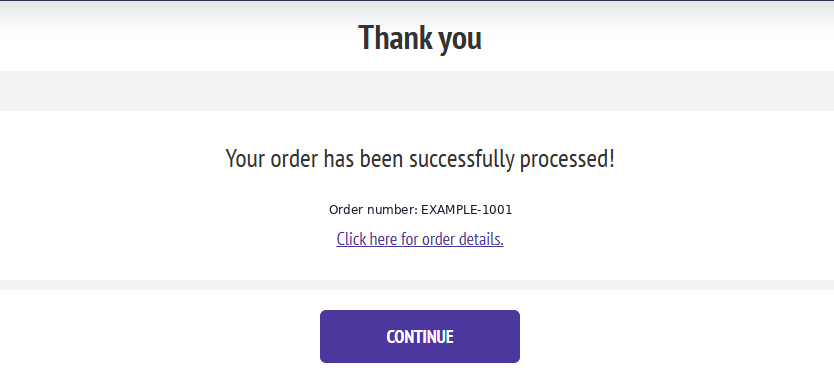
- Confirm the nopCommerce order is created once.
- Confirm the Stripe payment and amount match the nopCommerce order total.
- Review order notes and webhook delivery history.
One-page checkout test
Repeat the full flow through the installed one-page checkout. Confirm the payment fields initialize once, the order button cannot create duplicate intents or duplicate orders, and validation messages remain visible when customer input requires correction.
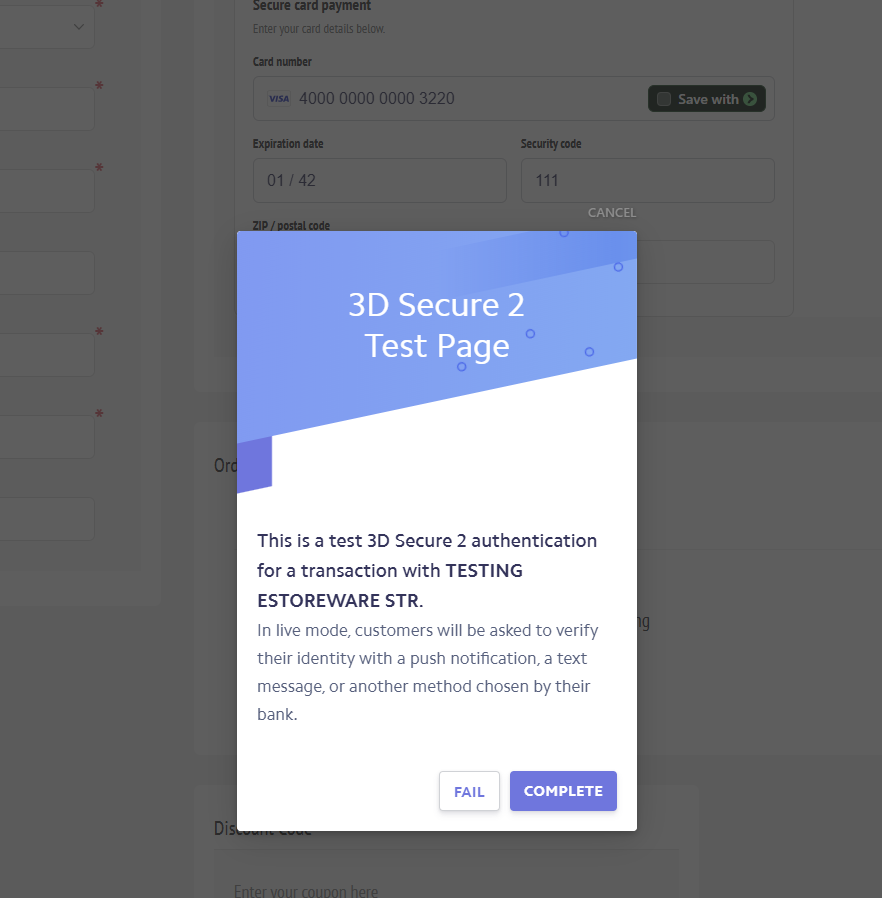
3D Secure test
Use a Stripe test payment method that requires authentication. Confirm the customer can complete the Stripe challenge, return to checkout, and finish the order without losing the cart or creating a duplicate order.
Saved payment methods
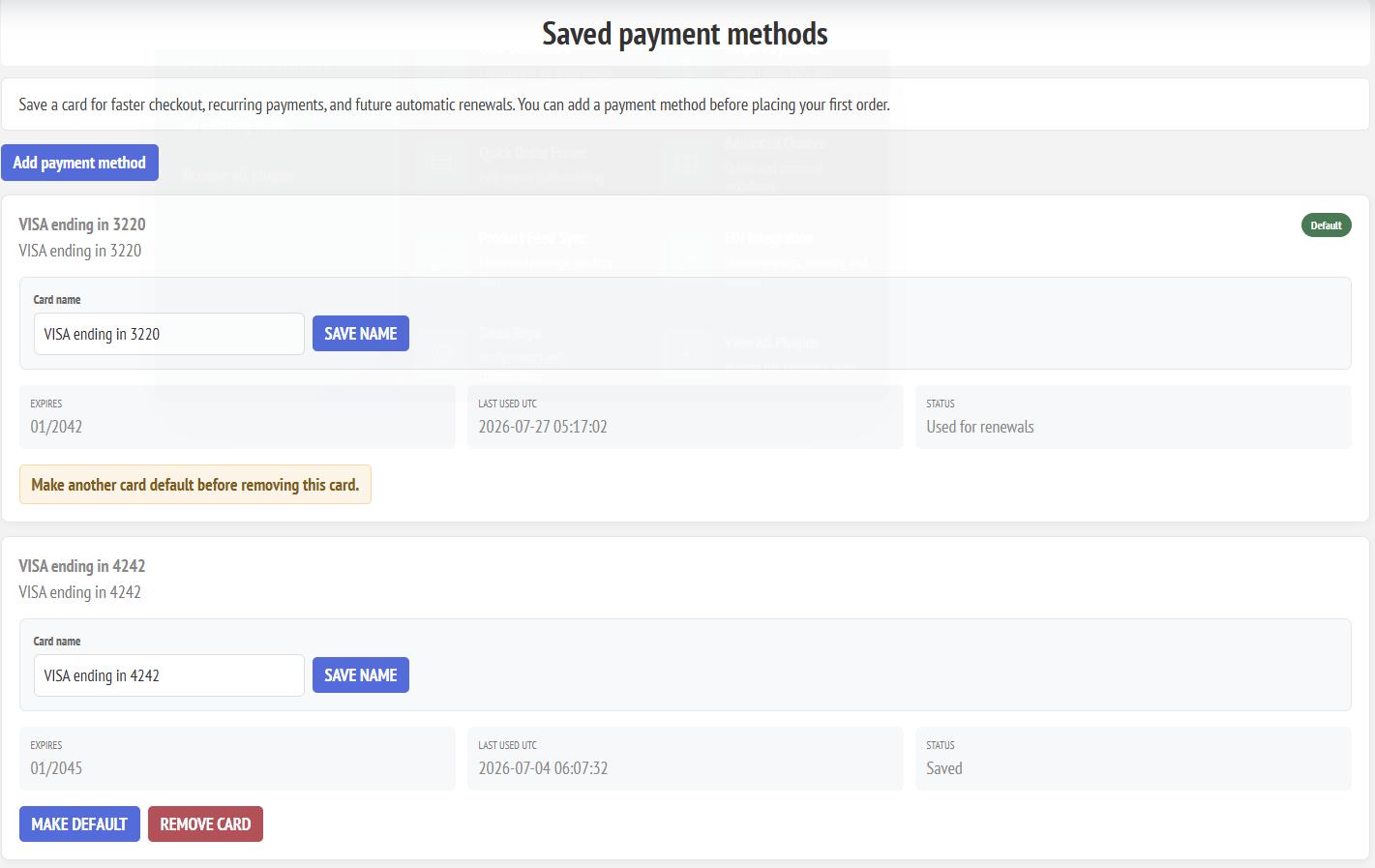
Saved cards are represented by Stripe customer and payment-method IDs. nopCommerce can display safe card details such as brand and last four digits, but it should not store raw card numbers.
Save a payment method during checkout
- Sign in with a registered customer account.
- Choose to enter a new card during checkout.
- Enable the save-card option when shown.
- Complete the payment successfully.
- Return to checkout and confirm the saved method appears in the saved-card selector.
Use a saved card at checkout
Select an existing Stripe payment method from the saved-card list and complete the order. Confirm the plugin uses the selected payment method rather than creating an unintended new one.
Manage cards in My Account
The customer account payment-method page allows eligible customers to review and remove stored Stripe payment methods. Test the page after the customer’s first completed purchase and confirm the correct Stripe customer is associated with the nopCommerce customer.
Authorize, capture, void, and refund
| Action | When to use it |
|---|---|
| Authorize and capture | Charges the customer as part of the initial successful payment flow. |
| Authorize only | Reserves the amount so the administrator can capture it after reviewing or preparing the order. |
| Capture | Completes an existing authorization before it expires. |
| Void | Cancels an uncaptured authorization. |
| Refund | Returns all or part of a captured payment through the supported nopCommerce order action. |
After each action, confirm the result in nopCommerce order notes, Stripe payment details, and webhook deliveries. Never assume the browser response alone is the final payment state.
Recurring billing administration
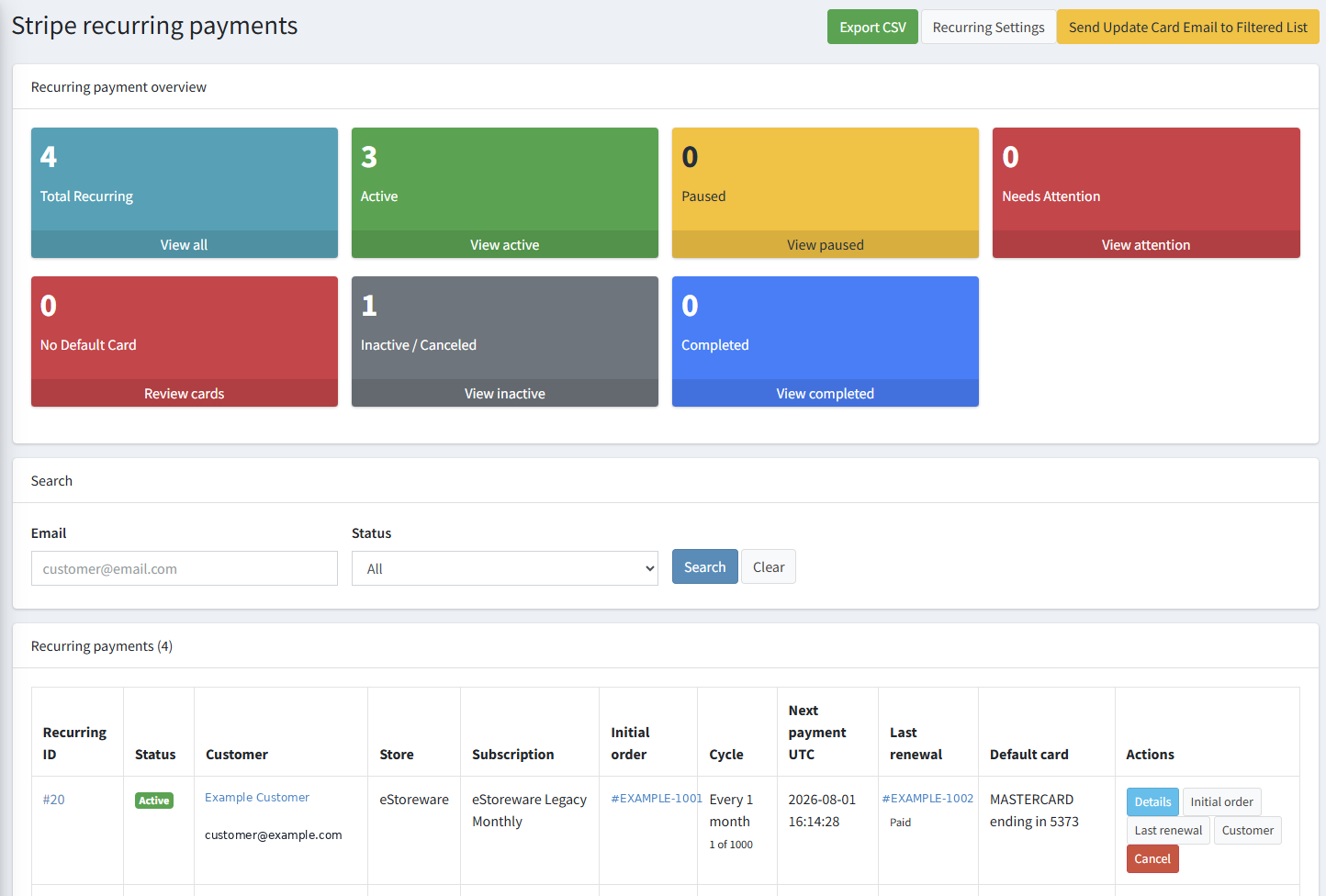
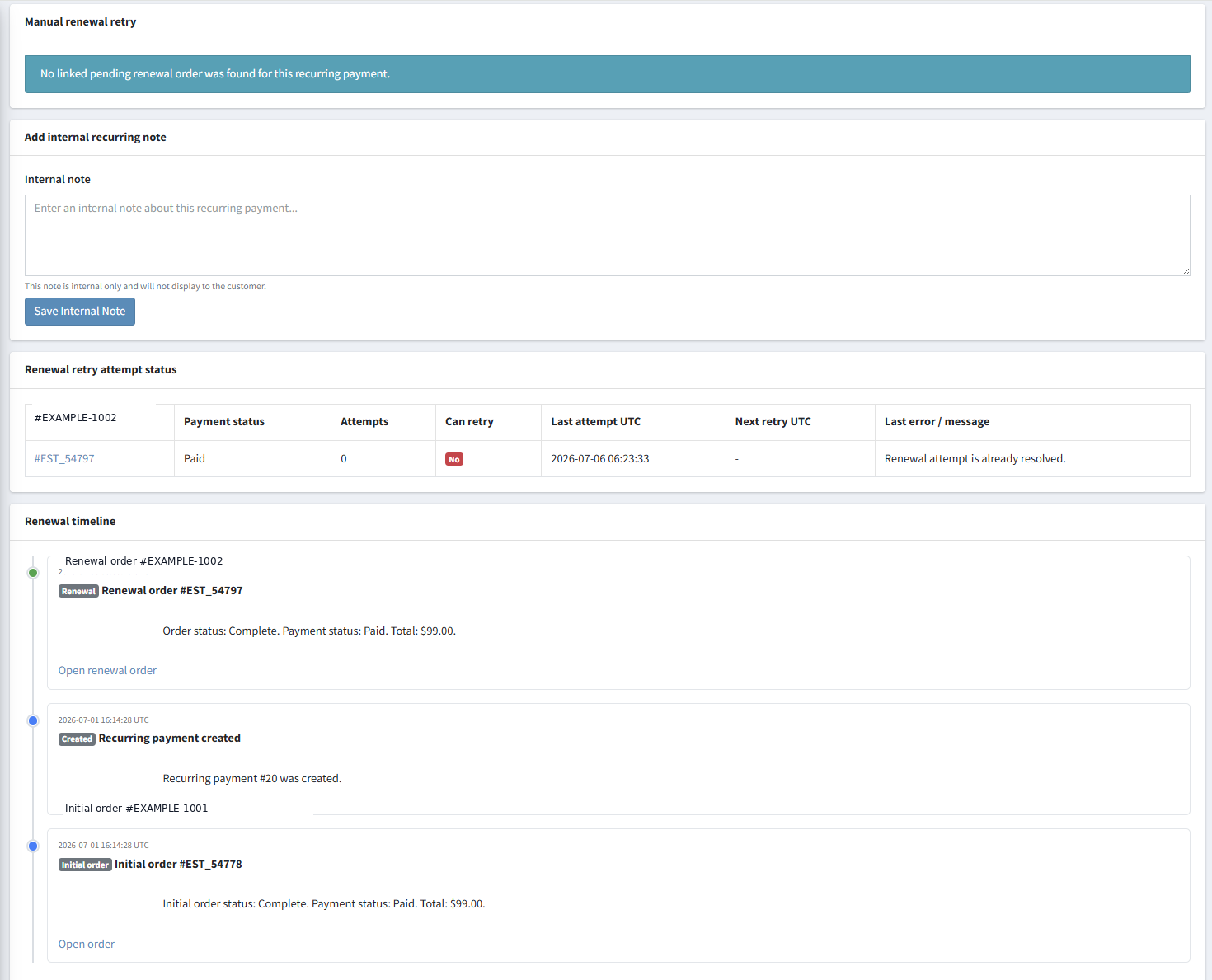
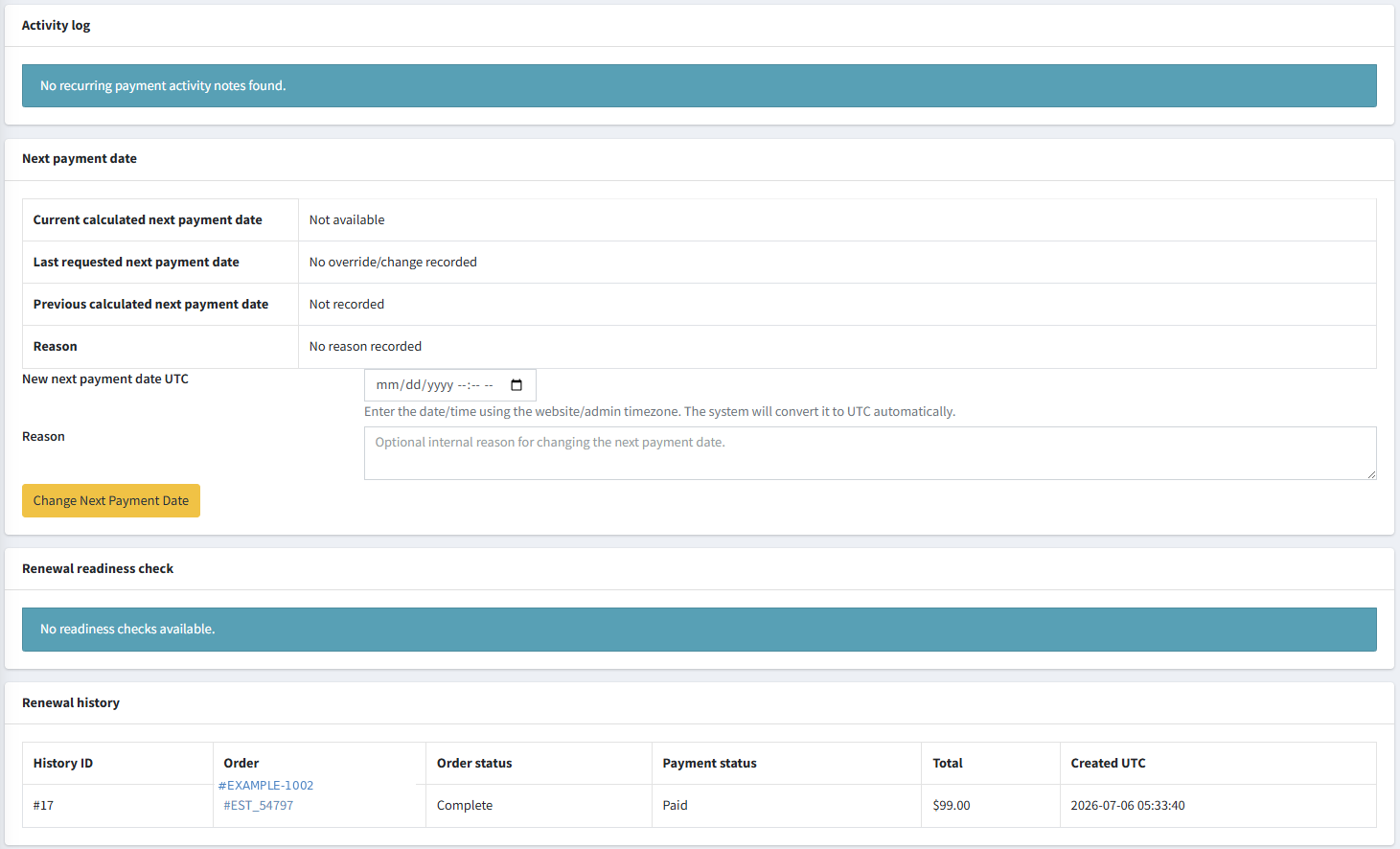
The recurring tools provide a nopCommerce administration workflow for reviewing customer renewal records and controlling payment timing. Exact options depend on the installed plugin version and configuration.
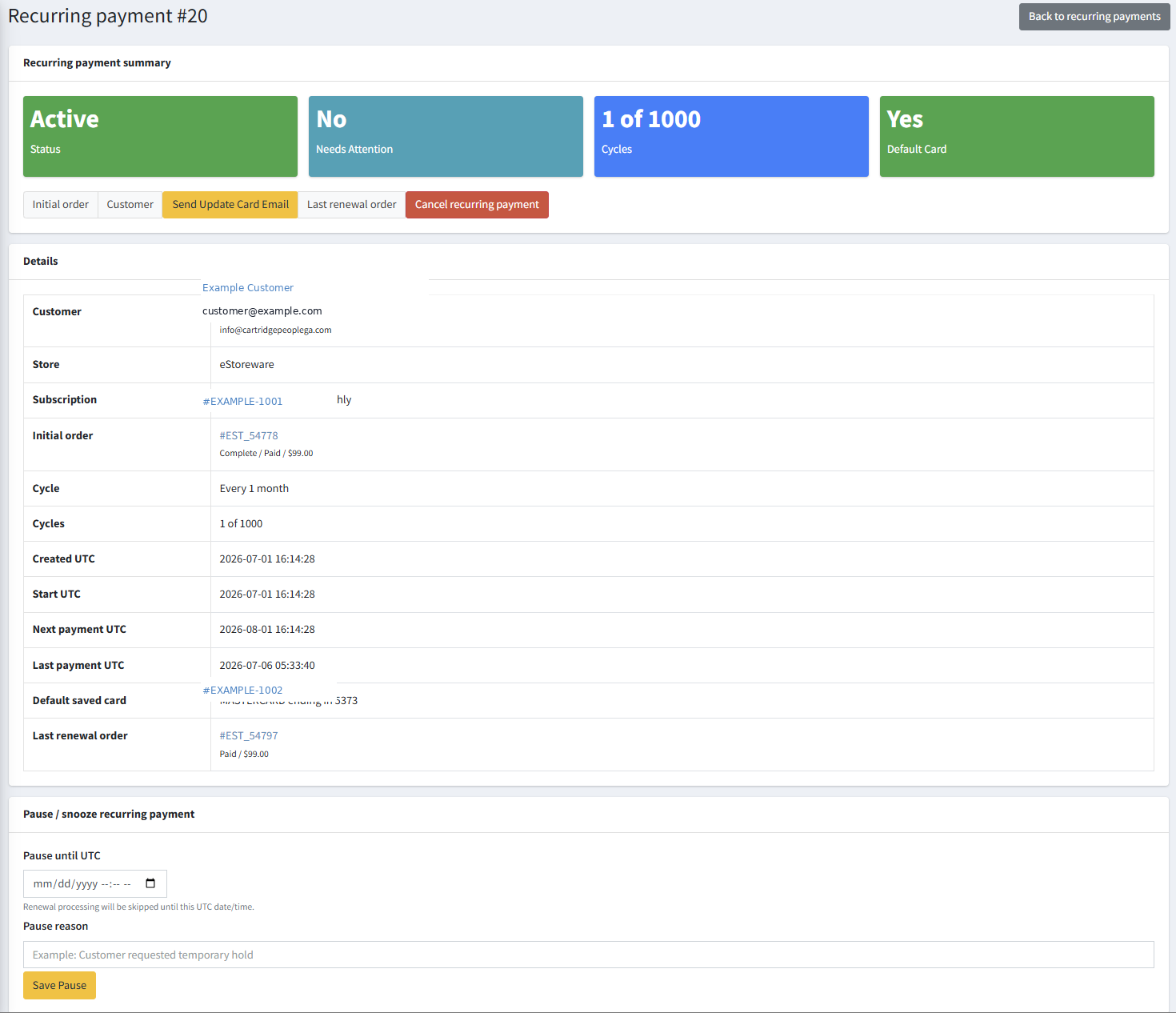
- Review the customer, Stripe customer, saved payment method, amount, interval, and next payment date.
- Pause or snooze a recurring record when a temporary delay is required.
- Update the next payment date only after confirming the business reason and customer expectation.
- Use retry tools for eligible failed renewals after reviewing the Stripe decline or error.
- Review renewal history and nopCommerce logs before manually retrying more than once.
- Confirm the required scheduled task is enabled and running at the intended interval.
Test before switching to live mode
| Test | Expected result |
|---|---|
| New-card payment | One Stripe payment and one nopCommerce order with matching totals. |
| Declined payment | Clear customer message; no paid order and no duplicate payment attempt. |
| 3D Secure | Authentication completes and returns to the same checkout flow. |
| Save new card | The method appears for the same registered customer on a later checkout. |
| Use saved card | The selected stored method is charged without collecting raw card details again. |
| Refund | The Stripe refund and nopCommerce order notes agree. |
| Authorize / capture | The order remains authorized until capture, then updates correctly. |
| Webhook | Stripe reports successful delivery and the store records the event. |
| Recurring renewal | The renewal runs once, records its outcome, and calculates the next date correctly. |
| Multi-store | Each store uses its own intended mode, credentials, and webhook secret. |
Switch to live mode
- Confirm all test scenarios pass.
- Choose the correct nopCommerce store scope.
- Disable test mode.
- Enter the live publishable key, live secret key, and live endpoint signing secret.
- Create or confirm the live webhook endpoint.
- Save settings and perform a controlled low-value live transaction.
- Confirm the live order, payment, webhook, order notes, and refund procedure.
Troubleshooting
The payment fields do not load
- Confirm the publishable and secret keys match the selected test or live mode.
- Review browser console errors and nopCommerce logs.
- Confirm the checkout page is served over HTTPS.
- Check for duplicate scripts, checkout partial reloads, or theme JavaScript conflicts.
PaymentMethodId is empty or the payment is “not ready”
- Confirm Stripe Elements finished initializing before the order button was used.
- Confirm the checkout confirmation step receives the payment method or intent result.
- Check for JavaScript that submits the checkout twice or replaces the payment container unexpectedly.
“No such PaymentMethod”
- Confirm the payment method belongs to the same Stripe account and mode as the configured secret key.
- Confirm a test payment method is not being used with live credentials, or the reverse.
- Review the nopCommerce customer-to-Stripe-customer mapping.
Saved cards do not appear
- Confirm the customer is registered and has a Stripe customer mapping.
- Confirm the method was attached after a successful checkout.
- Confirm saved methods are enabled for the current store scope.
- Review the mapping repair or migration status after upgrading from an older plugin version.
The order or payment is created twice
- Disable repeated clicks while the Stripe confirmation is processing.
- Review theme and one-page-checkout scripts for duplicate submit handlers.
- Confirm the server reuses the intended payment intent rather than creating a second intent on retry.
- Review Stripe request logs, webhook deliveries, and nopCommerce order timestamps.
Webhooks fail
- Confirm the endpoint uses the public HTTPS domain and correct path.
- Confirm the signing secret belongs to that exact endpoint and mode.
- Review Stripe delivery attempts and the HTTP response.
- Confirm a firewall, proxy, rewrite rule, or security plugin is not blocking the endpoint.
Return to Plugin Documentation, review the Stripe Payments feature page, or contact eStoreware support.
Back to top ↑