
Advanced Quote FAQs
eStoreware Advanced Quotes for nopCommerce
Answers by workflow with screenshot examples: installation, store configuration, registered and guest cart requests, requested-price review, customer and store approval, revisions, branded PDFs, price-preserved checkout, final order linkage, and optional Quick Order Forms conversion.
Section 1: Installation, Configuration, and Store Setup
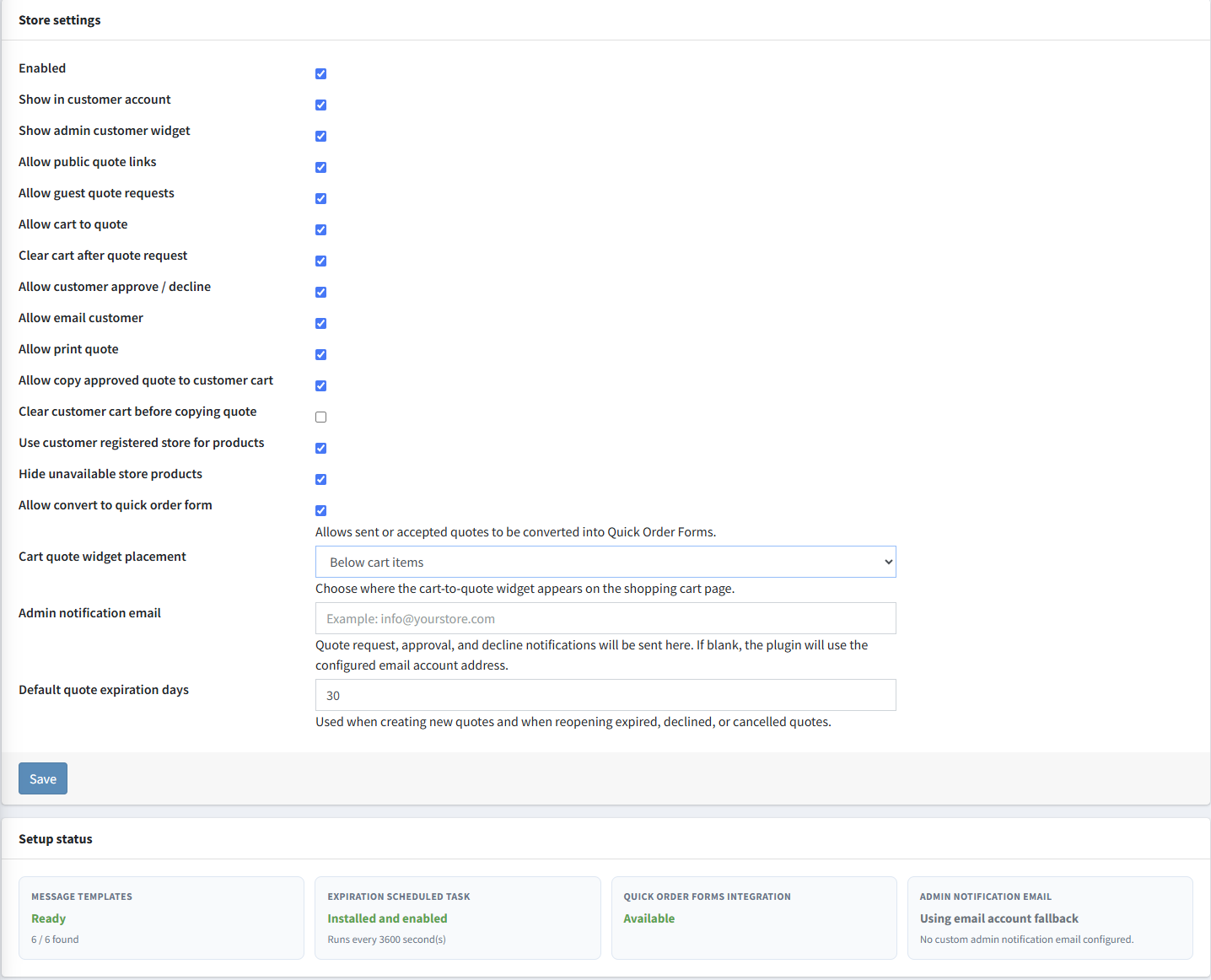
Advanced Quotes uses per-store settings, message templates, an expiration task, permissions, and optional Quick Order Forms integration. The Configuration page summarizes whether the required supporting components are ready.
What is eStoreware Advanced Quotes?
Advanced Quotes adds a structured B2B quotation workflow to nopCommerce. Customers or guests can request special pricing from the shopping cart, staff can prepare and send a quote, and an approved quote can be copied to the customer cart with negotiated prices preserved. Quotes can also produce branded PDFs, revisions, history records, final order links, and optional reusable Quick Order Forms.
What should I do after a fresh installation?
Open Advanced Quotes > Configuration, select the store, review the settings, and save them. Confirm that Setup Status reports the message templates and expiration scheduled task as ready. Configure an administrative notification email if you do not want the plugin to use the store email-account fallback.
Do I need to run Repair Setup on every installation?
No. A fresh installation should create its required database objects and supporting records automatically. Use Repair Setup when upgrading an older Advanced Quotes installation, recovering from an incomplete earlier installation, or when Setup Status identifies missing templates, tasks, or integration records.
Is Advanced Quotes configured separately for each store?
Yes. Settings such as enabled status, public links, guest requests, cart-to-quote behavior, email, printing, customer-account visibility, cart conversion, expiration, product-store behavior, and Quick Order Forms conversion can be configured for the selected store.
What does the Setup Status area check?
It summarizes whether the Advanced Quotes message templates exist, whether the expiration scheduled task is installed and enabled, whether Quick Order Forms integration is available, and which administrative notification email will be used.
What controls who can administer quotes?
Advanced Quotes uses nopCommerce administrative permissions. Assign the plugin's permissions only to roles that should view, create, edit, price, send, approve, convert, or otherwise manage customer quotations.
Section 2: Shopping-Cart Quote Requests and Customer Confirmation
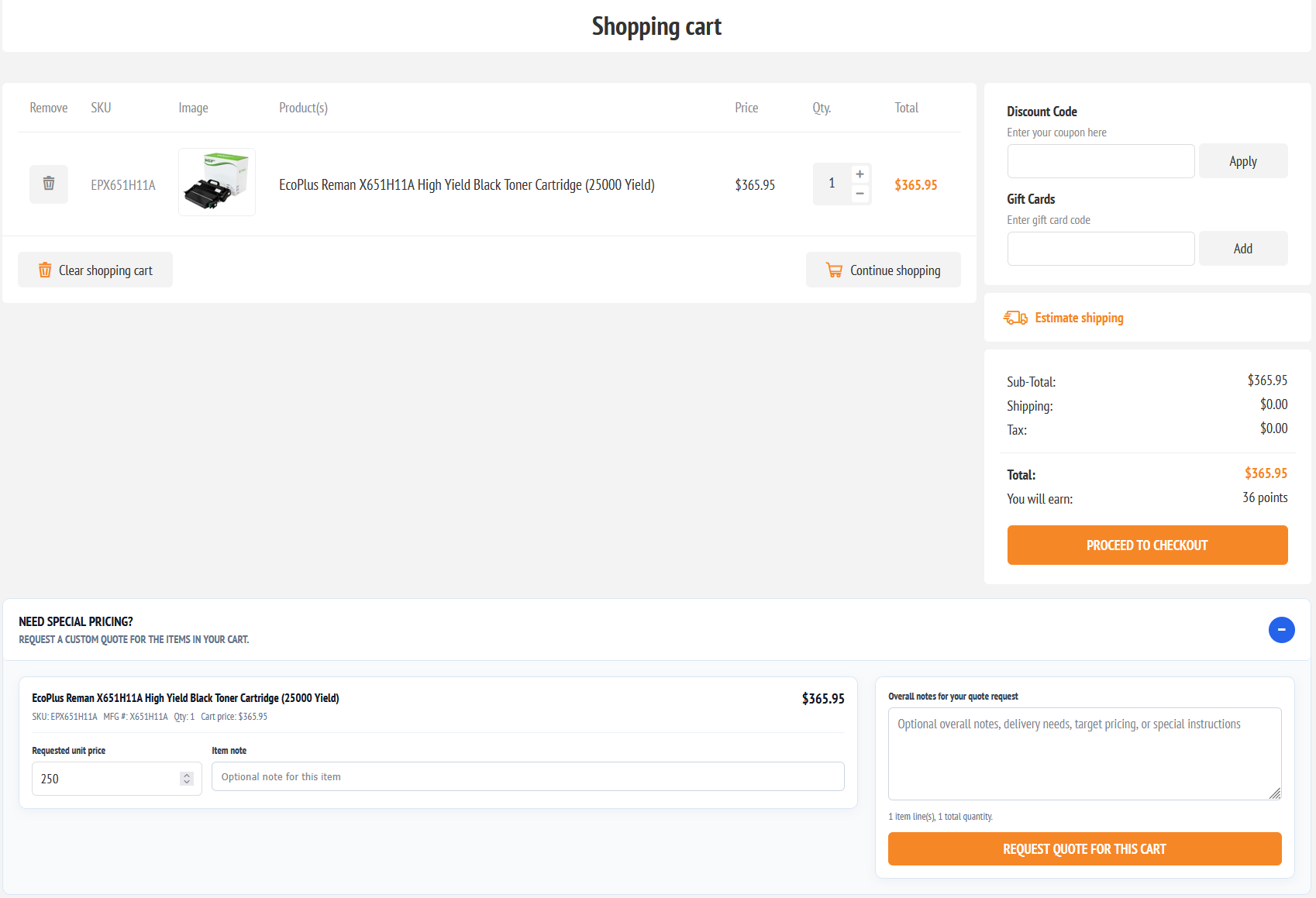
The cart widget lets customers request special pricing without recreating the product list. It captures the current products and quantities along with optional target pricing and purchasing instructions.
How does a customer request a quote from the cart?
When Allow cart to quote is enabled, the shopping cart displays a special-pricing panel. The customer can enter an optional requested unit price and item note for each line, add overall instructions, provide an email when required, and submit the complete cart as a quote request.
Can guests request a quote?
Yes, when Allow guest quote requests is enabled. A guest supplies an email address so the store can identify and contact them. Staff can later assign the guest quote to a registered customer before using customer-specific actions such as copying the quote to a cart.
Why should a customer register before requesting a quote?
Registration is not required when guest requests are allowed, but a registered customer can keep the quote visible in My Account > My Quotes, use customer-specific cart conversion, and maintain a clearer long-term history. The cart panel can present Log In and Register links while still allowing guest submission.
What happens after the request is submitted?
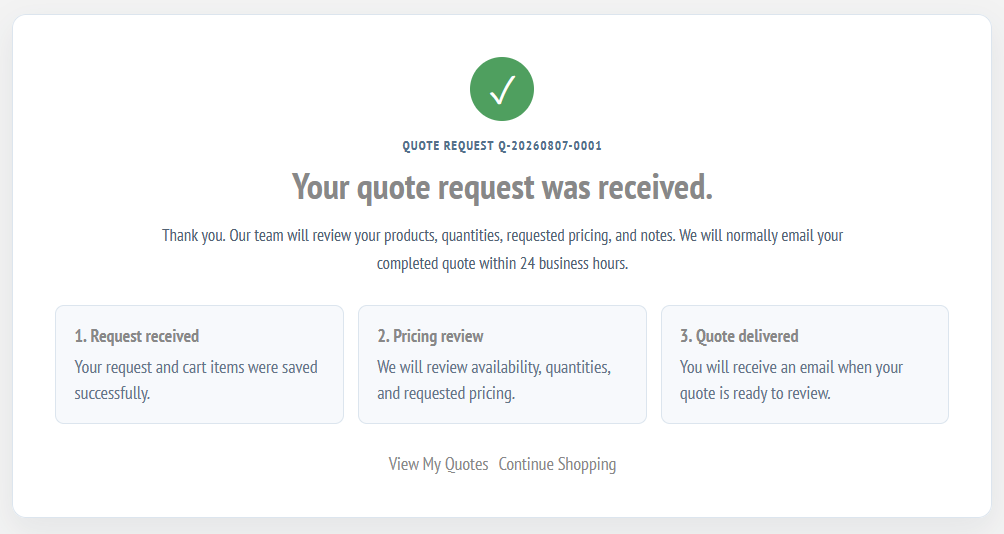
The request and its cart items are saved under a quote number. The customer is taken to a confirmation page explaining that the request was received, pricing will be reviewed, and the completed quote will be delivered. The page can state the store's normal response expectation, such as within 24 business hours.
Can the cart be cleared after a quote request?
Yes. Clear cart after quote request controls whether the shopping cart is emptied after a successful submission. The dedicated confirmation page ensures the customer receives a visible result instead of seeing the cart disappear without explanation.
Where does a cart request appear for administrators?
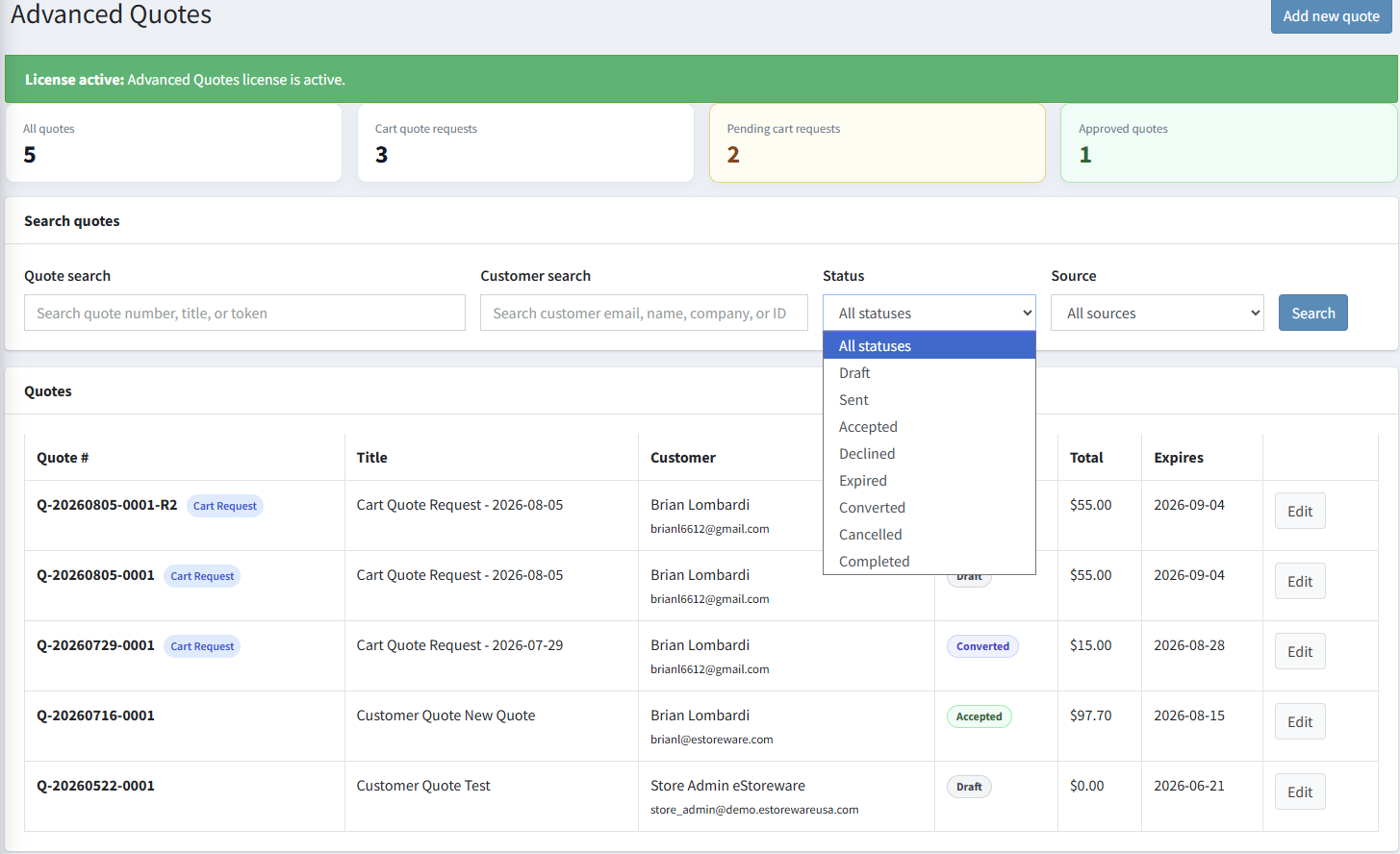
It appears in the Advanced Quotes list with a Cart Request source badge. Dashboard counts help separate all quotes, cart quote requests, pending requests, and approved quotes. Staff can search by quote number, title, customer name, email, company, or ID and filter by status or source.
Section 3: Product Search, Quote Items, and Requested Pricing
Administrators can add catalog products quickly, then edit the commercial details after each product is on the quote. Customer-facing notes remain separate from private administrative notes.
How do administrators add products to a quote?
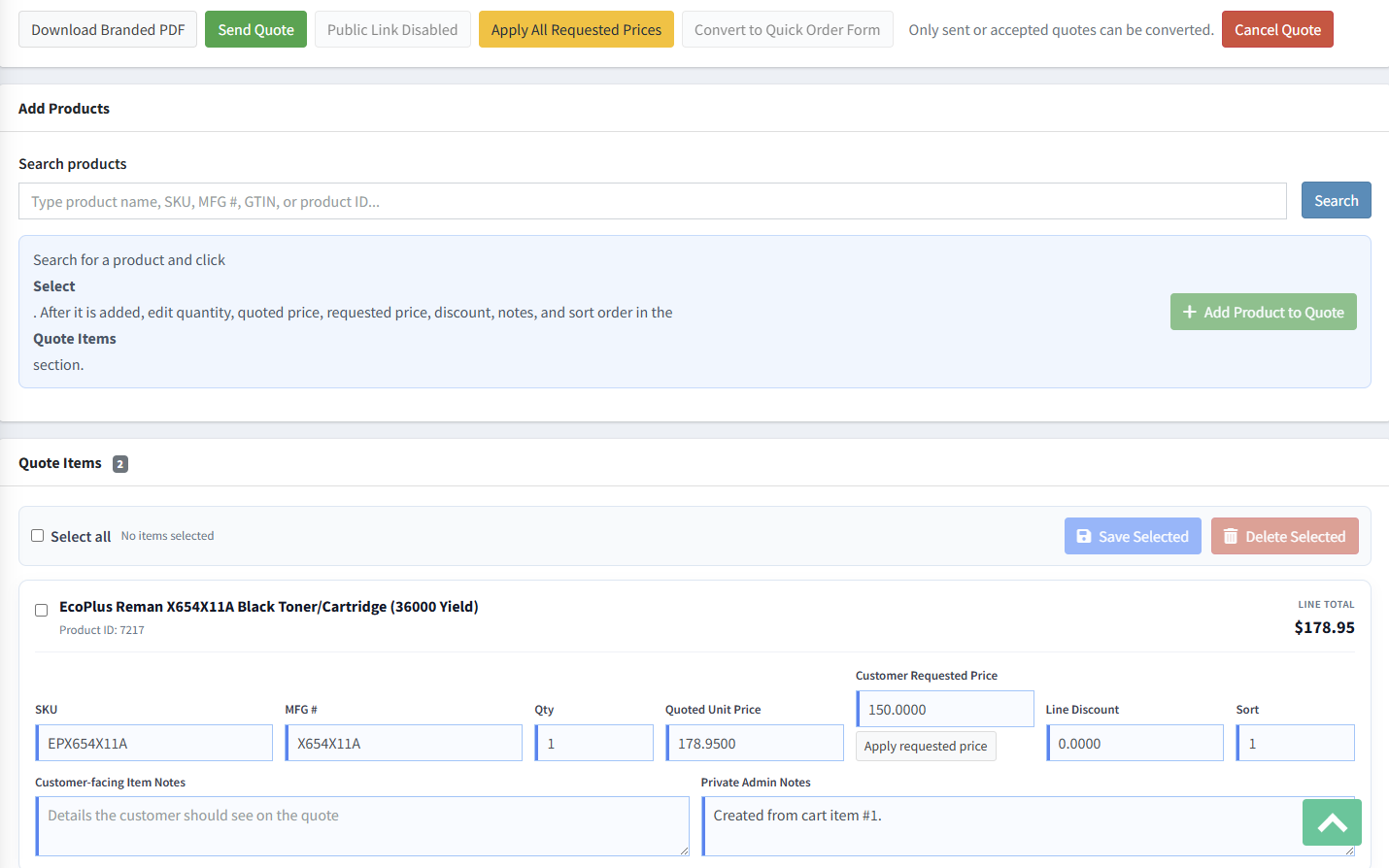
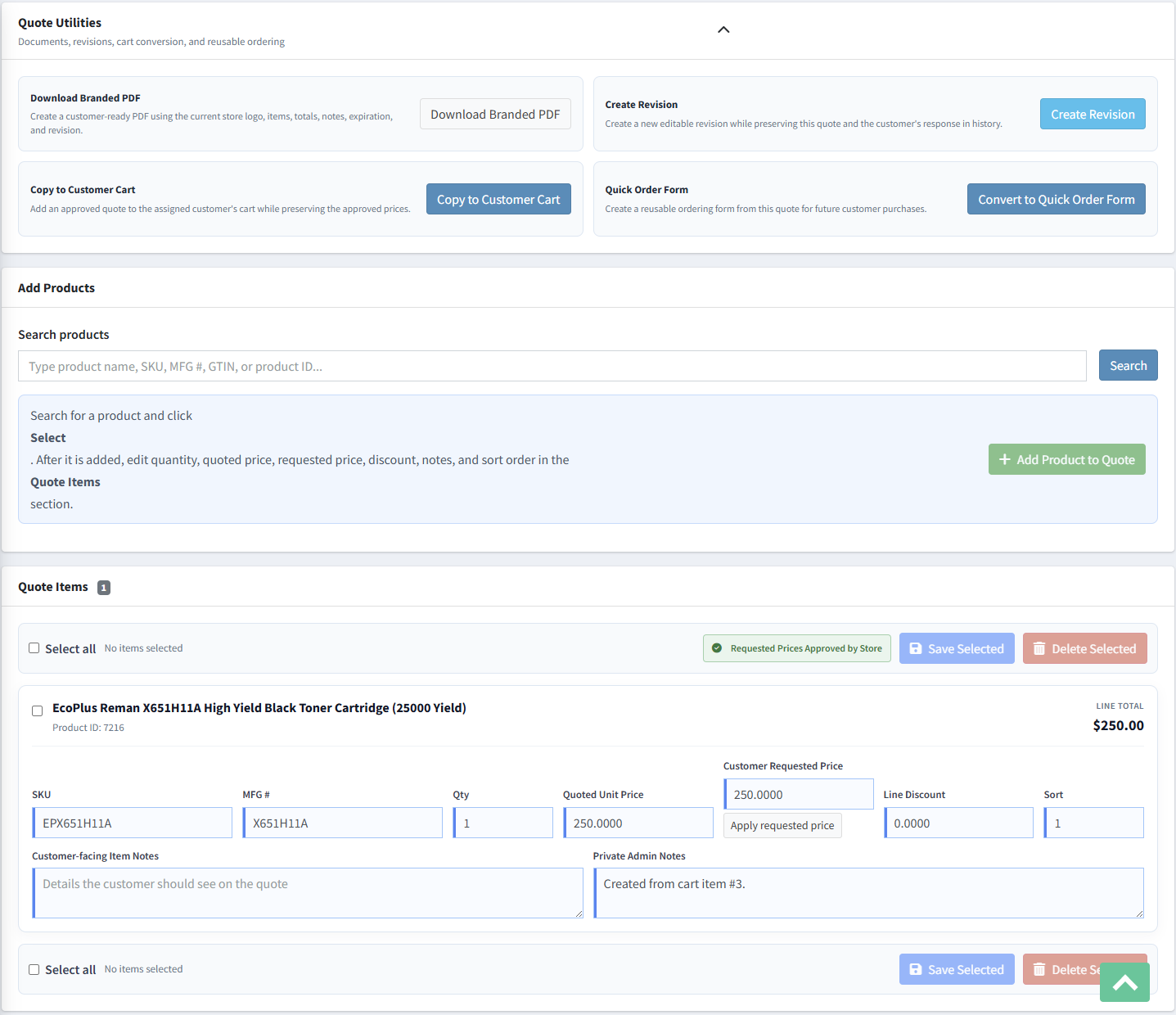
Search by product name, SKU, manufacturer number, GTIN, or product ID, select the matching result, and add it to the quote. After it is added, edit the quantity, quoted unit price, requested price, discount, sort order, customer-facing note, and private administrative note in the Quote Items section.
What is the difference between Customer Requested Price and Quoted Unit Price?
Customer Requested Price records the target price submitted by the customer. Quoted Unit Price is the actual price offered by the store and used to calculate the quote. Keeping both values visible makes it clear whether the store approved the request or issued a counteroffer.
What does Apply requested price do?
It copies that item's customer-requested value into its quoted unit price. Review and save the item so the recalculated line and quote totals reflect the approved value.
What does Apply All Requested Prices do?
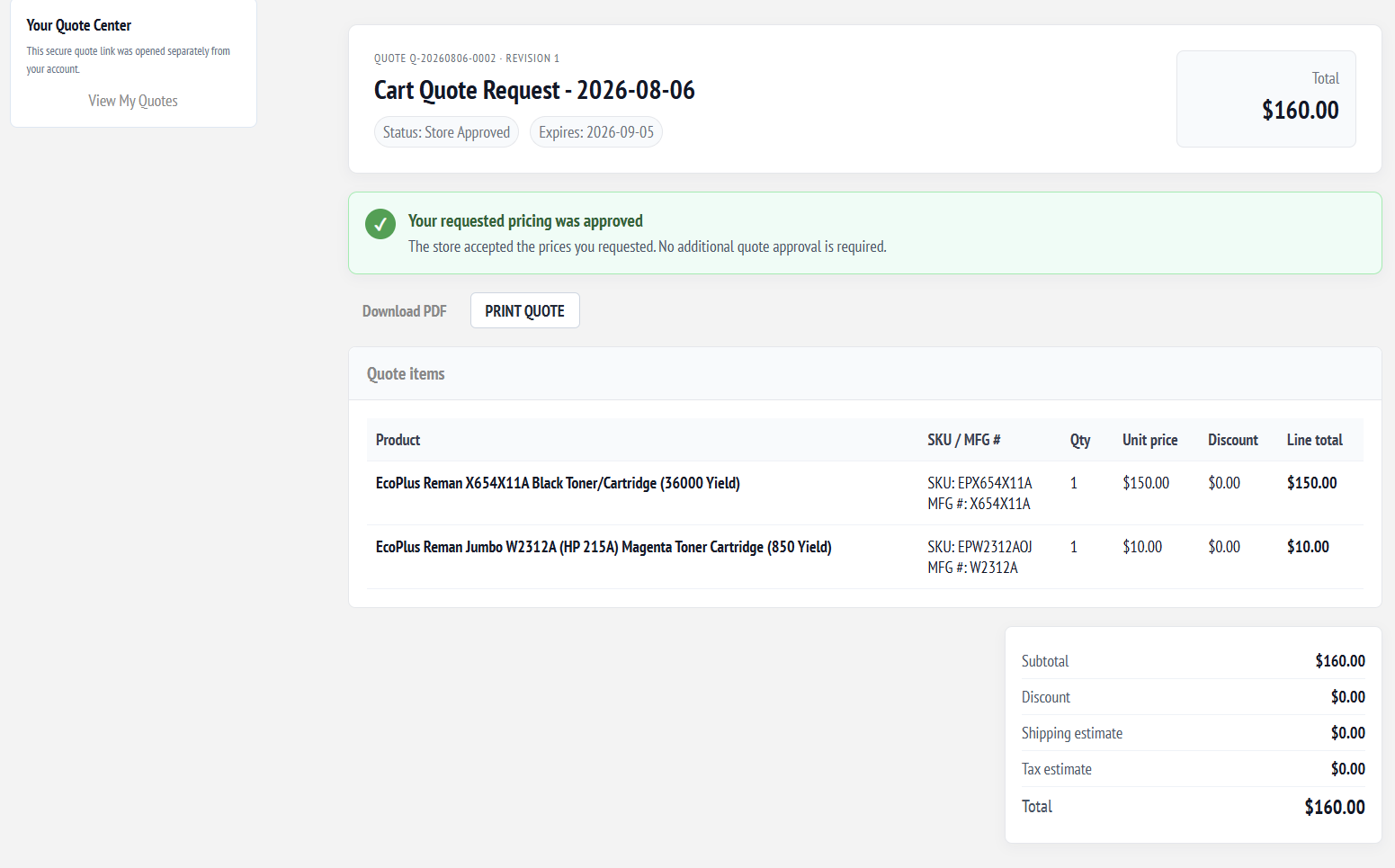
It approves the submitted requested prices across eligible quote items, updates their quoted prices, records the pricing changes in history, moves the quote into the store-approved workflow, and can queue the customer notification. Because the store accepted the customer's own requested prices, no additional customer quote approval is required.
How do Save Selected and Delete Selected work?
Check the quote items you want to change, then use Save Selected to save those rows together or Delete Selected to remove them. Select-all controls are provided above and below the list for longer quotes.
Which notes are visible to the customer?
Customer-facing item notes and the quote's customer notes can appear on the customer quote and PDF. Private administrative notes are for internal use and should not be displayed to the customer.
Section 4: Sending Quotes, Revisions, Branded PDFs, and History
Advanced Quotes preserves commercial changes through revisions and a dated activity history. Customer-ready PDFs use the active store identity and current revision information.

What happens when I send a quote?
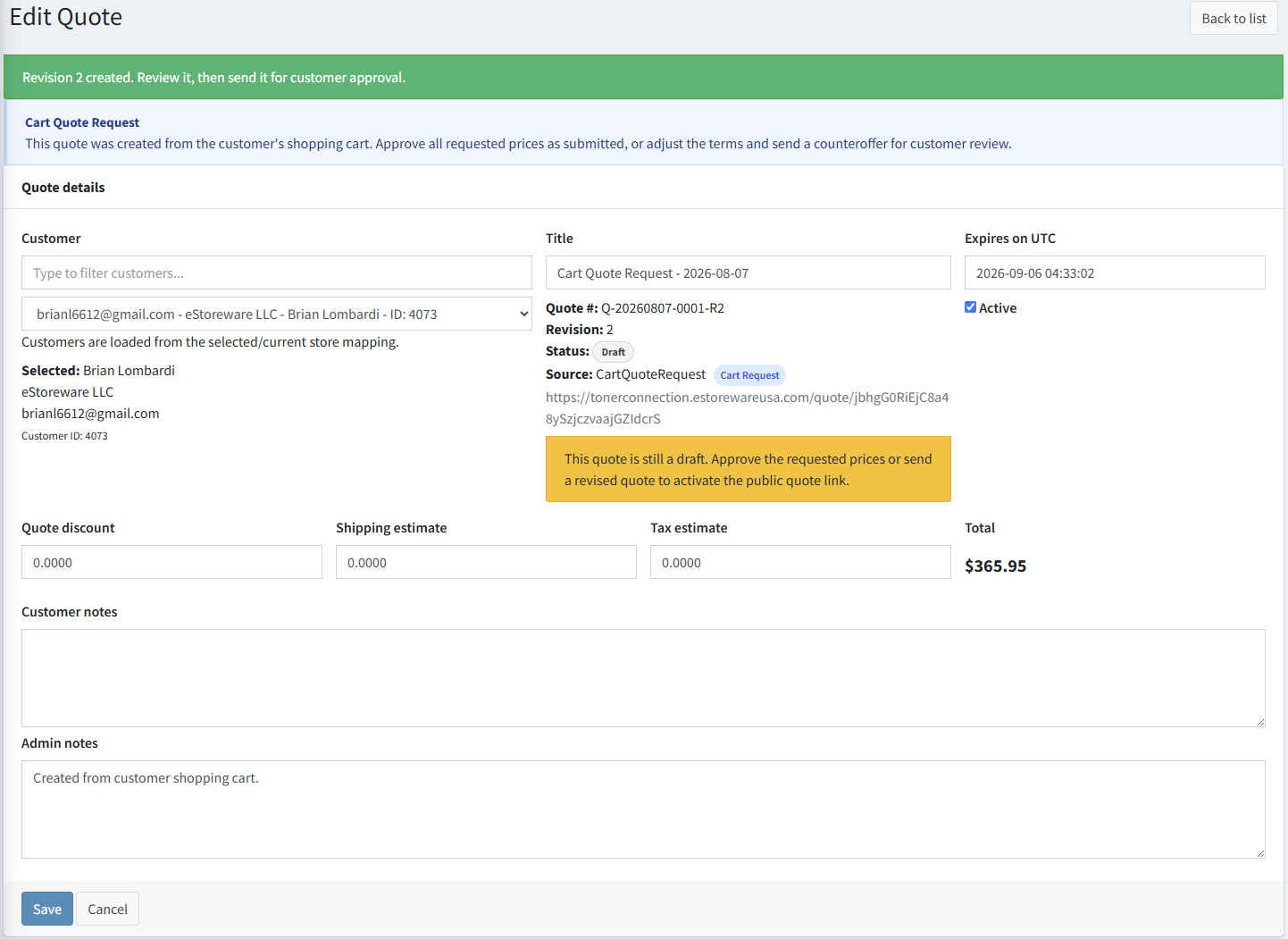
Sending activates the secure public quote link, updates the quote's workflow status as appropriate, records the action, and queues the configured customer email. Resend sends the current quote again without creating a separate quotation.
What is Create Revision?
Create Revision copies the current quote into a new editable version such as R2 or R3. The earlier version remains unchanged as a commercial record, while the new revision returns to Draft so staff can adjust products, pricing, dates, or terms before sending it again.
When should I create a revision instead of editing the current quote?
Create a revision after a quote has been sent, accepted, or otherwise needs to remain historically intact. For an unsent Draft, normal editing may be sufficient. A revision is the safer choice when the customer has already seen or acted on the prior terms.
What is included in the branded PDF?
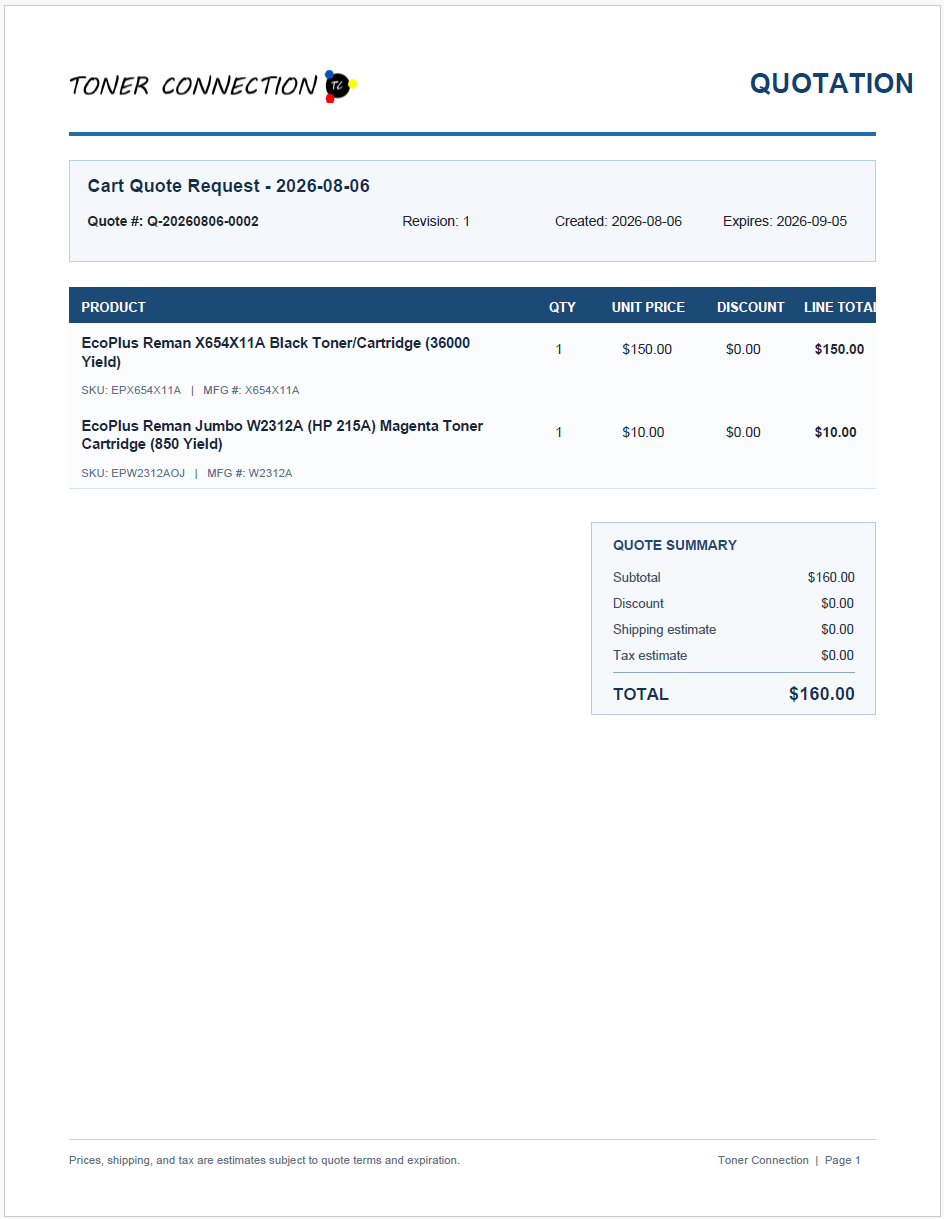
The PDF can include the active store logo and name, quotation title, quote number, revision, created and expiration dates, products, SKU and manufacturer numbers, quantities, unit prices, discounts, line totals, summary totals, customer notes, terms, and page footer.
Why might the store logo be missing or appear with a black background?
Confirm that the active store has a valid logo configured and that the application can access the image. The current PDF workflow places transparent source logos on a white background before rendering, preventing transparent areas from appearing black in the completed PDF.
What information is recorded in Quote History?
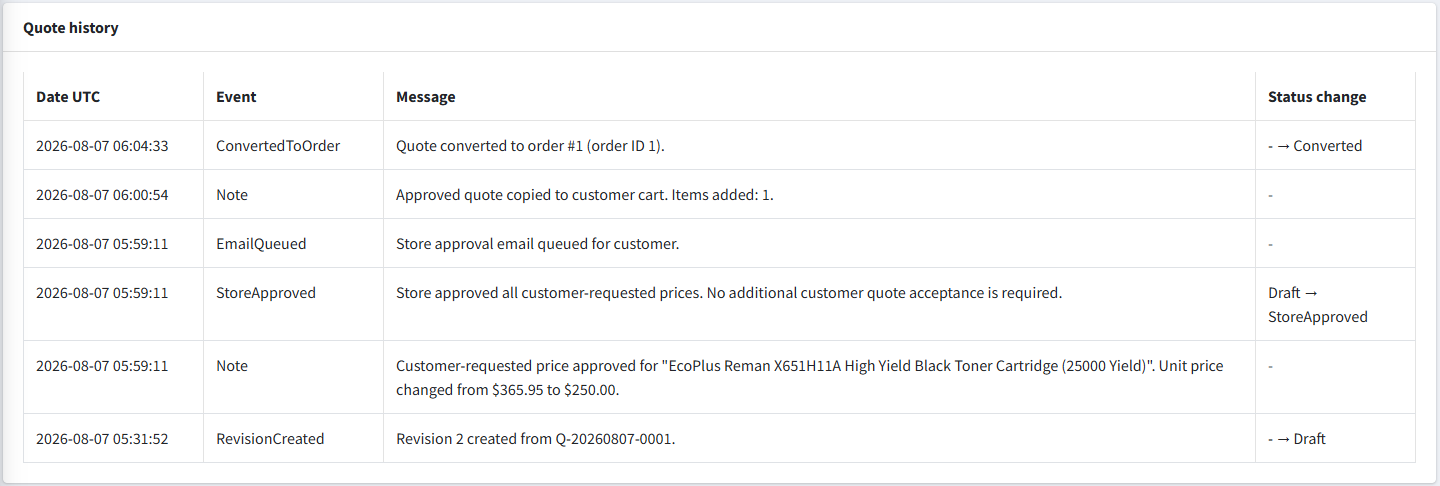
History can record revision creation, item and price changes, requested-price approval, queued email, customer responses, cart-copy activity, status transitions, reopening, cancellation, completion, Quick Order Form conversion, and the final order conversion event with UTC timestamps.
Section 5: Customer Approval, Cart Conversion, and Final Order Linkage
An eligible quote can be accepted by the customer or approved by the store, copied to the assigned customer's cart with negotiated prices preserved, and connected to the final nopCommerce order after checkout.

How can a customer approve or decline a quote?
When customer approval is enabled and the quote is eligible, the secure public quote page provides approval and decline actions. The customer can include an optional approval note or decline reason, and the response is recorded in the quote workflow.
Why does a store-approved quote say no additional approval is required?
This state is used when the store accepts the exact prices requested by the customer. Since the customer proposed those values, the store can approve them directly and notify the customer that the quote is ready without requiring the customer to approve the same pricing again.
When is Copy to Customer Cart available?
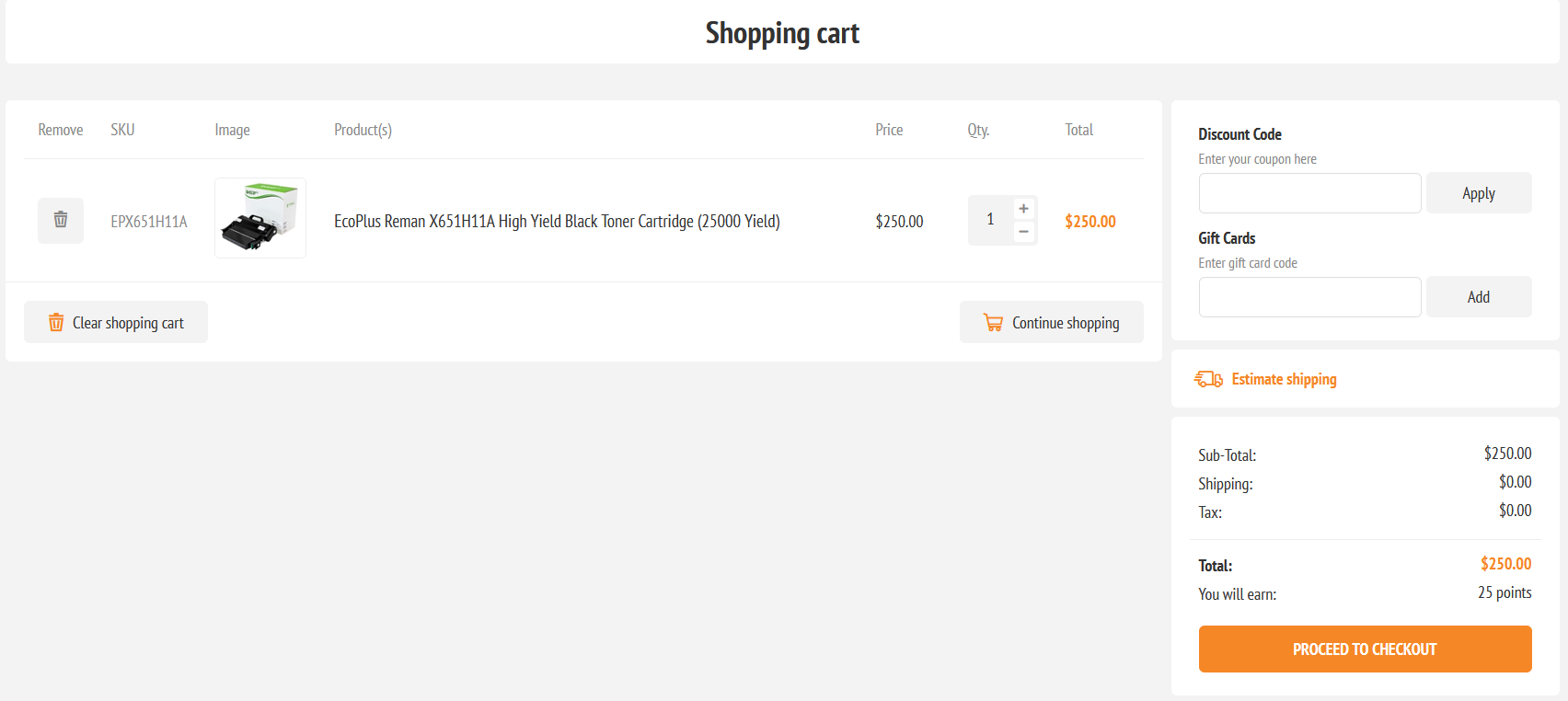
It is intended for an eligible accepted or store-approved quote assigned to a registered customer, and it also depends on Allow copy approved quote to customer cart. A guest request should first be assigned to the correct registered customer.
Will the customer's existing cart be cleared?
That depends on Clear customer cart before copying quote. When enabled, the current cart is cleared before quoted items are added. When disabled, the plugin adds the quoted items alongside existing cart contents.
How are negotiated prices preserved in the cart?
Advanced Quotes records a cart price override for the quoted item when copying it to the assigned customer. The cart and checkout pricing workflow then uses the approved quoted unit price rather than reverting to the current catalog price.
How is the final order linked to the quote?
After checkout creates the nopCommerce order, Advanced Quotes detects the order generated from the quote-copied cart items, marks the exact quote revision as Converted, stores the order relationship, and adds a ConvertedToOrder history message containing the order number and order ID.
Section 6: Quick Order Forms Integration and Troubleshooting
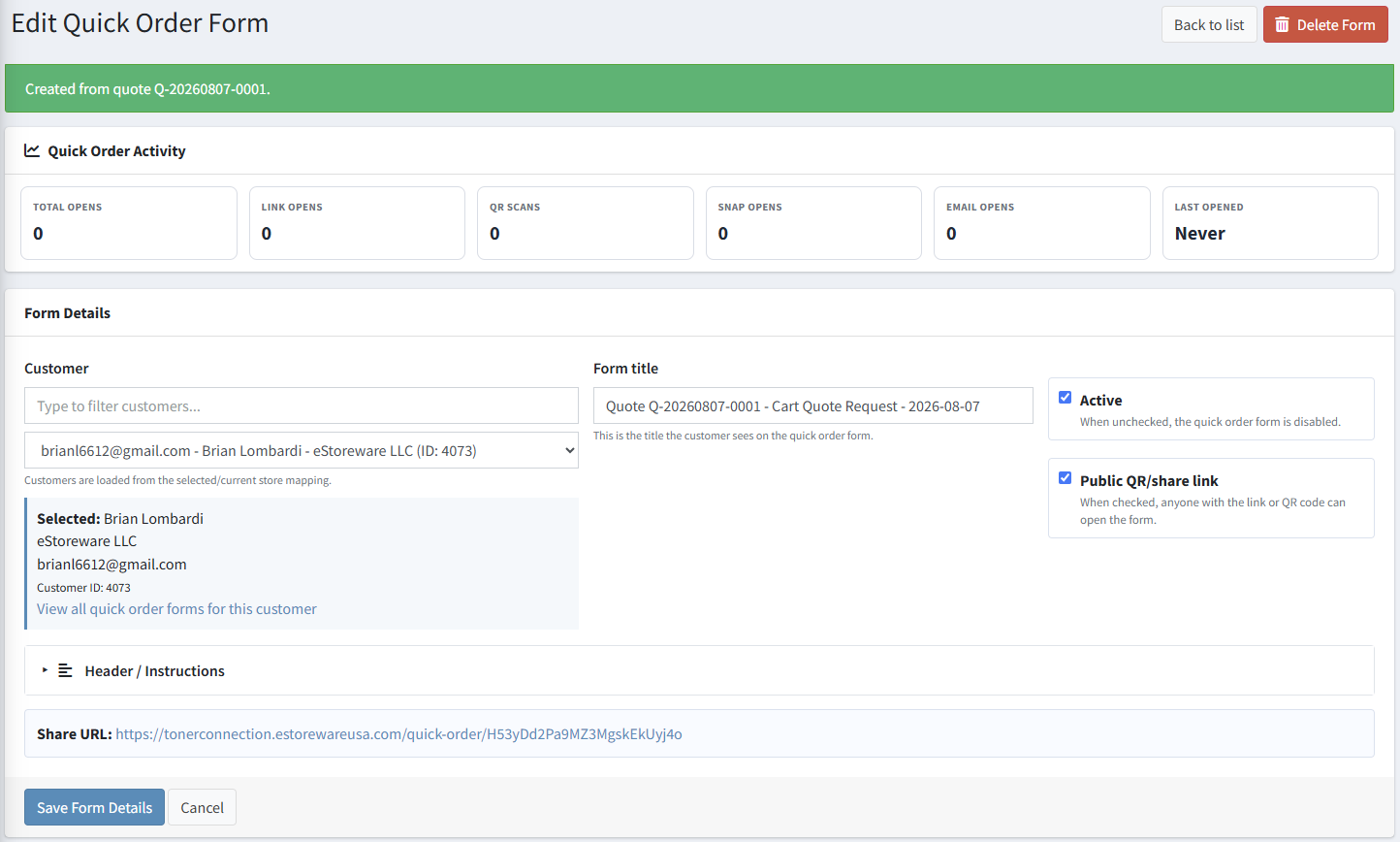
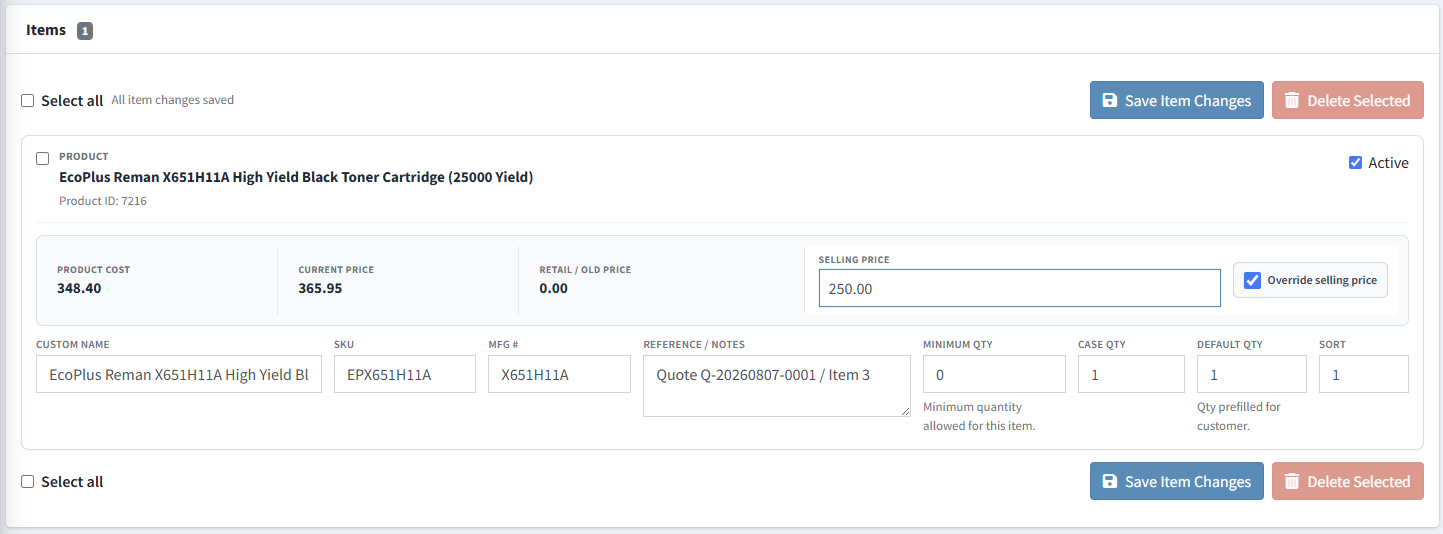
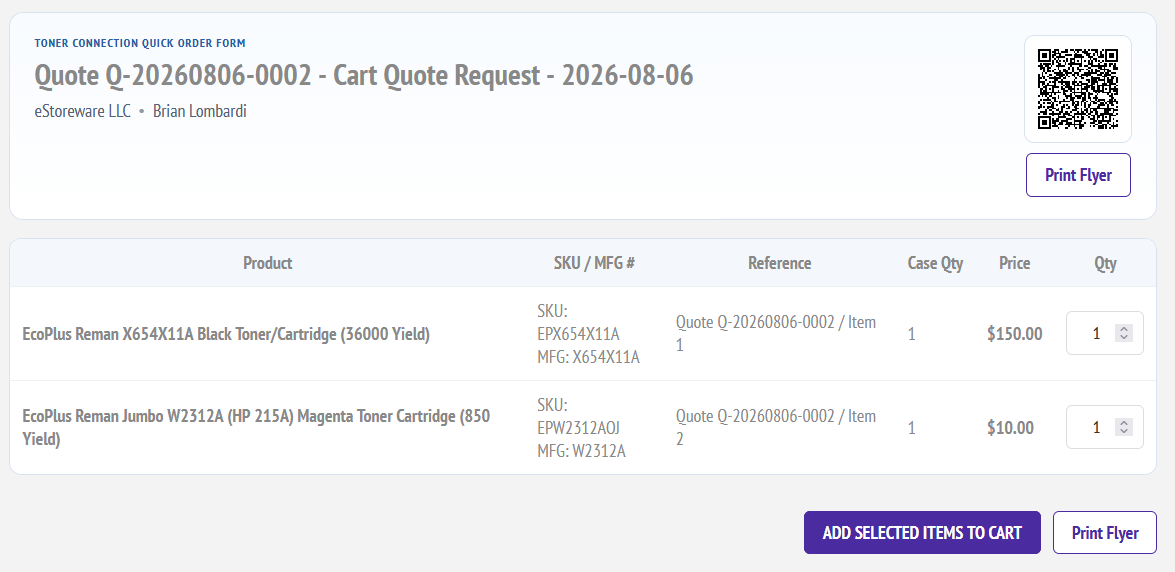
Quick Order Forms is an optional companion plugin. It can turn an eligible quote into a reusable ordering list while retaining the quoted products, references, quantities, and negotiated selling prices.
Is Quick Order Forms required to use Advanced Quotes?
No. Cart requests, quote management, pricing, email, approval, PDFs, revisions, cart conversion, and order linkage work without Quick Order Forms. The companion plugin is only required for Convert to Quick Order Form.
When can a quote be converted to a Quick Order Form?
Conversion depends on the Advanced Quotes setting, Quick Order Forms being installed and available, the quote being assigned to a customer, and the quote being in an eligible sent or accepted workflow state.
What information is carried into the Quick Order Form?
The conversion can carry the customer, quote title and reference, products, SKU and manufacturer number, negotiated selling-price override, default quantity, sort order, and a reference identifying the source quote and item. The form can then use its normal active, public-link, QR, print, and add-to-cart features.
Why is the public quote link disabled?
A Draft quote does not expose an active customer link. Save and send the quote, or complete the appropriate store-approval action, to activate its customer-facing workflow. Also confirm that Allow public quote links is enabled for the selected store.
Why does Copy to Customer Cart use the original product price?
Confirm that the quote item has a non-empty quoted unit price, save the item before copying, and verify that the quote is eligible and assigned to the same customer whose cart is being viewed. If an older installation predates cart-price overrides, upgrade to the current plugin build and run Repair Setup once.
Why is an Advanced Quotes table reported as an invalid object?
This normally indicates an incomplete installation or an upgrade from a version that did not create the newer table. Open Configuration and use Repair Setup, then restart the application and review the system log. On a true fresh installation, all current tables should be created automatically.
Why did a quote expire?
Eligible quotes expire when their UTC expiration date passes and the Advanced Quotes expiration scheduled task runs. Configure the default expiration days for new and reopened quotes, and confirm that the scheduled task is installed and enabled in Setup Status.
Public screenshot reminder: Before publishing, verify that screenshots do not expose live public tokens, QR codes, customer emails, customer names, addresses, or other private store data. The examples supplied with this FAQ are intended for demonstration and should be reviewed for your final public site.