
Quick Order Form FAQ
eStoreware Quick Order Forms for nopCommerce
Answers by workflow with screenshot examples: customer quick order forms, product-page add to quick order, public share links, QR codes, print flyers, CSV import/export, admin controls, reusable order lists, and Quick Order Snap desktop shortcuts.
Section 1: Customer Quick Order Forms in My Account
Customers can create reusable order lists, keep product notes, adjust default quantities, print a copy, and optionally expose a public share link when that feature is enabled.
What is Quick Order Forms?
Quick Order Forms lets customers and administrators create reusable product lists for frequent ordering. Each form can store item references, quantities, optional public access, and reusable ordering actions such as add selected items to cart, print, and export.
Where do customers find their Quick Order Forms?
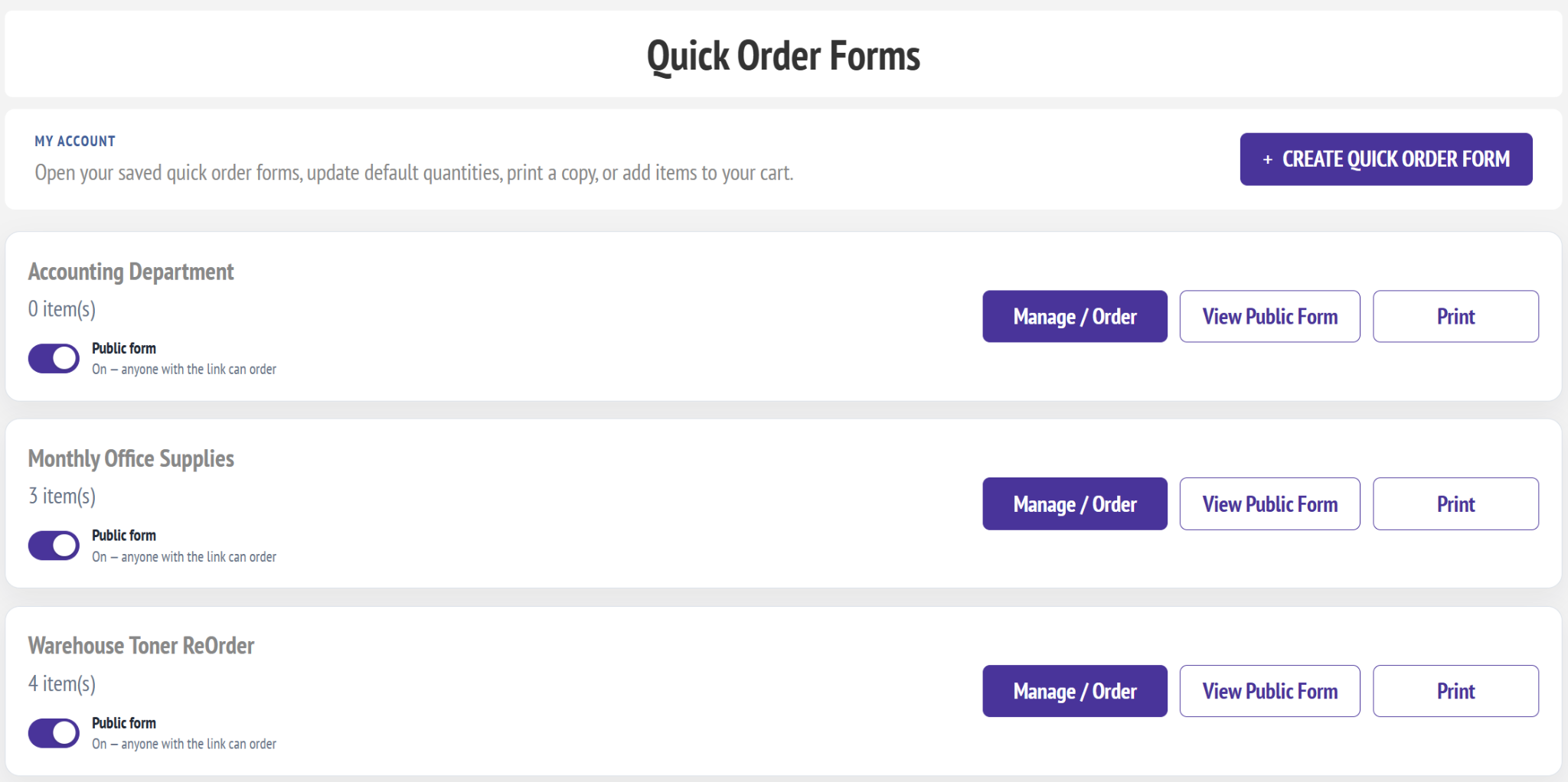
When the feature is enabled, customers can open My Account > Quick Order Forms. The page lists their saved forms and provides actions such as Manage / Order, View Public Form, and Print.
Can customers create their own forms?
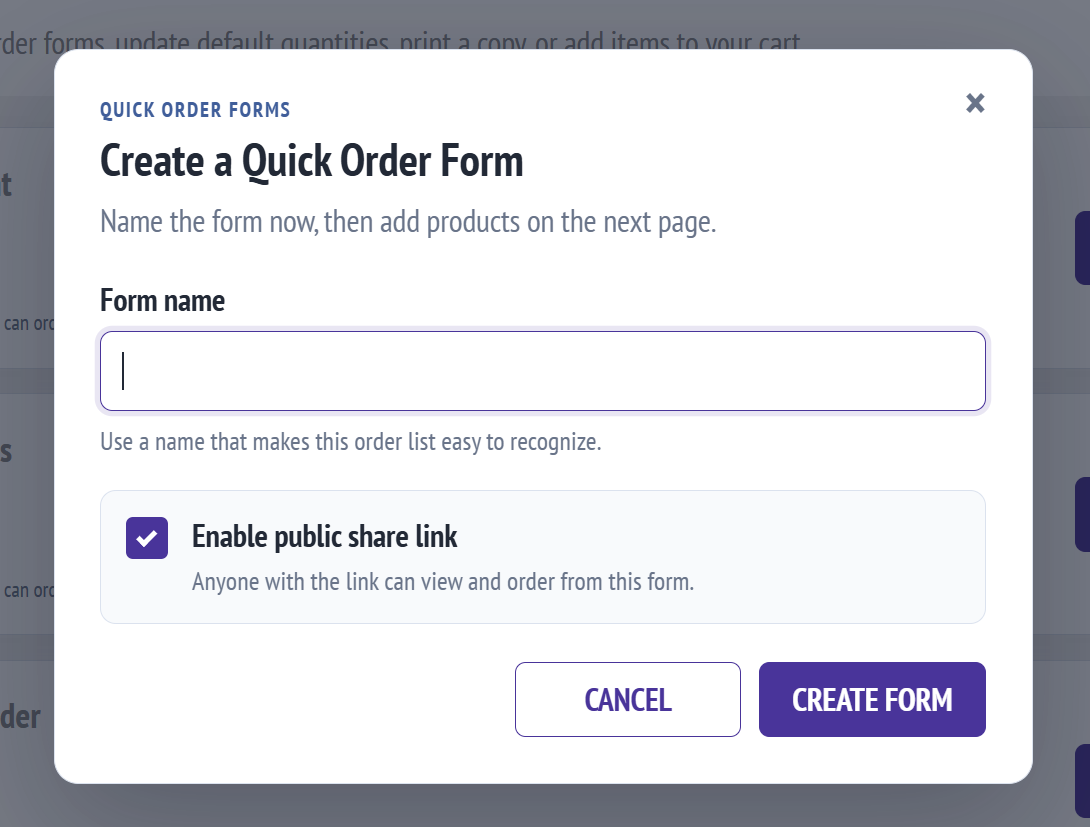
Yes, if Allow customers to create forms is enabled in Quick Order Forms settings. The customer list page then shows a Create Quick Order Form button.
What does Enable public share link do when creating a form?
It marks the form as publicly accessible so anyone with the share URL or QR code can open the form. Public access depends on both plugin settings and the form being configured as public.
What actions are available on a customer form?
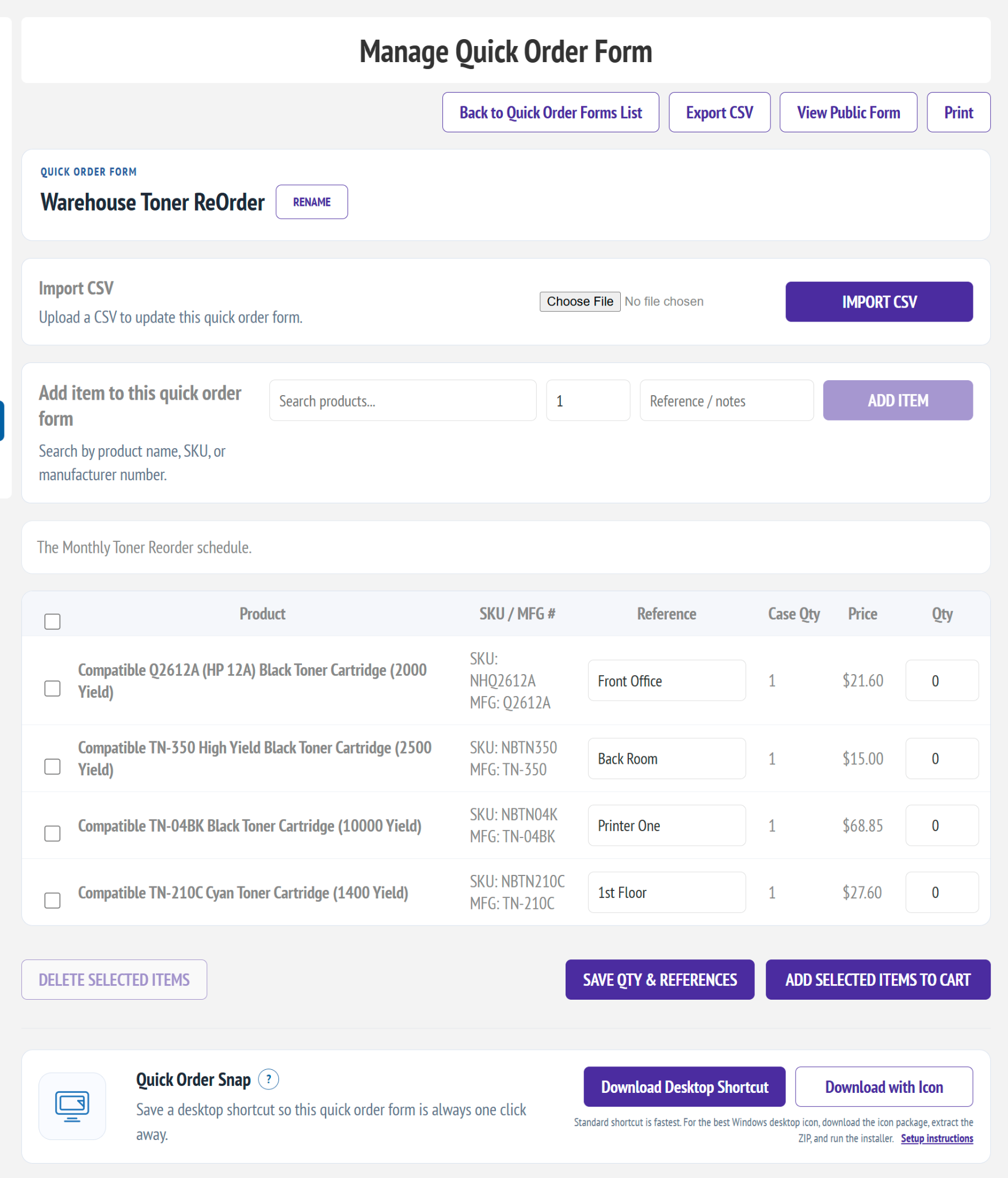
Customers can rename the form, add products, import or export CSV, print a copy or flyer, update references and quantities, delete selected items, and add selected items directly to the shopping cart.
Can customers change saved default quantities?
Yes, when Allow customer to modify default quantities is enabled. Customers can update the values on the form and save them for future ordering.
Section 2: Adding Products and Ordering from a Quick Order Form
Customers can build a form from My Account or from the product page. The form stores quantities and notes, and selected items can be sent to the cart in one step.
How do I add a product to a Quick Order Form from My Account?
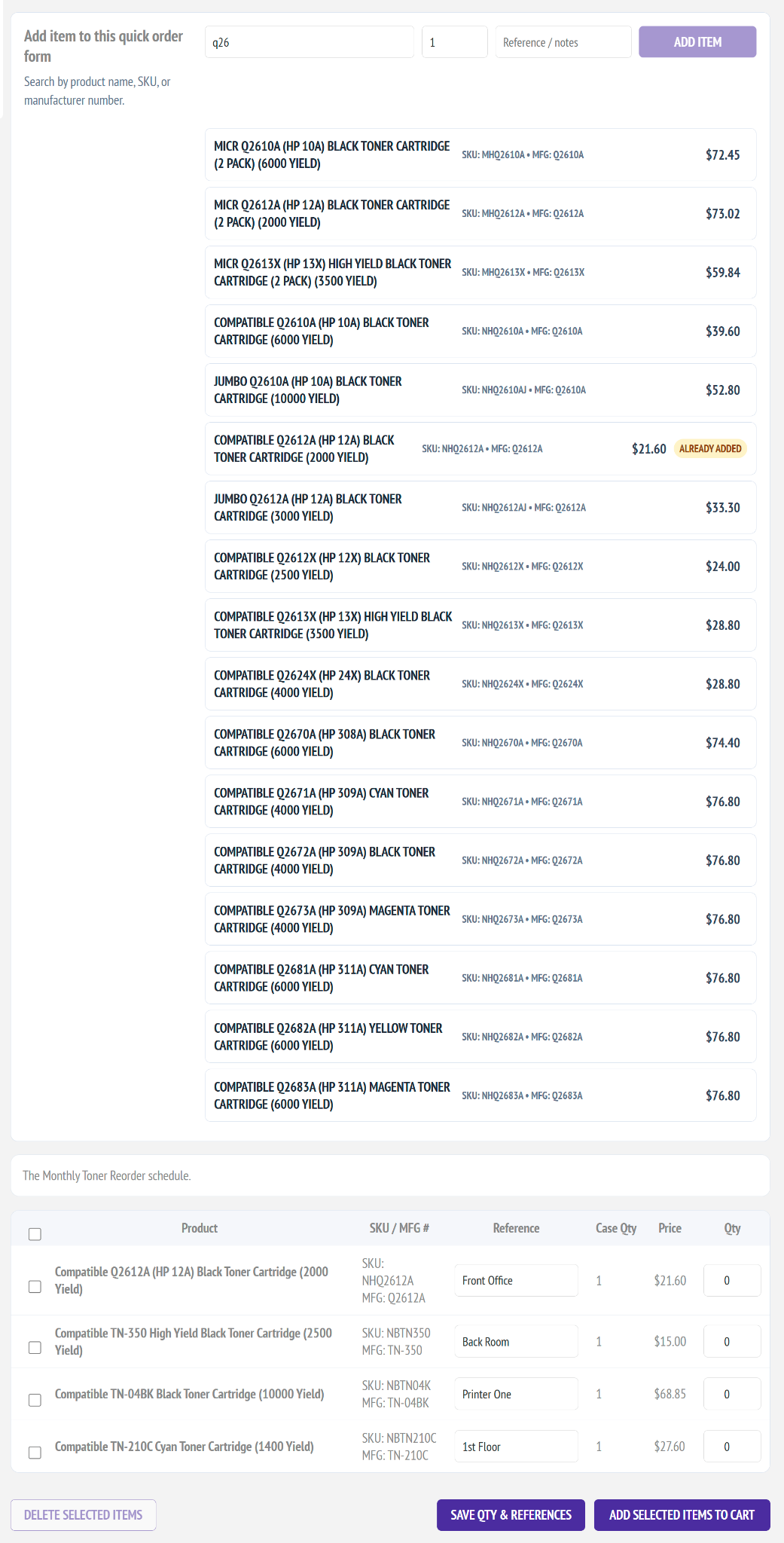
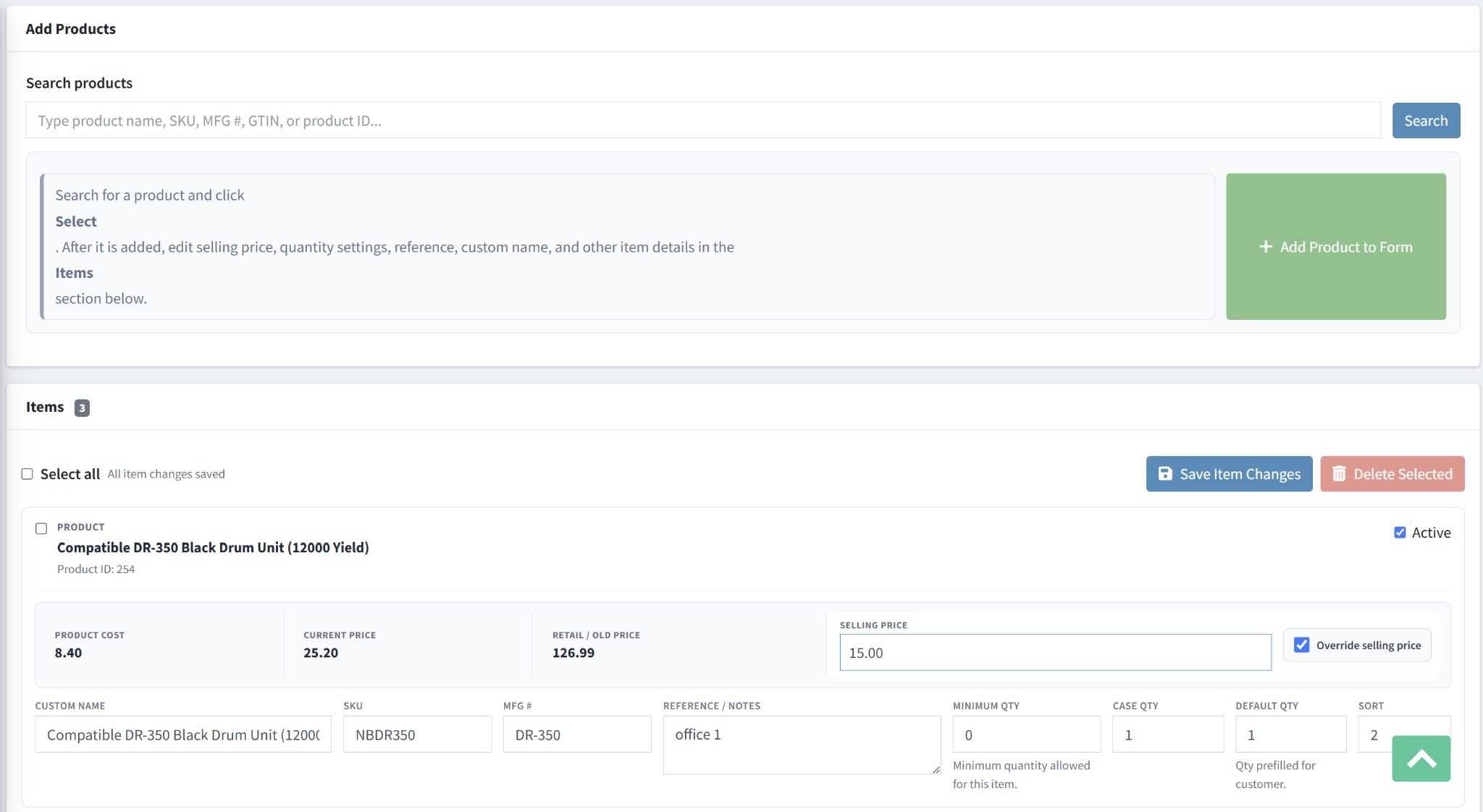
Open the form, search by product name, SKU, or manufacturer number, choose the item, and add it to the form. You can then save references, quantities, sort order, and other item details.
How does the product-page Add to Quick Order Form button work?
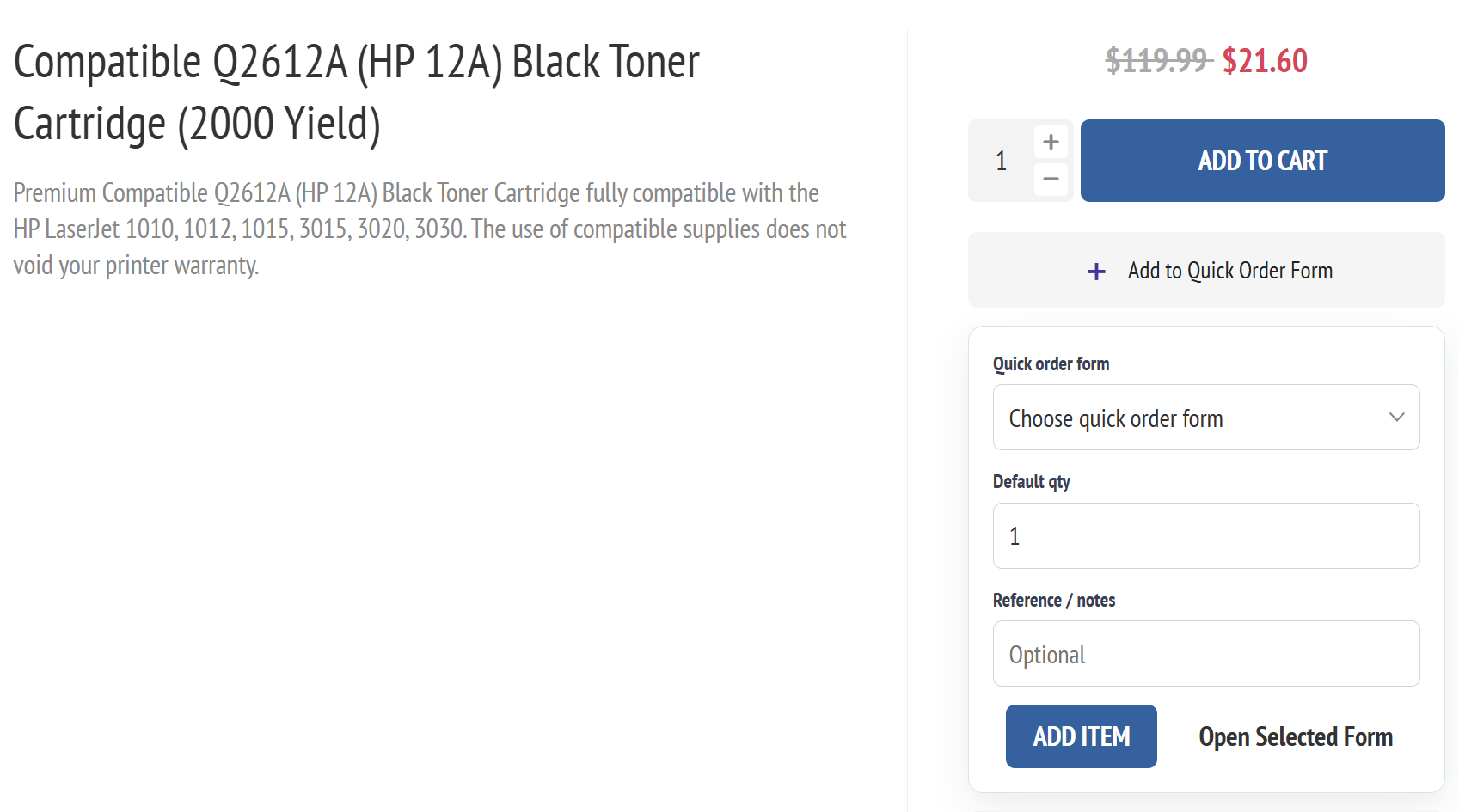
When Show product page button is enabled and the customer is signed in, the product page displays an Add to Quick Order Form panel. The customer selects an existing form or creates a new one, sets a default quantity, enters an optional reference note, and clicks Add Item.
What happens if the product is already on the selected form?
The item is not duplicated blindly. The form can update the existing entry and show a message indicating the product was already on the form and was updated. The customer can then open the selected form to review the saved item.
Can a guest use the product-page Quick Order Form button?
Guests can be prompted to sign in. Quick Order Forms are primarily designed for customer-specific reusable ordering, so the ability to manage forms is typically tied to a customer account.
What does Add Selected Items to Cart do?
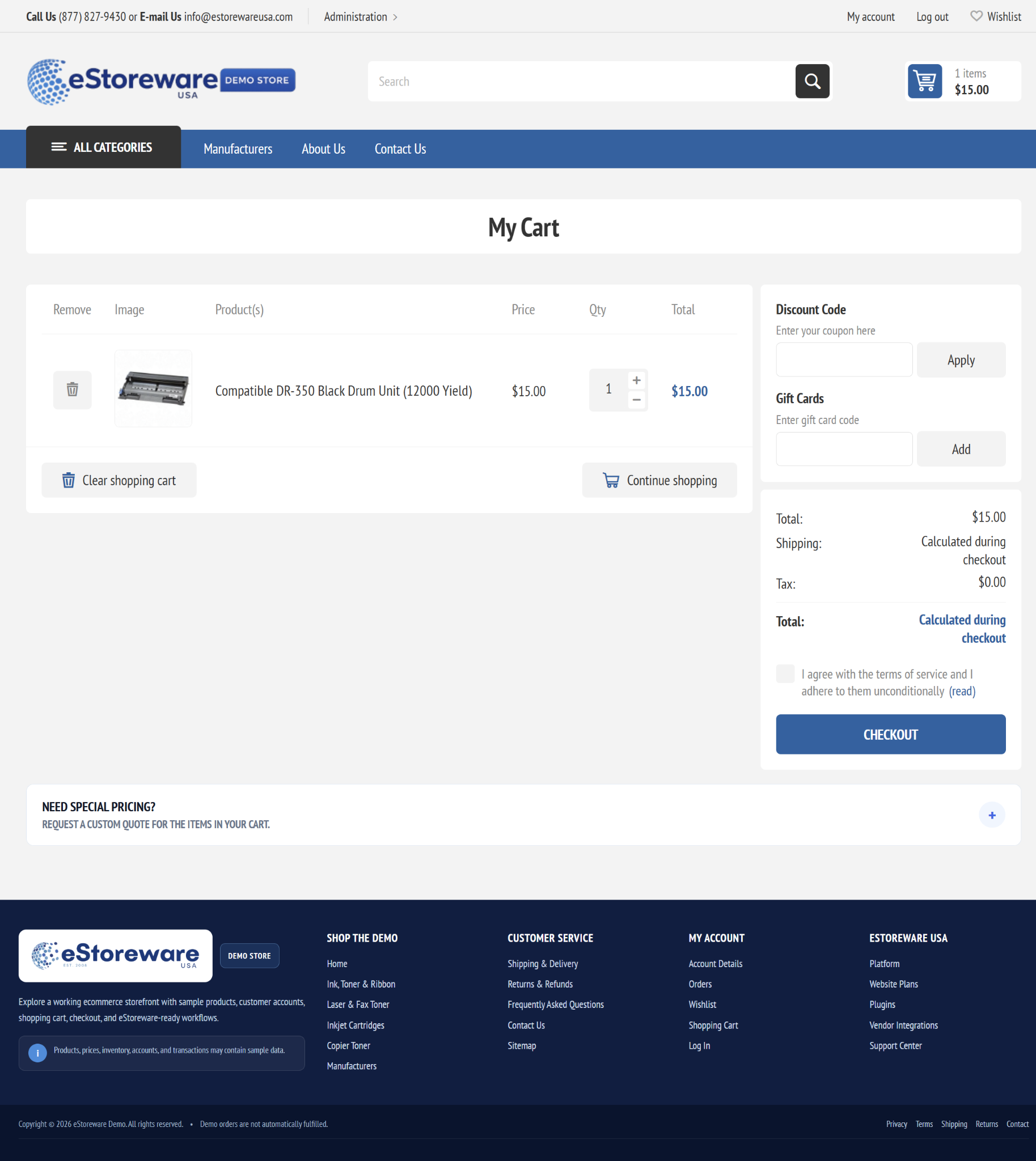
It takes the checked items from the form and adds them to the nopCommerce shopping cart using the saved quantities and pricing behavior configured for each item.
Do Quick Order Forms support custom references or location notes?
Yes. Each item can store a Reference / Notes value, such as a department name, room number, internal item reference, or reorder reminder.
Section 3: Public Forms, QR Codes, Print Flyer, and Mobile Ordering
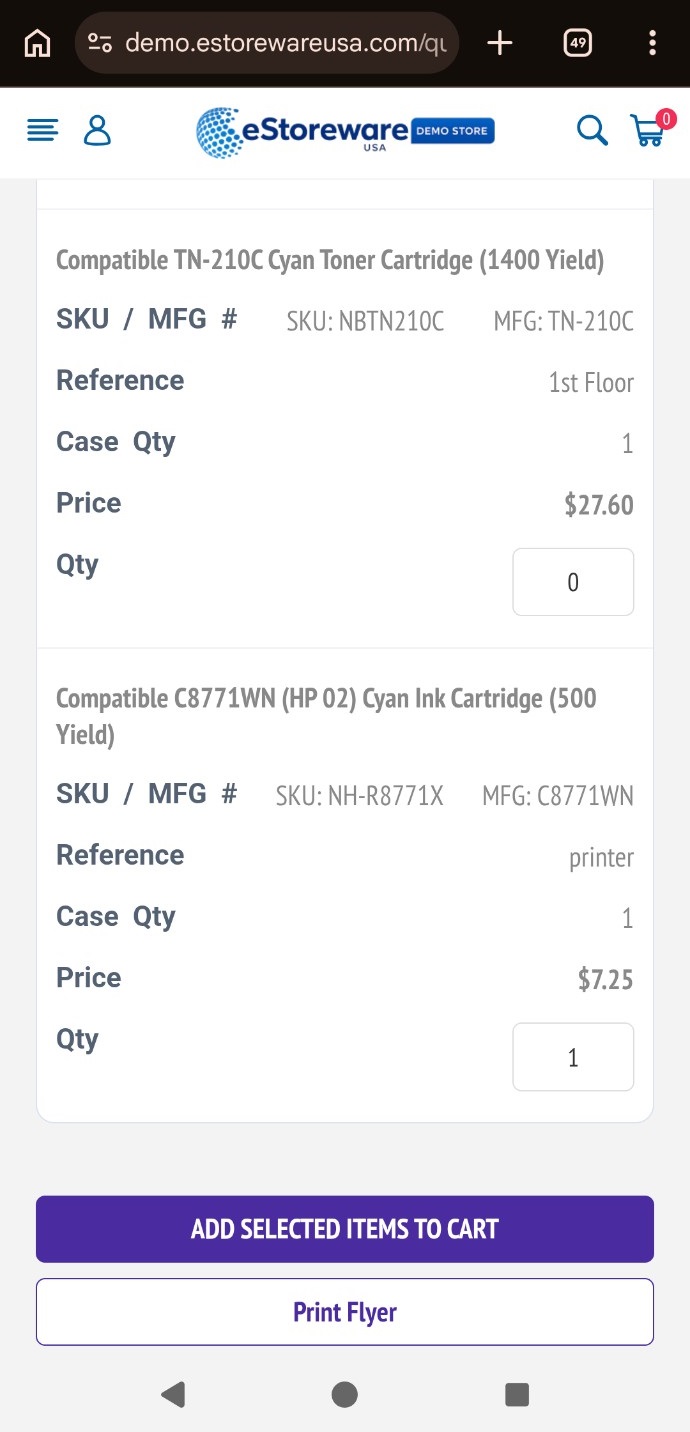
A form can be exposed with a public share URL, QR code, and printer-friendly flyer. Public forms can also include branded header content and uploaded images.
What is a public Quick Order Form?
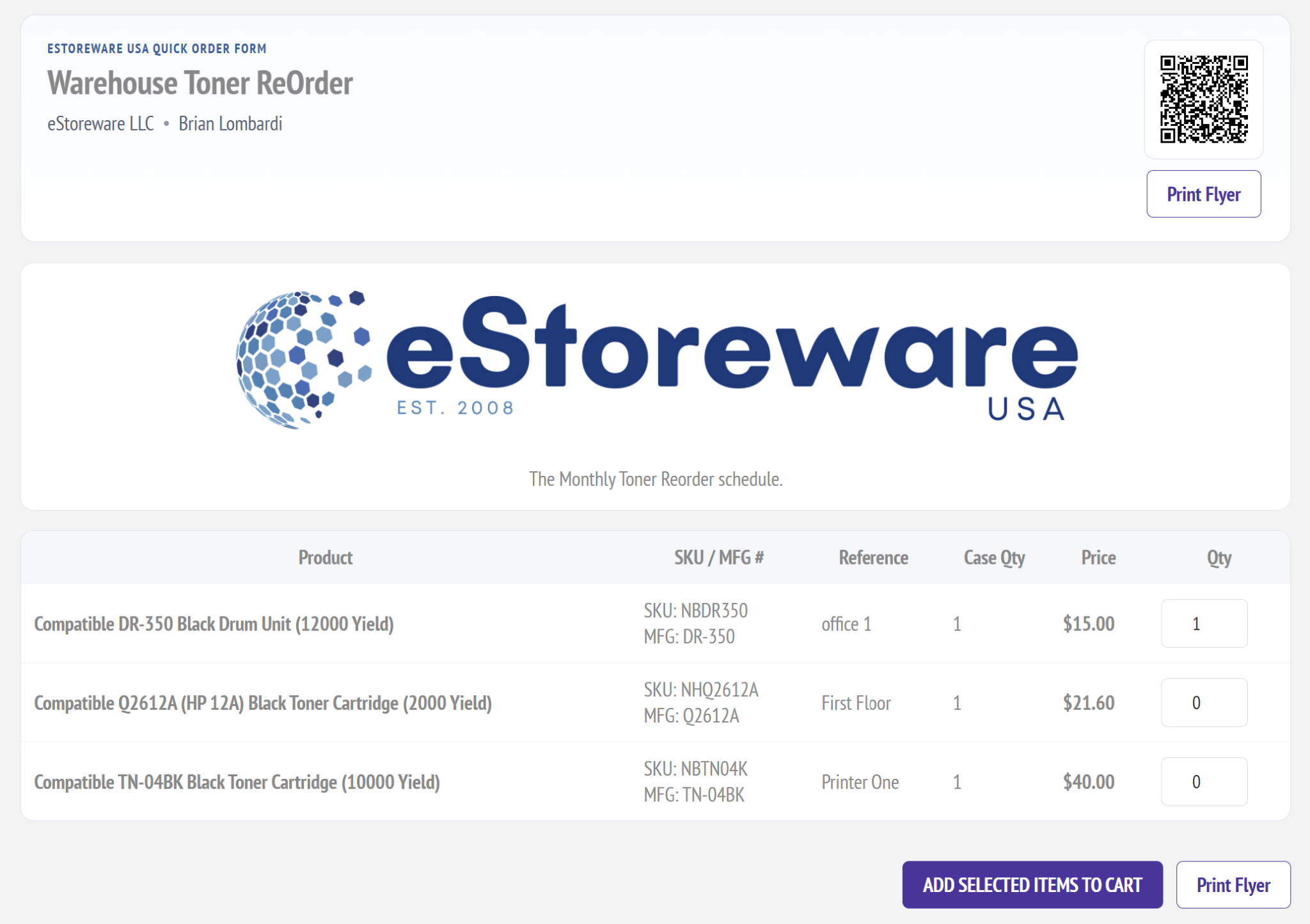
A public Quick Order Form is a form that can be opened without signing in when public sharing is enabled. It is useful for department ordering lists, reorder sheets, printed flyers, and QR-code-driven ordering.
How do I make a form public?
Enable public share links in plugin settings, then turn on the form's Public QR/share link option. New forms can also be made public automatically when New forms public by default is enabled.
What is the QR Code button for?
The QR Code feature provides a scannable code linked to the public form. It can be used on printed materials, at physical locations, or anywhere customers need to reorder quickly from a phone.
What is Print Flyer?
Print Flyer opens a printer-friendly version of the form that can include the form header, QR code, notes, and item list. This is useful for paper handouts, reorder sheets, or counter displays.
Can I brand the public form with my logo or an image?
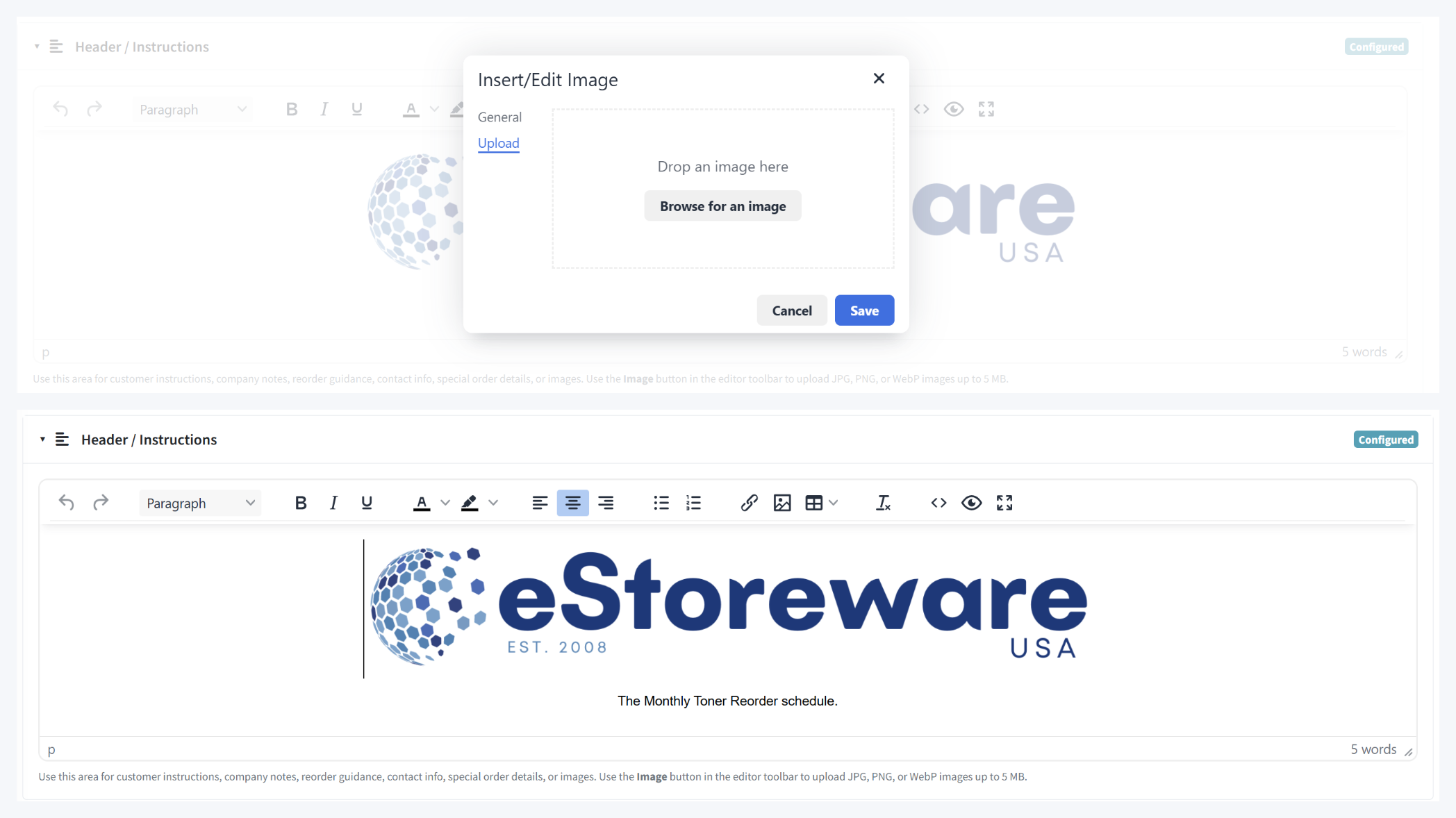
Yes. The Header / Instructions editor supports formatted content and uploaded images. A branded header image can appear at the top of the public form and its printed version.
Does the public form work on phones?
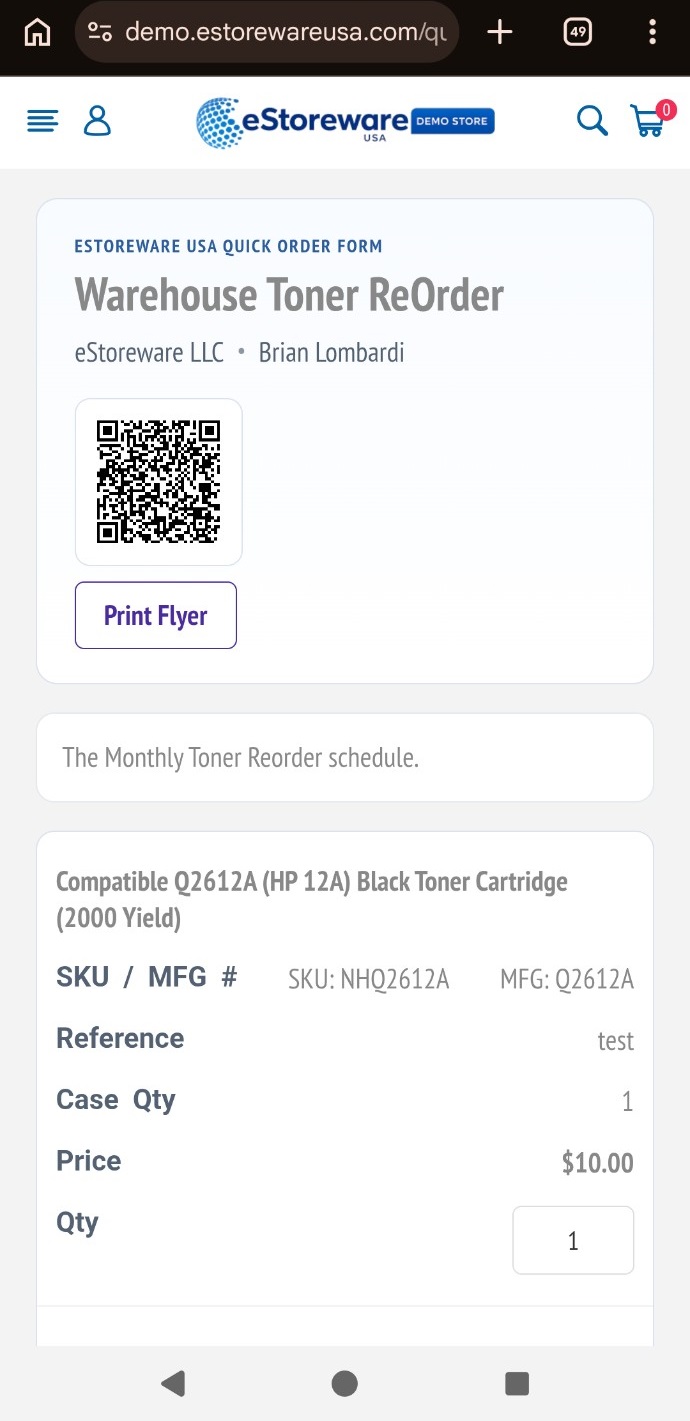
Yes. Quick Order Forms can be opened from a QR code or public link on mobile devices, where customers can review items, adjust quantities if allowed, and add selected items to cart.
Section 4: CSV Import, Export, Header Instructions, and Uploaded Images
Quick Order Forms support importing items from CSV, exporting a form to CSV, and adding rich header content such as instructions, notes, and uploaded images.
Can I import Quick Order Form items from CSV?
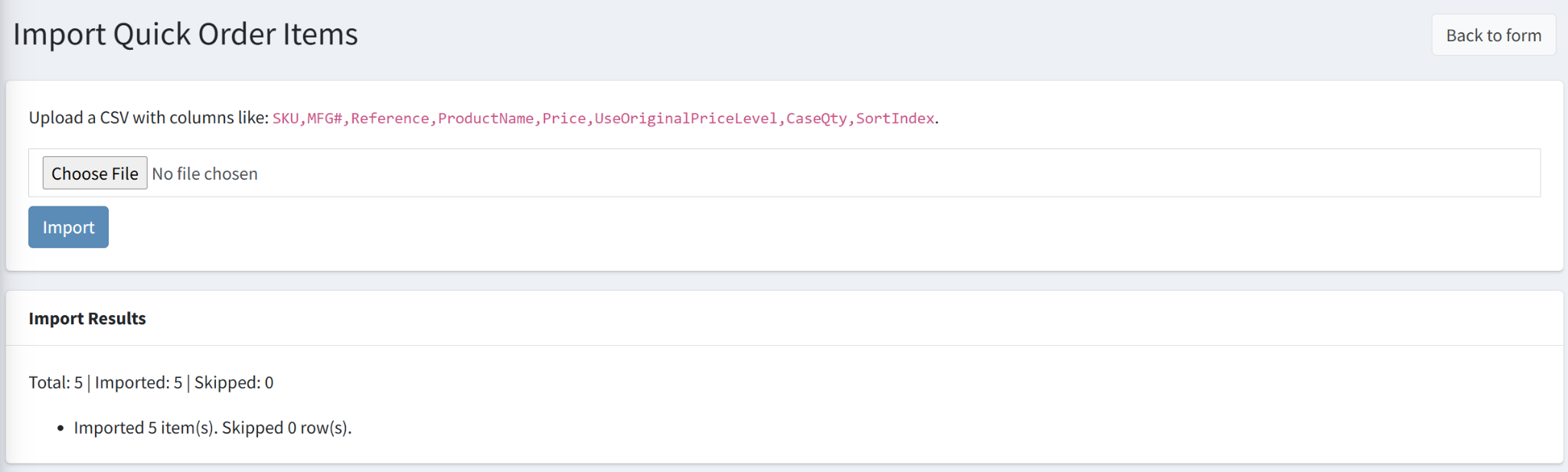
Yes. Administrators and customers can import items from a CSV file using the import tools available for the form. After import, the results screen shows the total rows processed, imported rows, and skipped rows.
What columns can the import use?
The import screen example shows columns such as SKU, MFG#, Reference, ProductName, Price, UseOriginalPriceLevel, CaseQty, and SortIndex. Adjust your import template to match the current plugin's supported fields.
Can I export a form?
Yes. Use Export CSV or Export Form CSV on the customer or admin form screen to download the current item list for backup, reuse, or editing.
What is the Header / Instructions section used for?
This area lets you add customer instructions, reorder guidance, contact information, special notes, and images. The content can appear on public forms and printed views, which makes it useful for branded flyers and reorder sheets.
Can I upload an image into the form header?
Yes. The editor includes an image button that opens an upload dialog. Uploaded JPG, PNG, or WebP images can then be inserted into the header content and shown on the public form.
Section 5: Admin Settings, Form Management, Pricing, and Tools
Administrators can configure store-level behavior, manage customer forms, review activity, control public access, adjust item pricing, and send customer email flows.
What settings are available in Quick Order Forms configuration?
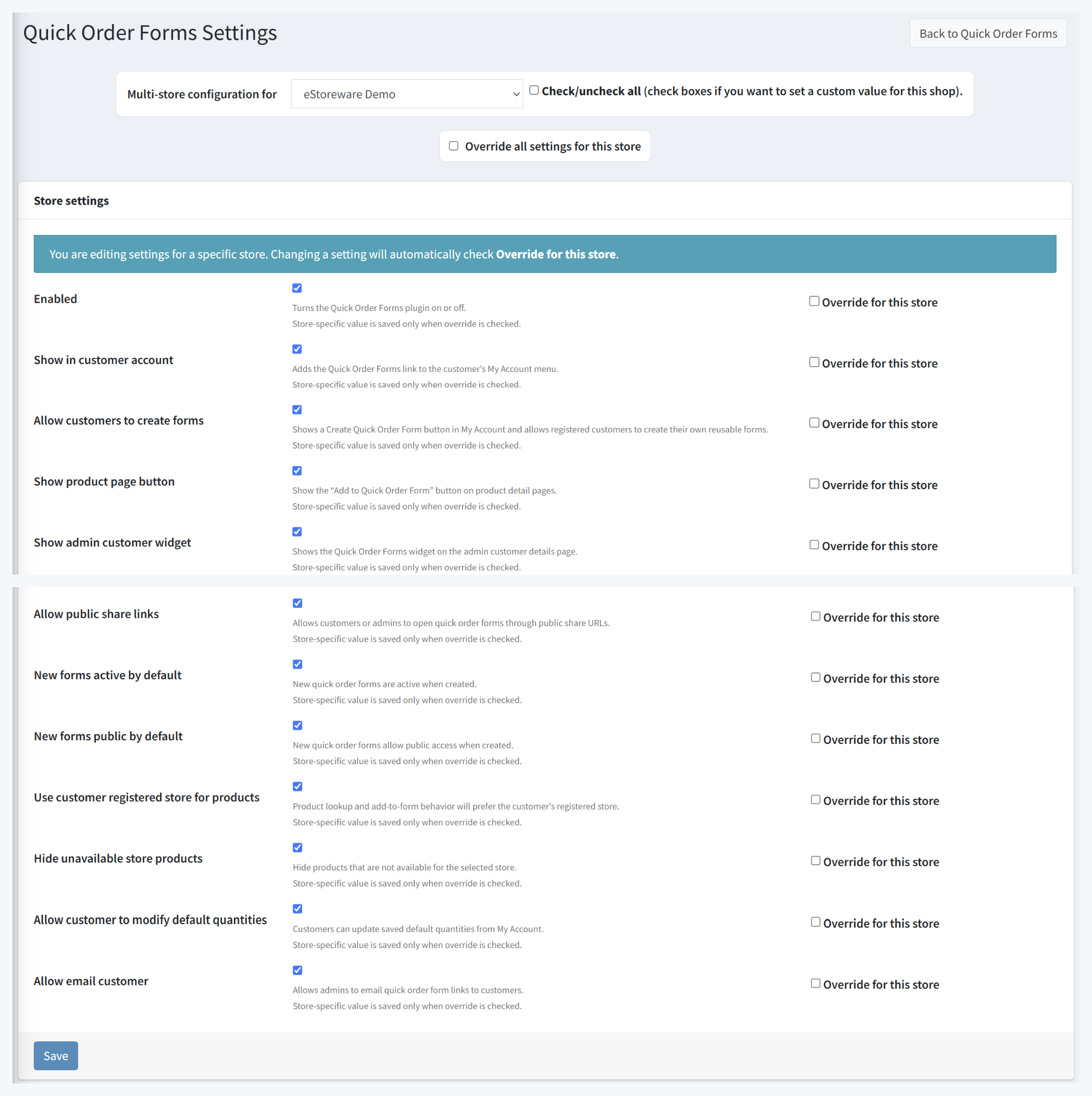
Settings shown include Enabled, Show in customer account, Allow customers to create forms, Show product page button, Show admin customer widget, Allow public share links, New forms active by default, New forms public by default, Use customer registered store for products, Hide unavailable store products, Allow customer to modify default quantities, and Allow email customer.
What does Use customer registered store for products do?
It makes product lookup and add-to-form behavior prefer the customer's registered store. This helps keep ordering aligned to the appropriate catalog when multiple stores are used.
What does Hide unavailable store products do?
It hides products that are not available for the selected or registered store, reducing the chance that customers add products they should not see or order from that store.
What can the admin edit page do?
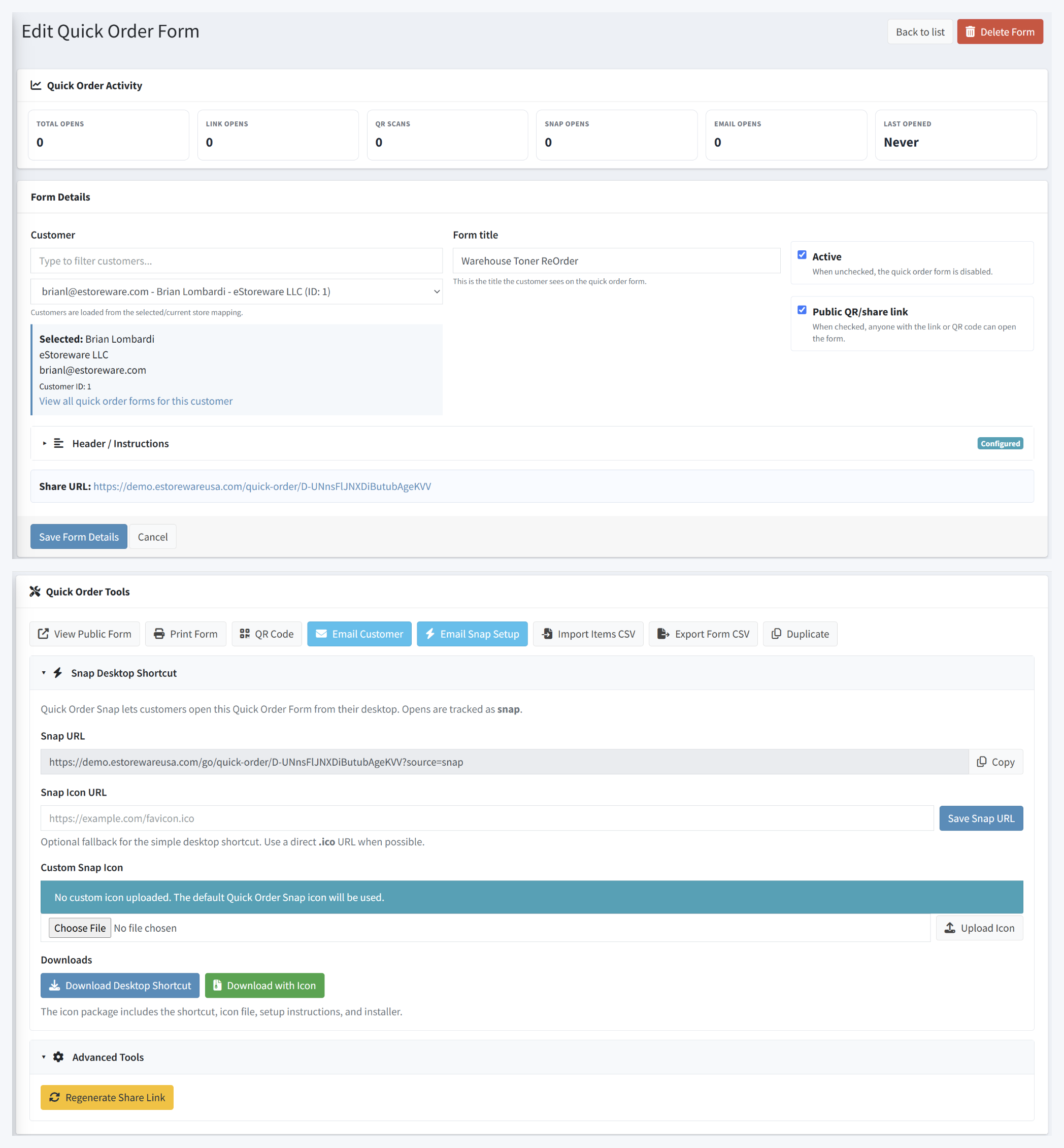
The admin edit page allows you to select the customer, change the form title, set whether the form is active or public, update the header/instructions, review the share URL, examine activity counts, import or export items, duplicate the form, regenerate the share link, manage Quick Order Snap, and edit the form's item list.
Can admins email a Quick Order Form to the customer?
Yes, if Allow email customer is enabled. The admin tools include actions such as Email Customer and Email Snap Setup.
Can admins override the selling price on an item?
Yes. The item editor supports a selling-price field and an Override selling price option. Admins can also manage product cost, current price, retail or old price, custom name, SKU, MFG number, reference, minimum quantity, case quantity, default quantity, and sort order.
What is the Quick Order Activity section for?
It summarizes usage information such as total opens, link opens, QR scans, Snap opens, email opens, and last-opened time. This helps measure how the form is being accessed.
Section 6: Quick Order Snap Desktop Shortcuts and Email Setup
Quick Order Snap gives customers a desktop shortcut that opens a specific Quick Order Form directly, making repeat reordering faster.
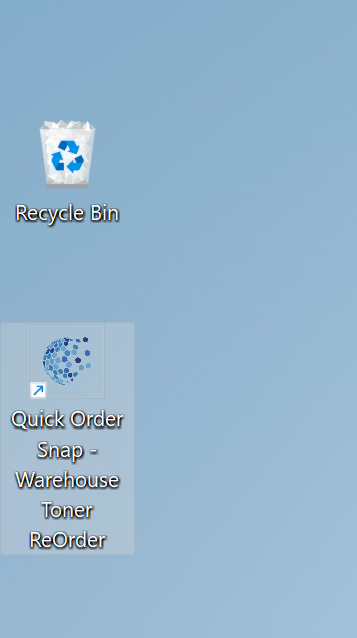
What is Quick Order Snap?
Quick Order Snap is a desktop shortcut feature for Quick Order Forms. It lets a customer open a saved form directly from the desktop instead of navigating through the website account area every time.
What is the difference between Download Desktop Shortcut and Download with Icon?
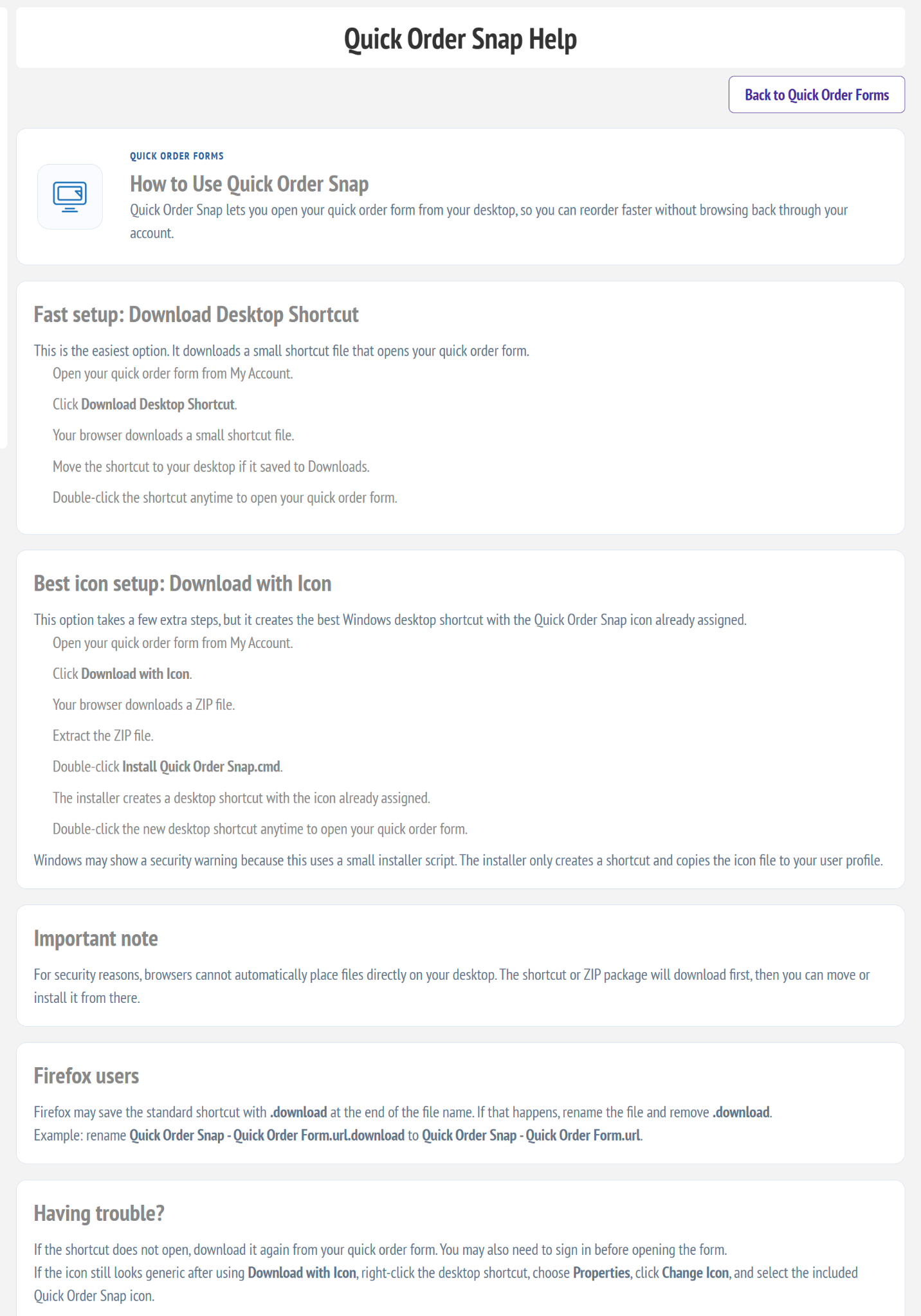
Download Desktop Shortcut is the fastest setup and downloads a simple shortcut file. Download with Icon downloads a ZIP package containing the shortcut, icon file, setup instructions, and installer script so the Windows desktop icon can be assigned more cleanly.
How does Email Snap Setup work?
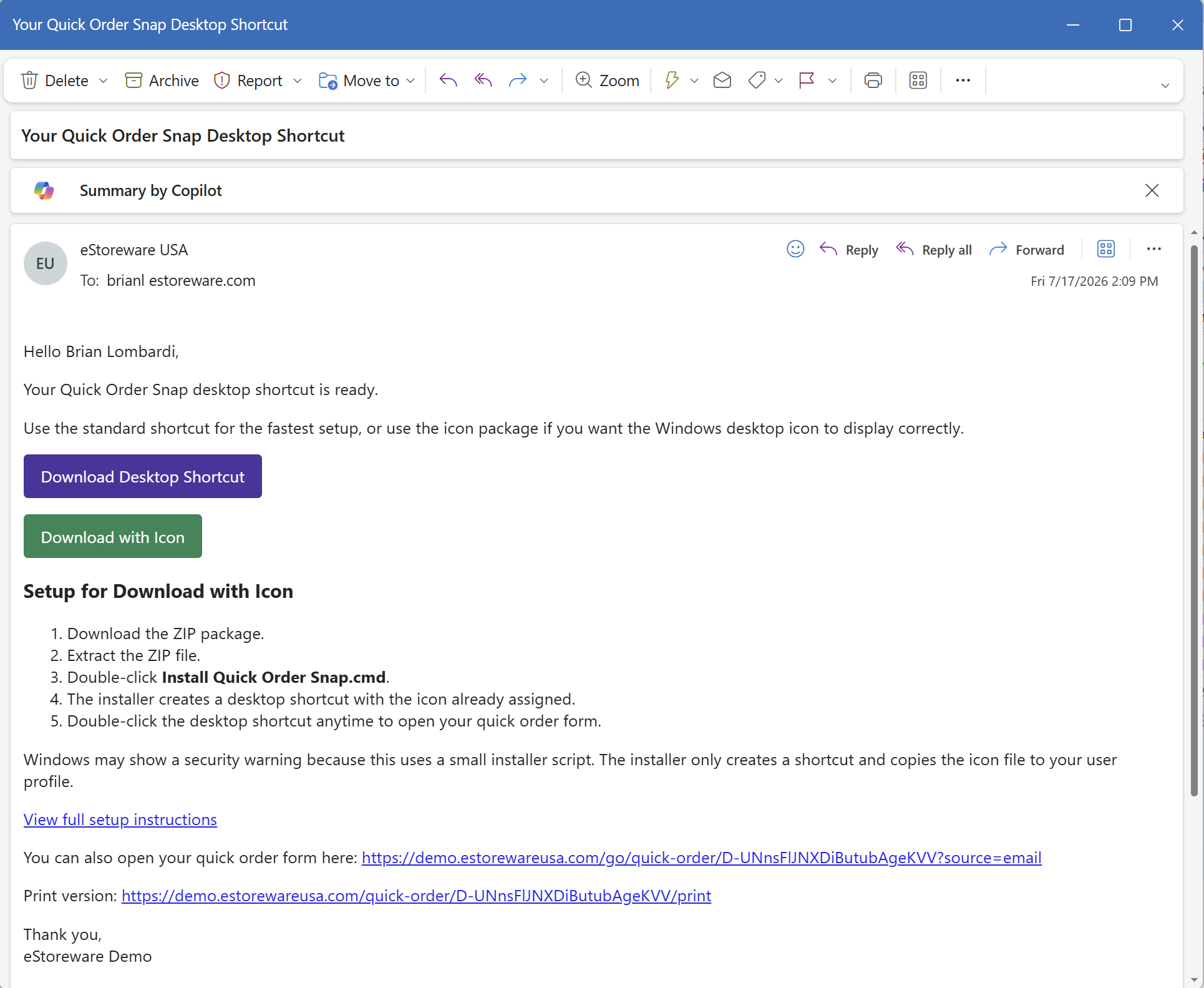
The admin can send a customer email that contains the Quick Order Snap setup links. The email can include a standard shortcut download, a download-with-icon package, setup steps, a full instructions link, and direct links back to the form and print version.
Can administrators upload a custom Snap icon?
Yes. The admin Snap section supports an optional Snap Icon URL and a custom icon upload. If no custom icon is uploaded, the default Quick Order Snap icon is used.
What does Regenerate Share Link do?
It creates a new share token and public link for the form. This is useful when you want to replace an older public URL or invalidate the previously distributed link.
Do browsers place the file directly on the Windows desktop?
Usually no. Browsers typically download the file first, then the customer moves or installs it. The Quick Order Snap help page explains both the quick shortcut method and the icon package method.
Can I track whether customers are using Snap?
Yes. Snap opens are shown in the Quick Order Activity area together with link opens, QR scans, and email opens.
Public screenshot reminder: Before publishing, redact live share URLs, QR codes, customer emails, customer names, and any private store data that should not appear on a public FAQ page.